AppSignal can send notifications of new incidents to several services, see our full list on the integrations. We also offer webhooks for these notifications so you handle new incidents in your own system. To receive a webhook, go to Notifications in your AppSignal organization, select Add new notifier and choose Webhook from the list of notifiers. In Webhook URL, enter the URL where you’d like to receive your webhook data.
The URL must resolve to a public internet address. AppSignal rejects URLs that point to localhost, a private network range, or another internal address. AppSignal also checks the address before each request. A saved URL that resolves to an internal address receives no notifications, and the notifier’s log shows “Request blocked: URL does not resolve to a public address”. To receive notifications again, change the URL to a public address.
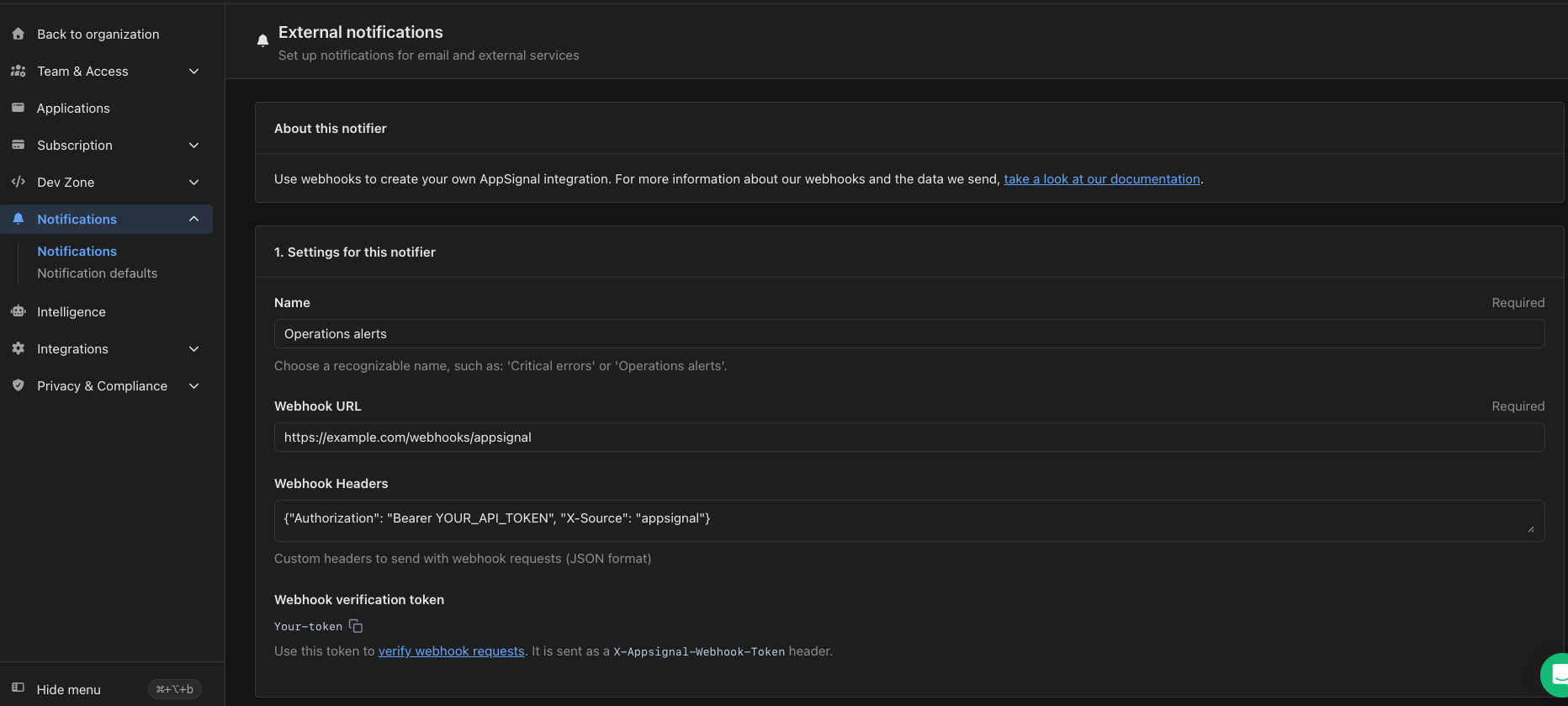
Webhook notifier settings with the Name, Webhook URL, Webhook Headers and Webhook verification token fields

Settings for a webhook notifier, including its URL and verification token
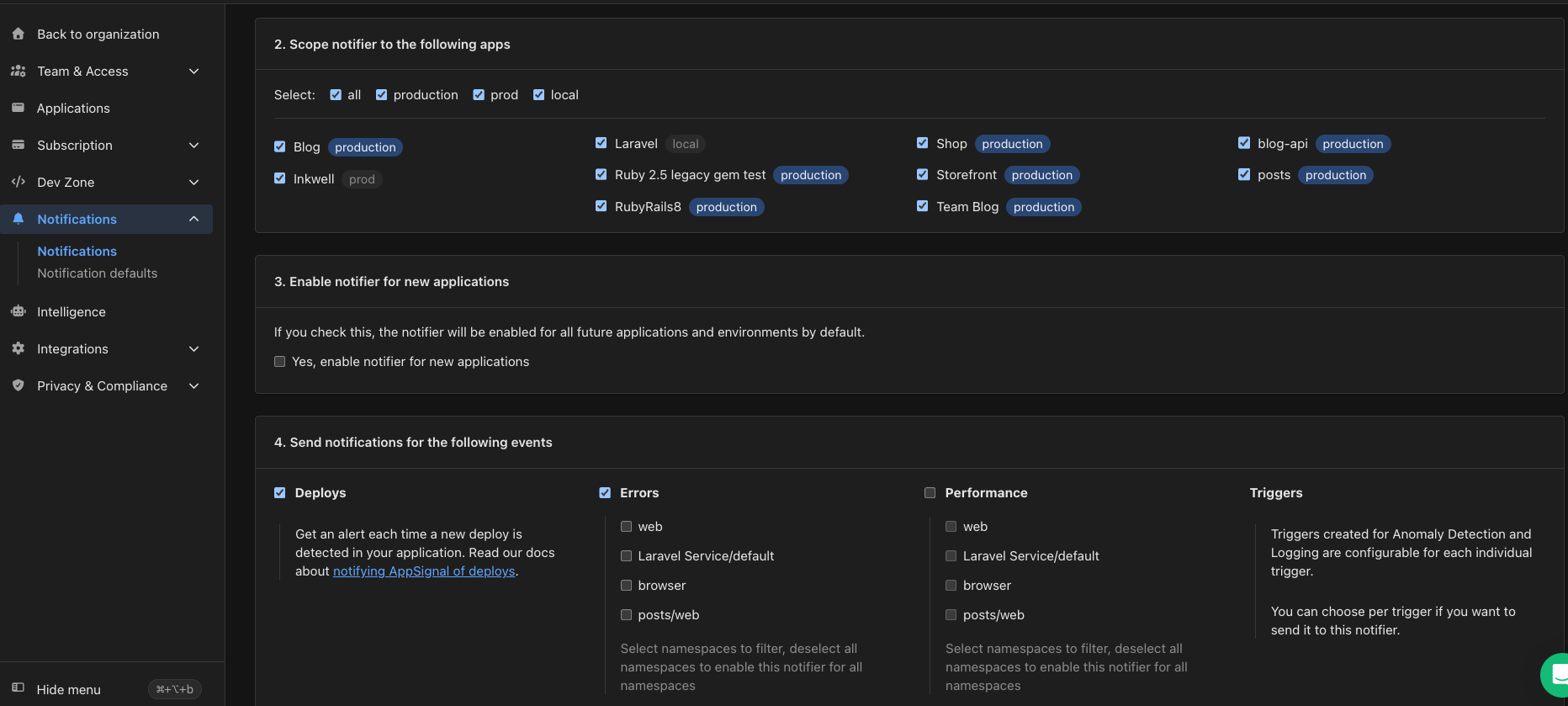
There are multiple webhooks available. Choose which payloads the webhook receives under Send notifications for the following events: Deploys, Errors, Performance and Triggers.
Webhook notifier sections to scope the notifier to apps and choose its events

Choose which apps and events the webhook notifier covers

Verifying AppSignal webhook requests

To ensure the security of your application, you can verify that incoming webhook requests are genuinely from AppSignal. Verification is done by using a Webhook verification token to validate the request’s signature.

Locating your Webhook Verification Token

  1. Go to Notifications in your AppSignal organization.
  2. Select Manage next to the webhook notifier you want to verify.
  3. Under Settings for this notifier, find the Webhook verification token.
This token is used to validate that the webhook request is from AppSignal.

Verifying a request

When AppSignal sends a webhook request, it includes a signature in the X-Appsignal-Signature header. You can validate the request as follows:
  1. Concatenate the AppSignal Webhook verification token with the raw request body.
  2. Generate a SHA256 hash of the concatenated string.
  3. Compare the generated hash to the value in the X-Appsignal-Signature header.
If the hashes match, the request can be verified as coming from AppSignal.

Example implementations

Below are some examples of how you can verify a request is coming from AppSignal in Ruby, Elixir, Node.js and Python. Note: The examples below are illustrative, you may need to adapt them depending on the frameworks, integrations and dependencies your app uses.

Deploy markers

Fields

Deploy marker sub-fields

Exception incidents

Fields

Exception sub-fields

Metadata fields

You can add your own metadata by tagging traces.

Performance traces

Fields

Performance sub-fields

Metadata fields

You can add your own metadata by tagging traces.

Anomaly detection


Integrations list