Adding MS Teams integration to you app
Adding the integration consists of two steps, one on Microsoft Teams and one on AppSignal.Create a workflow in MS Team
Under the channel options, find the “Workflows” option and search for “Webhook.” Select “Post to a channel when a webhook request is received.” Enter a name for your workflow and click “Next.” Wait for a couple of seconds until the form appears, where you can enter details on where you want to post the webhook. Select the desired channel and click on “Add workflow.” Copy the generated webhook URL; you will need this URL to configure the integration on AppSignal. For more details on the Teams side, see Microsoft’s guide to sending messages in Teams using incoming webhooks.AppSignal
Go to the Notifications page in your AppSignal organization, select Add new notifier, and choose MS Teams (Workflows). Give the notifier a name, and paste the webhook URL from Teams in Webhook url.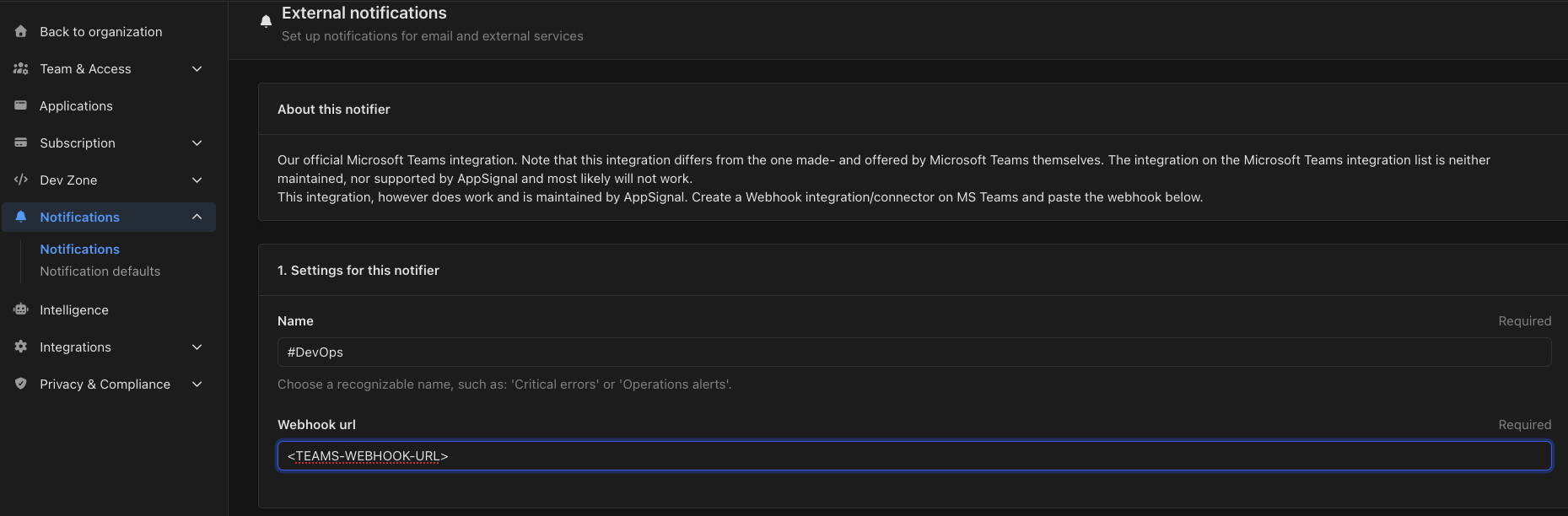
- Scope notifier to the following apps — the apps and environments this notifier covers.
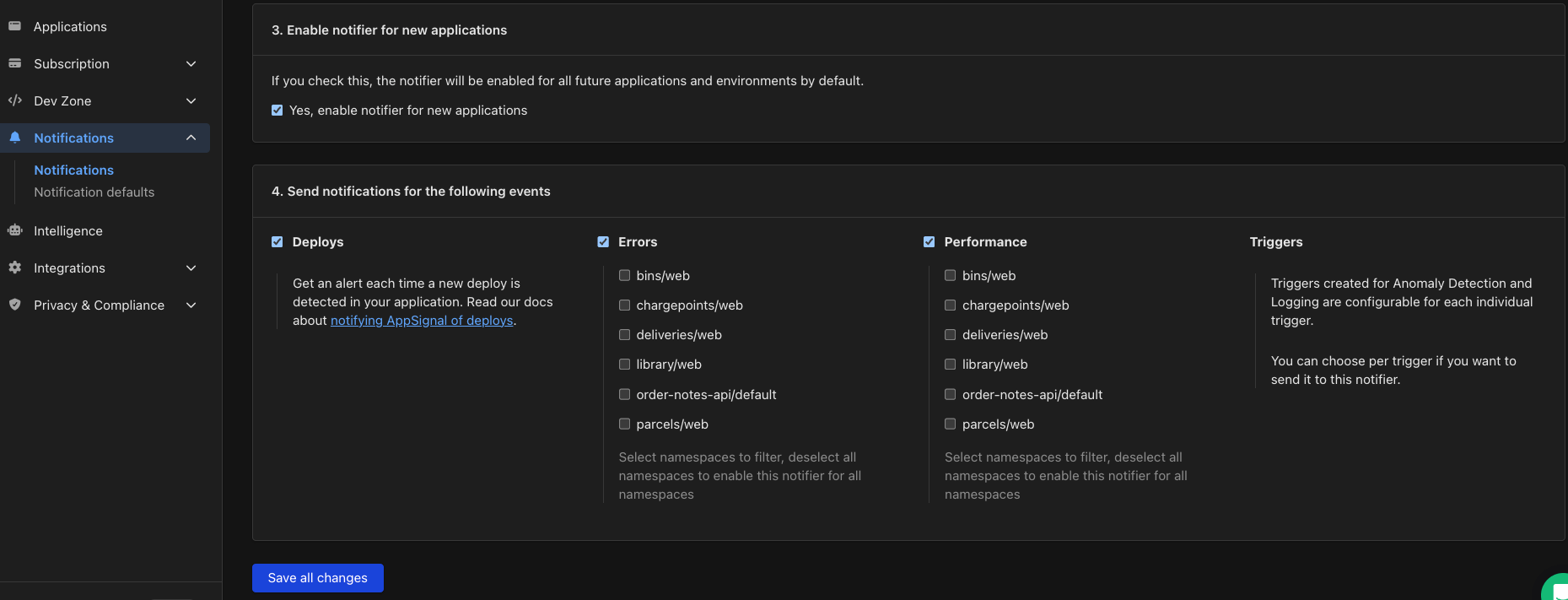
- Enable notifier for new applications — when enabled, every app and environment you add later uses this notifier by default.
- Send notifications for the following events — deploys, errors and performance traces. Errors and performance can be filtered by namespace: select the namespaces you want, or deselect all of them to cover every namespace.