Requirements
To set up Long Term Log Storage you will need:- The Long-Term Log Storage Business Add-On
- S3-Compatible Storage
Configure S3 Storage
You will need S3-compatible storage to use Long-Term Log Storage. We have documented the steps for: If you are using a different service, please read our Configuring Other S3 Compatible Storage Service section.Configuring AWS S3 Storage
Follow the following steps to configure AWS S3 storage for Long Term Log Storage:- Create a new S3 bucket and retrieve it’s URL. You will need to provide AppSignal with the bucket’s URL. You can generate this URL with the following pattern:
https://s3.[region-code].amazonaws.com/[bucket-name], replacing[region]and[bucket-name]respectively. - Create a new user with Programmatic access and
read/writeaccess to the bucket you intend to store logs in. You will need to provide AppSignal with the user’saccess key IDandaccess secret key. An example IAM policy is:
Configuring DigitalOcean Spaces
Follow the following steps to configure DigitalOcean Spaces for Long Term Log Storage:- Create a new space with
Restrict File Listingand retrieve it’s URL. You will need to provide AppSignal with the spaces’ URL. You can generate this URL with the following pattern:[region].digitaloceanspaces.com/[spacename], replacing[region]and[spacename]respectively. - Generate a new DigitalOcean API token key. You will need to provide AppSignal with the key’s
access keyandsecret key. - Add storage to log source.
Configuring Other S3-Compatible Storage Services
Follow the following steps to configure S3-compatible storage services for Long Term Log Storage:- Create a new bucket and retrieve its URL. You will need to provide AppSignal with the bucket’s URL, see your S3 storage service’s documentation for details on where to locate this.
- Create a new access key. You will need to provide AppSignal with the key’s
access keyandsecret key, see your S3 storage service’s documentation for details on how to generate this. - Add storage to log source.
Add Storage To Log Source
Before adding storage to a log source, make sure you’ve followed the storage set-up steps and have the following information:- Bucket URL
access keyandsecret key
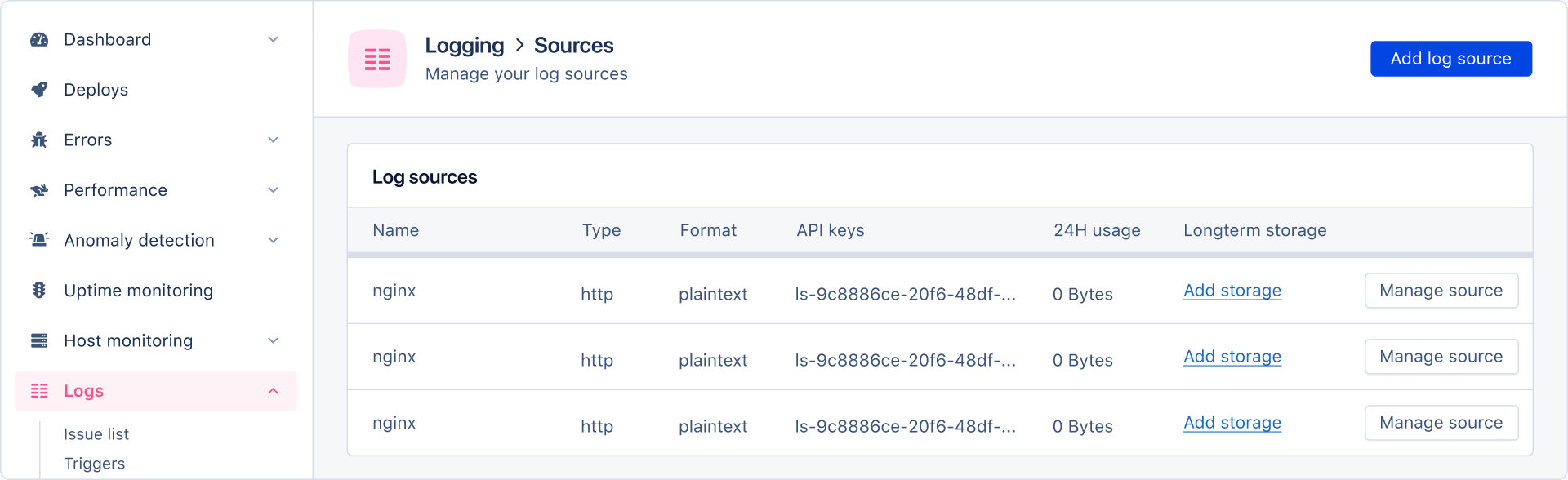
- Navigate to Log Sources and click “Add storage” on the desired log source:
- Provide AppSignal with your
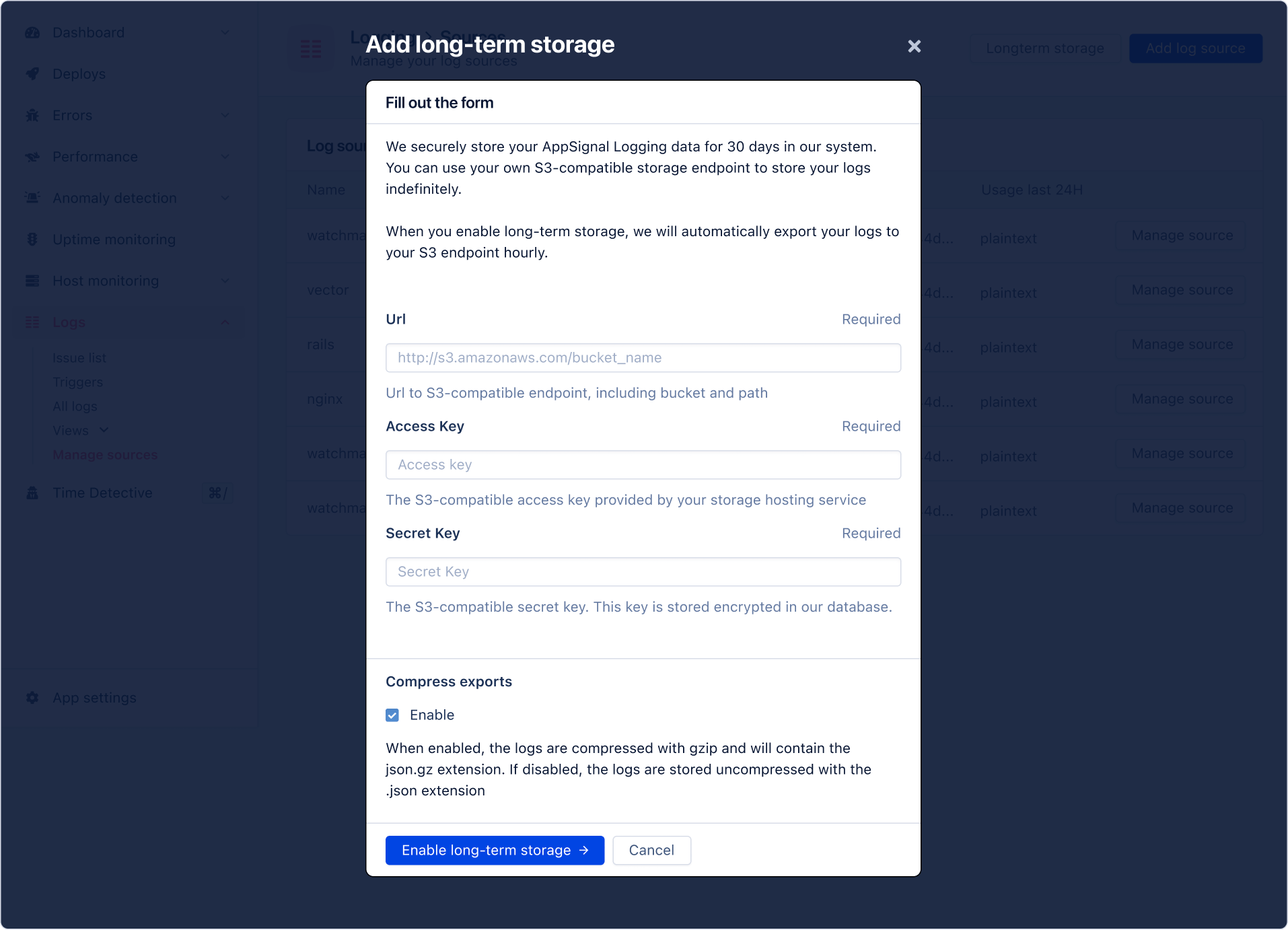
buckets URL,access keyandsecret keyand complete setup by clickingSend long-term storage request.
/yyyy-mm/yyyy-mm-ddThhmmss-yyyy-mm-ddThhmmss.json.gz
For example:
https://s3.com/2015-01/2015-01-01T100000-2015-01-02T110000.json.gz
You can read more about storage jobs in the Storage Jobs and Exceptions section.
Storage Jobs and Exceptions
In this section, you can learn more about the writing of logs to S3 storage via storage jobs, and how AppSignal handles job exceptions.Storage jobs
Storage jobs are run every hour. Each job writes one hour of log data from 25 hours ago. For example, a job that runs on12/01/2024 at 10:00, will write a file of logs from: 11/01/2024 that were created between 09:00 and 09:59:59 to your S3 storage.
This ensures that any log lines, that may have been delayed, are included in the storage job.
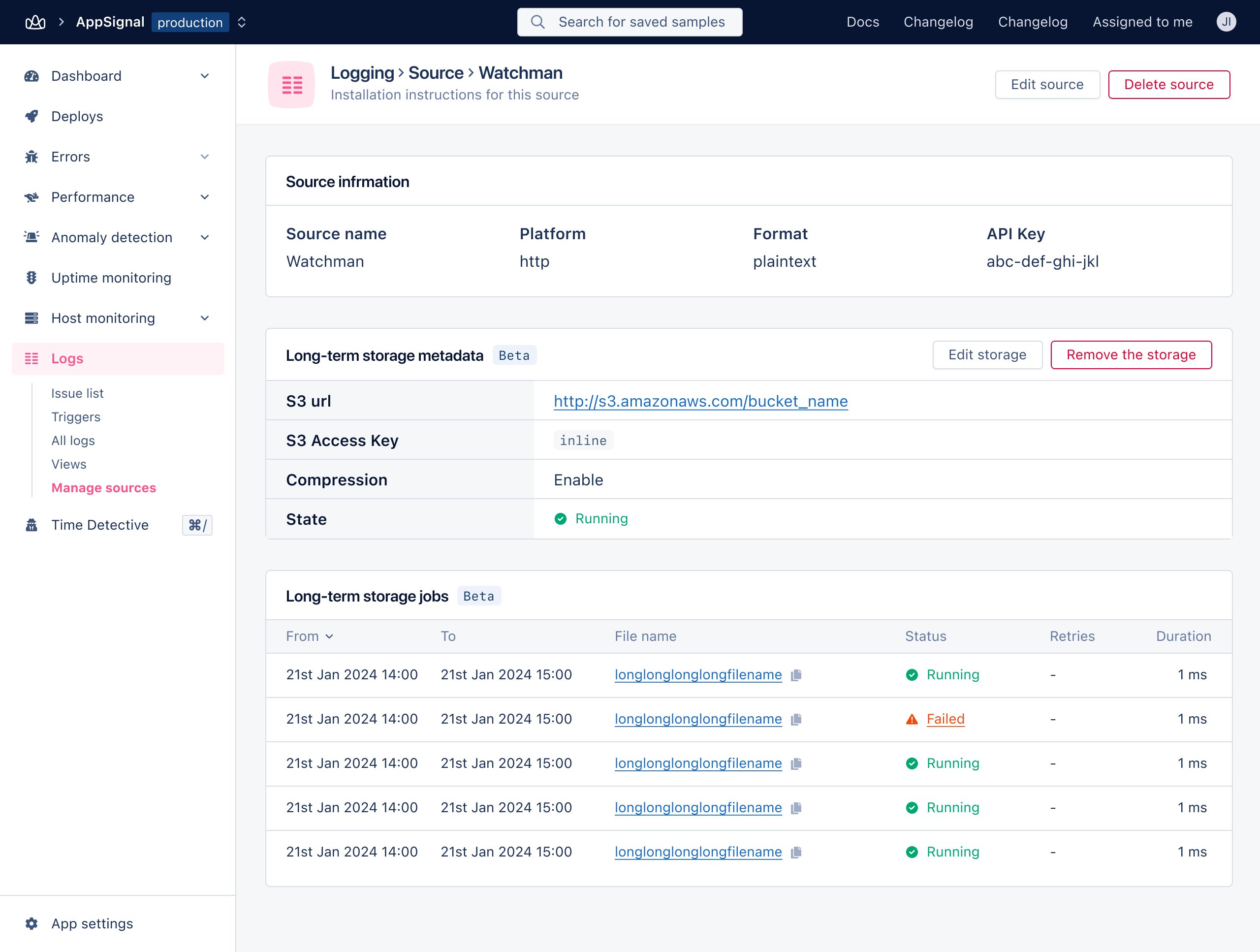
If a job is successful, a job for the next hour of data is enqueued and your source’s long-term storage will have the status of “Running”.
You can view and manage storage jobs from the “Manage source” page.
Exceptions
If a storage job fails, AppSignal will attempt to re-run the storage job each hour, for 24 hours (so 24 attempts). If after 24 attempts AppSignal is unable to complete the storage job, we will notify you of afailed job.
Restoring A Failed Job
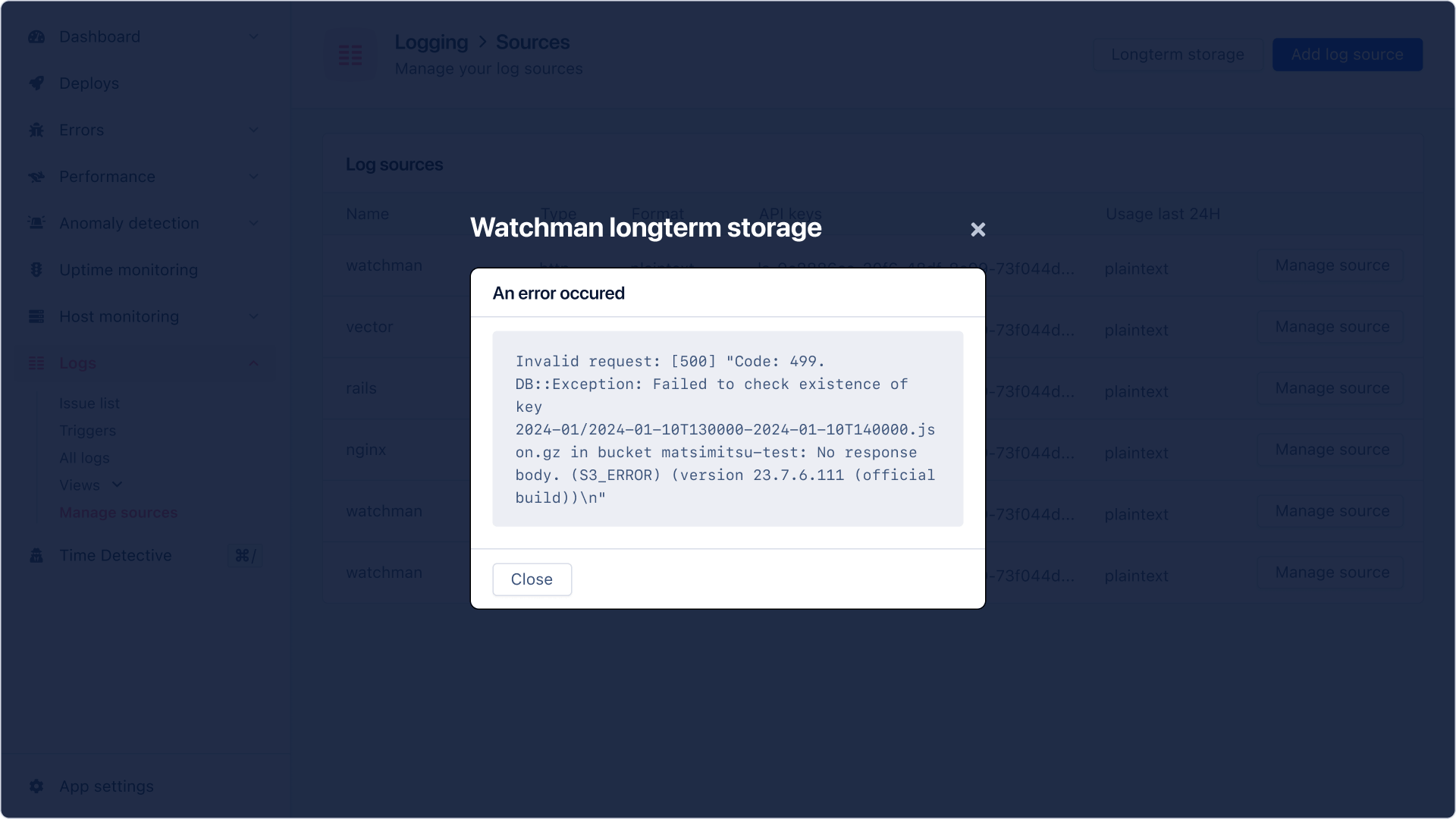
When a Log source has a storage job with afailed status, AppSignal will stop enqueueing new jobs. Clicking on the failed status will display the error AppSignal encountered when trying to run the storage job.