
These settings apply to error incidents. Performance is not alerted on through incidents. To be notified when an action gets slow, set up a trigger as described in the performance alerting section. Anomaly detection trigger alerts are routed by the notifiers selected on each trigger.
Notification options
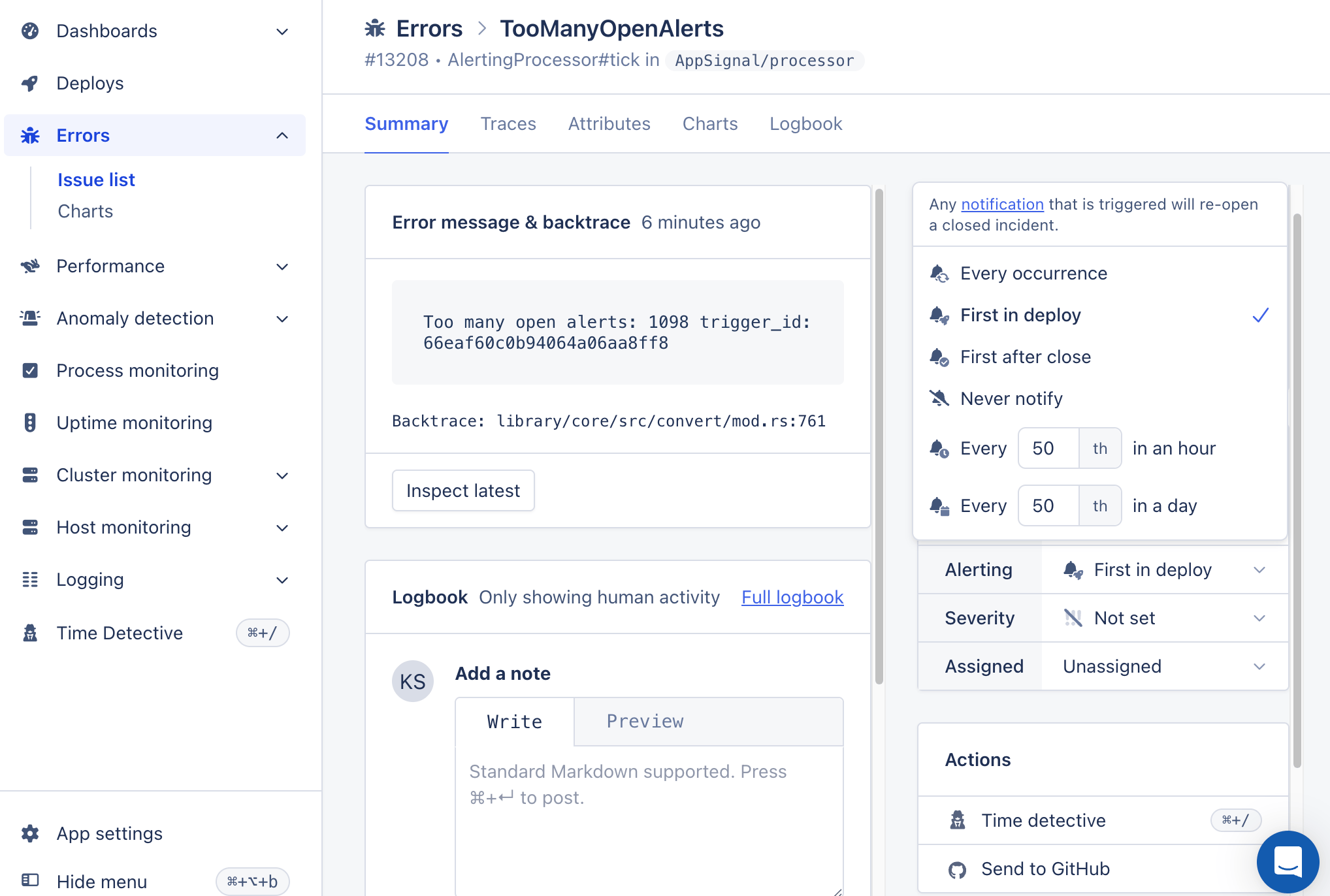
Whenever AppSignal creates a new incident, it inherits the app’s notification defaults. After AppSignal creates an Error incident, you can change its notification settings on the incident page. If an incident was closed, it will be reopened when a new notification is sent out. There are six notification options available:- Every Occurrence
- First in Deploy
- First After Close
- Never Notify
- Every Nth per Hour
- Every Nth per Day
Every Occurrence
A notification is sent every time an incident is triggered. This option has a cooldown of 5 minutes. This means that if an incident is triggered 20 times a minute, for 20 minutes, you’ll receive a notification on minute 0, 5, 10, 15 and 20.First in Deploy
A notification is sent on the first occurrence of an incident after a new deploy marker is received. You’ll need to set up deploy markers for AppSignal to detect a deploy and know when an incident occurred for the first time in a deploy.First After Close
A notification is sent at the first occurrence of an incident after the incident was previously closed. You can open and close incidents from the sidebar on the incident detail page. This option works well for incidents that are caused by an outside source, such as a third-party connection issue, and cannot be resolved by deploying a new version of the app.Never Notify
No notification is sent when the incident is triggered. Because an incident is only reopened when AppSignal sends a notification, an incident set to Never Notify stays closed even when it occurs again. Use this for errors that will continue to happen and that you want to track but not fix soon. If you do not want to receive the incident at all, ignoring the action or ignoring the error may help.Every Nth per Hour or Day
A notification is sent every nth time an incident occurs within an hour, or within a day, depending on your preferences. There are many scenarios where this may be beneficial:- Billing Error: Imagine a billing error occurring now and then, outside of your control. It happens a maximum of 5 times a day, and you want to know when this suddenly increases. Setting it to “every 10th time a day” will send you an alert on every 10th, 20th, 30th occurrence, etc.
- API Error: You might have an API that many people use. When experimenting with an API, making mistakes that trigger errors is common. You might only want to be alerted when the number of errors reaches a threshold. You could, for instance, set it to notify you every 1000th time an hour, which might indicate that the API is failing for different reasons.
- During Incident: Imagine something is severely broken. Hundreds of errors an hour are happening, but you’re on top of it. It might not be a good idea to ignore all alerts completely, but getting each one of them will drown you in notifications. This is the perfect moment to manage the number of notifications you receive by temporarily setting your errors to Nth/hour.
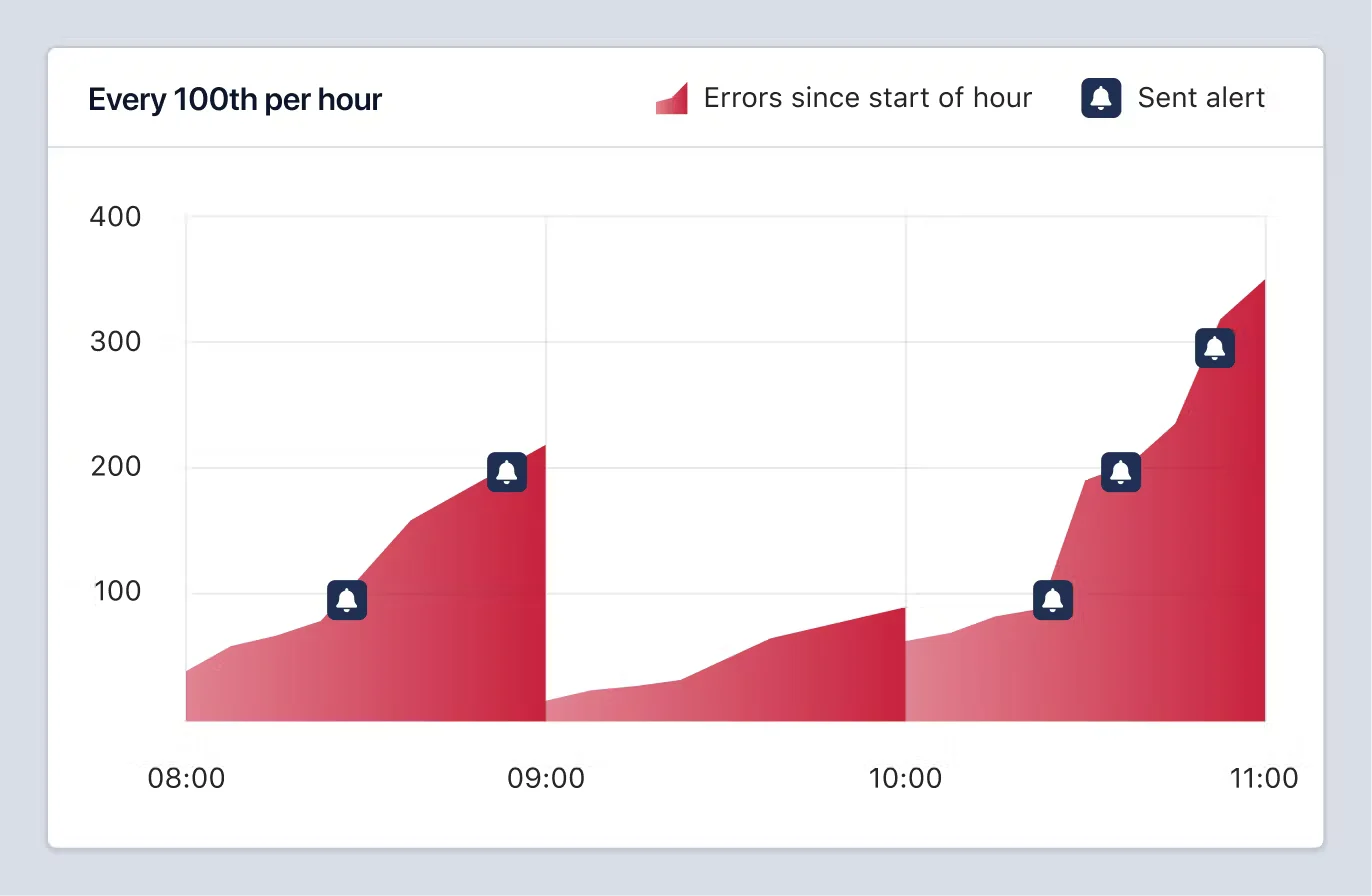
AppSignal counts occurrences in UTC. The hourly counter resets on the hour, and the daily counter resets at 00:00 UTC. This is the same for everyone. No account, organization, or personal time zone setting changes it.AppSignal shows timestamps in your own time zone, and so do its notifications, so a reset can fall at a local time you would not expect. In summer, the daily count starts over at 02:00 in Berlin and at 17:00 the previous day in Los Angeles. Notifications never state the count or the threshold, so you cannot tell from a notification where you are in the counting window.
- The count resets at the start of each period. Occurrences that almost reach the threshold before a period ends do not carry over into the next one.
- Passing the threshold subtracts it from the count instead of clearing the count, so a remainder still counts towards the next notification within the same period.
- Both options have a cooldown of 5 minutes. You receive at most one notification every 5 minutes, however far the count runs past the threshold in the meantime.
- Occurrences arrive in batches, and AppSignal checks the threshold once per batch. The notification is sent by the first batch that takes the count past the threshold, which can be slightly later than the exact nth occurrence.
Error incident notification settings
Error incidents are identified by the error (class)name, such asActiveRecord::RecordNotFound and if the error happened inside of an action, the action name. (e.g. StandardError in BlogpostsController#show).
Performance alerting
The notification options described in the previous sections apply to error incidents. Performance uses triggers instead. Errors are binary: they either happen or they don’t, which is what makes an option like First in Deploy meaningful for them. Performance behaves differently. If your database is overloaded, deploying new code will not change the response time, and a notification about a single slow trace says little about the health of your app. Performance problems play out over a timeframe, which is what a trigger measures.Create a trigger for a slow action
Open the performance action you want to watch, such asrun/shop.send_waitlist_notification, then select Add new in the Triggers panel.
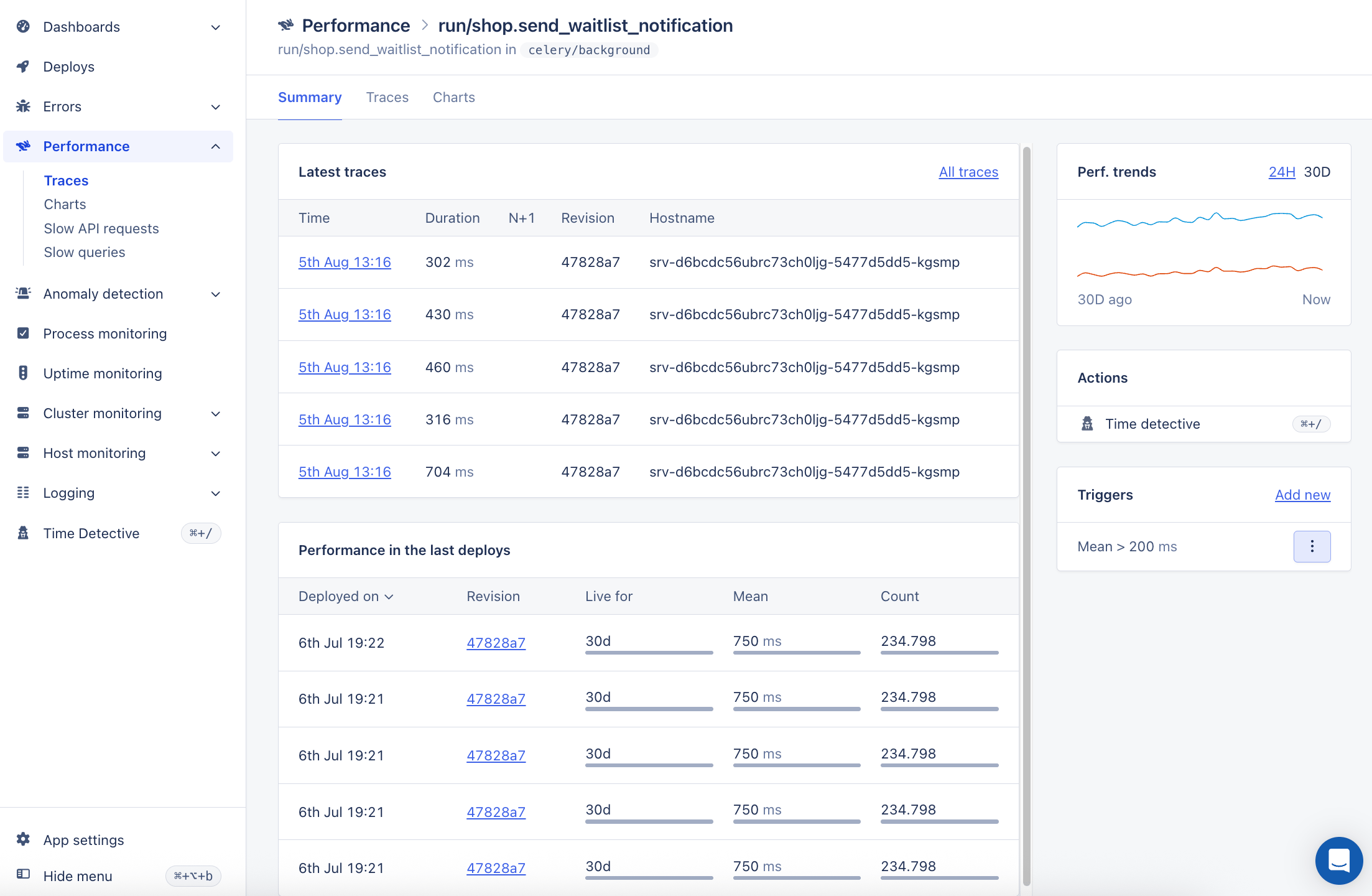
- Alert me when: the value to alert on, such as the mean duration, and in Is above the threshold it has to pass. The default is 200 ms. For actions that are expected to be slow because they interact with third parties, set a higher threshold than you would for your homepage.
- Alert warm-up and Alert cooldown: how long the condition has to hold before an alert opens, and how long to wait before closing it. See warm-up and cooldown.
- Description and Notify me through: a note explaining what the trigger watches, and the notifiers to alert through.
Organization and app namespace defaults
Notification settings on an incident can only be changed after it has occurred at least once. This can be an issue if you never want to be notified. It’s possible to configure notification defaults per app namespace or even for the entire organization. This will make it easier to apply the desired notification settings to all new incidents and all existing incidents, for which the notification settings haven’t been customized.App notification defaults
Each application has its own namespace defaults for notification settings. A new incident in the specified namespace will inherit the default settings set on this page. For more information, see the notification defaults inheritance section. It’s recommended to split up the application in namespaces that group potential incidents by severity. This way you can configure notification settings for a group of incidents and there’s no need to configure each incident separately. For example, for an app’s admin panel you could create a namespace calledadmin with a default notification setting of “Never notify” as errors that occur in this namespace have less priority.
Organization notification defaults
It’s also possible to set up notification defaults on your organization. These defaults will be used when AppSignal detects and creates a new application. When it creates the new app it will apply the organization’s notification defaults as the app’s app notification defaults. Changes to the organization notification defaults do not apply to already existing apps. For more information, see the notification defaults inheritance section. These organization level notification defaults can be set up in the organization’s admin panel. It’s possible to configure defaults for each namespace detected in any of the current applications in your organization.Notification defaults inheritance
The notification settings bubble up from the incident settings to the app’s namespace settings. If the notification settings for an incident aren’t changed the app’s namespace defaults are used. This means you can also change all the incident notification settings for incidents that haven’t customized their notification settings by changing the app defaults.- When a new app is detected by AppSignal, the organization’s namespace defaults are applied.
- When organization namespace notification defaults are changed, they only apply to new apps.
- When an app’s namespace notification defaults are changed, they apply to all new incidents and existing incidents without customized notification settings.
- When a new incident is detected by AppSignal, the app’s namespace defaults are used.
- When an incident’s notification settings are customized, the incident’s customized notification settings are used from then on.