Speed Insights
Vercel Drains provide support for Web Vitals through the Speed Insights drain. These metrics can serve as signals fo delivering great user experience on the web. To start receiving Web Vitals in AppSignal, enable Speed Insights, add @vercel/speed-insights package to your project and create a Speed Insights drain.
1. Enable Speed Insights
From your organisation's page, click on the project that you would like to enable the Speed Insights for. Then click on the Speed Insights tab, where you will be presented with an Enable Speed Insights dialog.
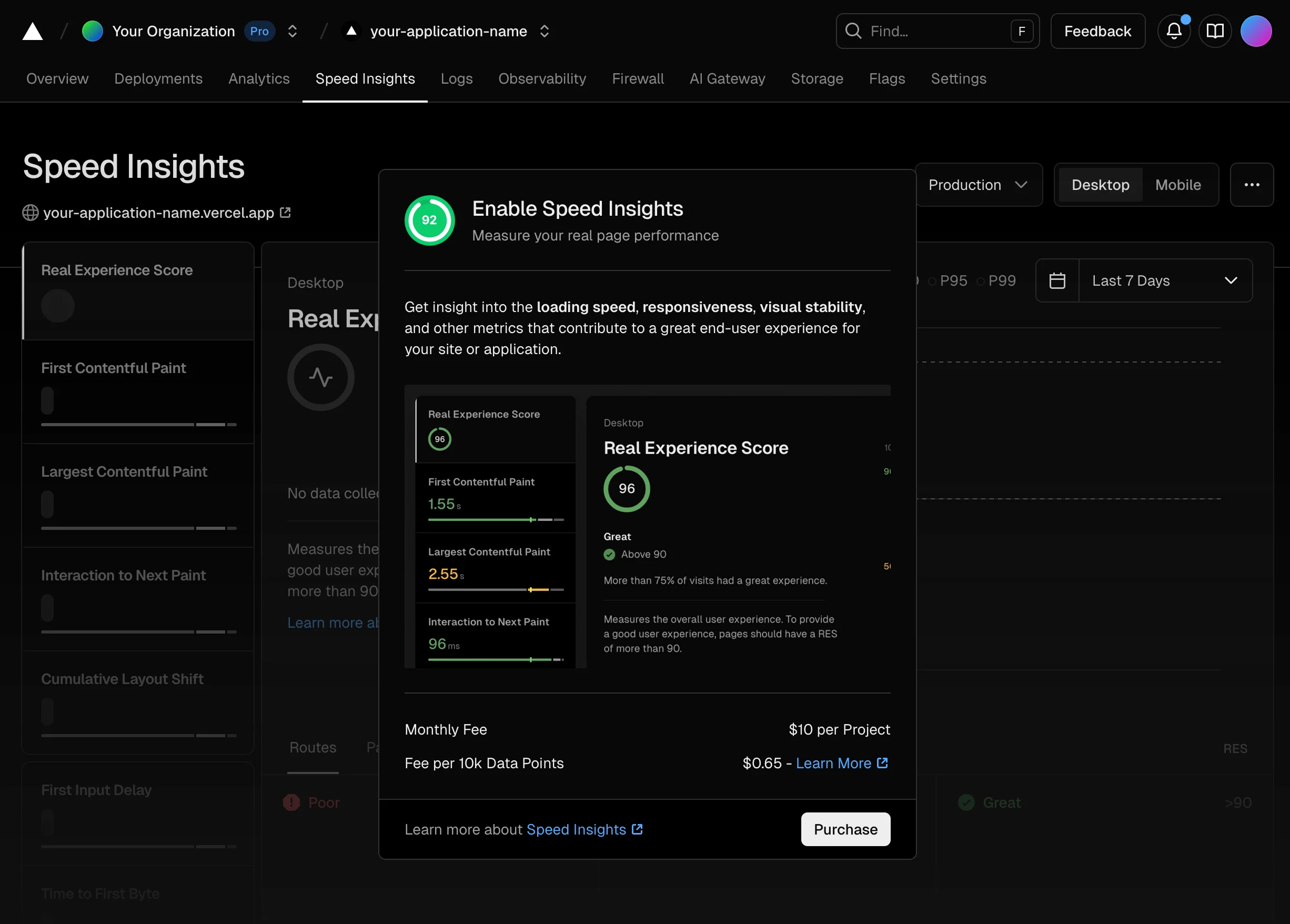
Click on Purchase to enable Speed Insights.
2. Add @vercel/speed-insights to your project
Add @vercel/speed-insights package to your project and include <SpeedInsights /> component in your app.
npm install @vercel/speed-insights
This will add a script to the page and start tracking Web Vitals. For more detailed instructions head over to Vercel documentation page.
3. Configure Speed Insights drain
From a Vercel project navigate to Settings > Drains page and click on Add Drain.
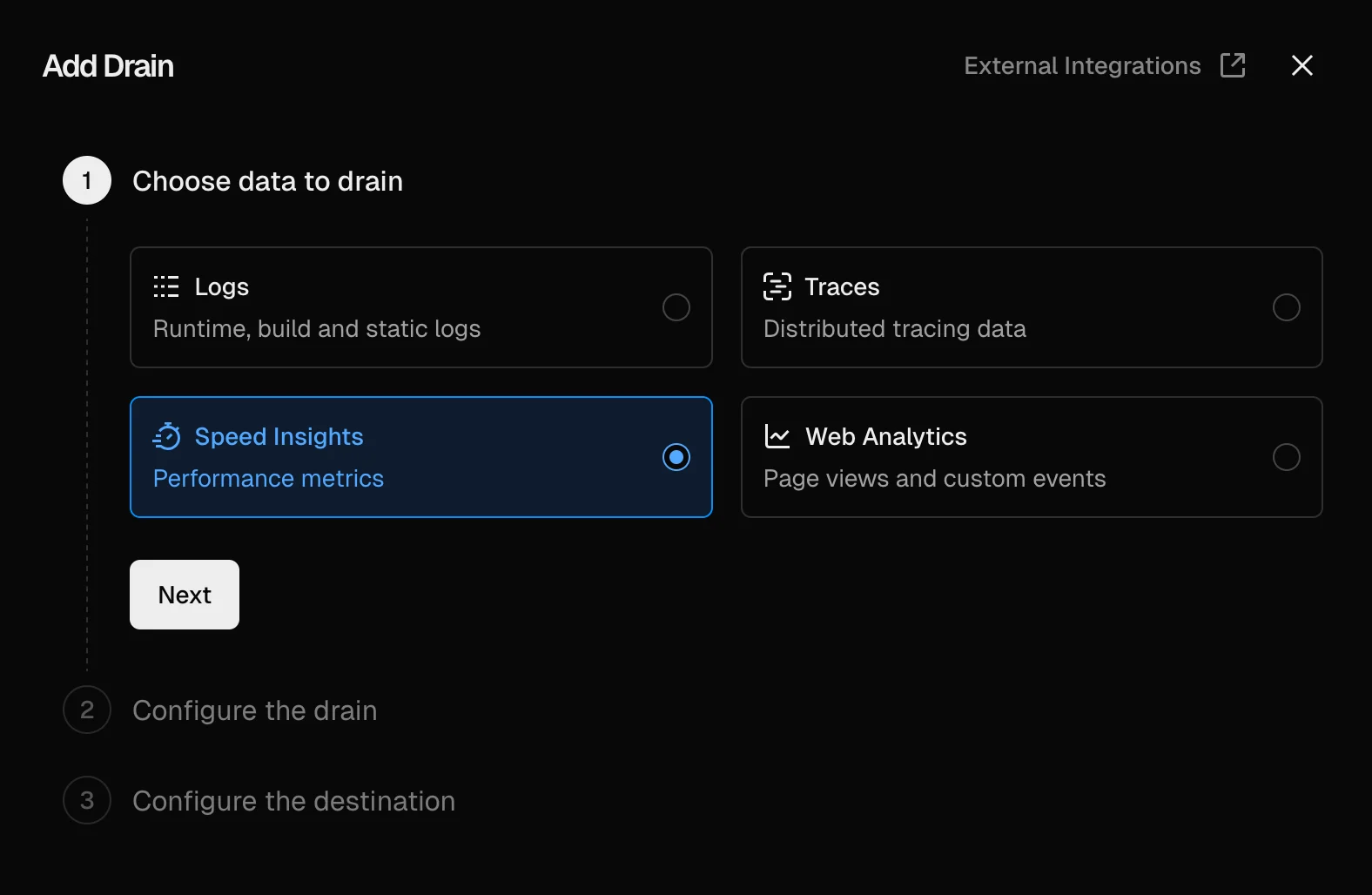
Select Speed Insights as the drain type and click Next.

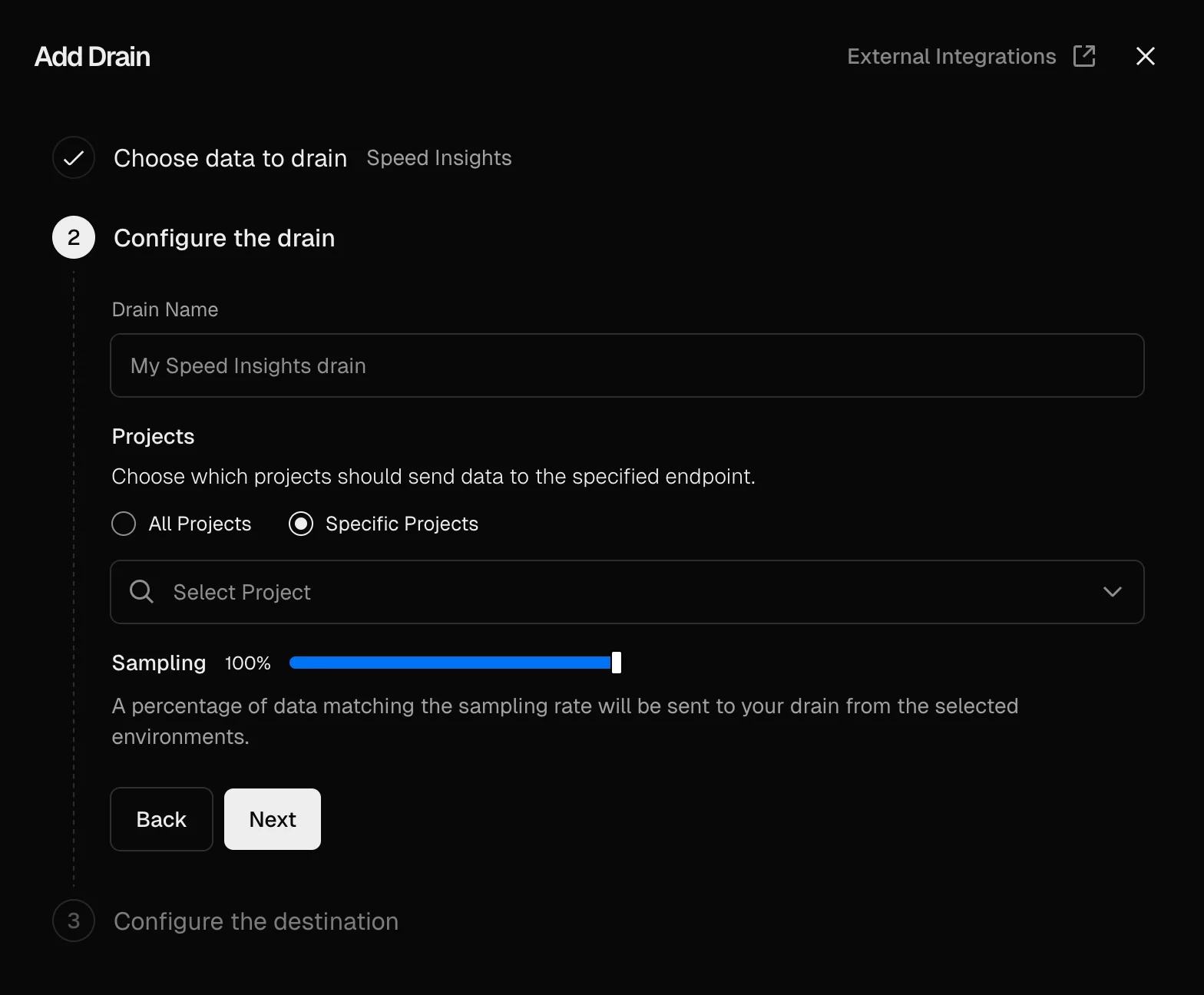
Add a descriptive name for the drain, such as 'AppSignal speed insights drain'. The Specific projects option along with your project should be pre-selected in the Projects section. If it is not, make sure to only select the project that you enabled Speed Insights for. Click Next.

For destination enter the following URL replacing <api_key> with your AppSignal app-level push API key, which can be found in App settings:
https://appsignal-endpoint.net/metrics/speed-insights?api_key=<api_key>
Pressing Test will send a test trace to AppSignal.
Click Create Drain.
On successful setup, a new automated dashboard will be created for you with Next.js Web Vitals.
