
Creating a Vercel Log Source
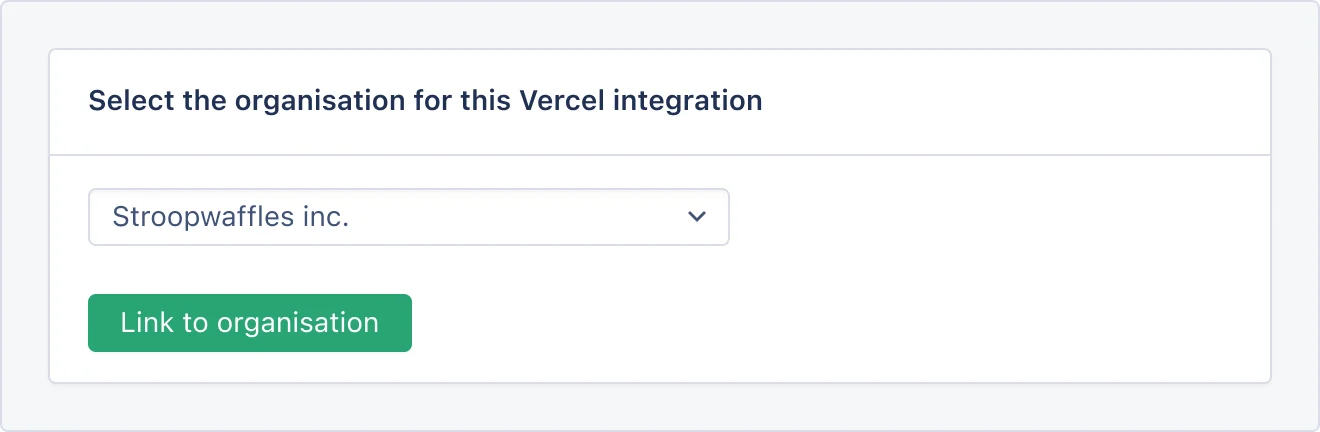
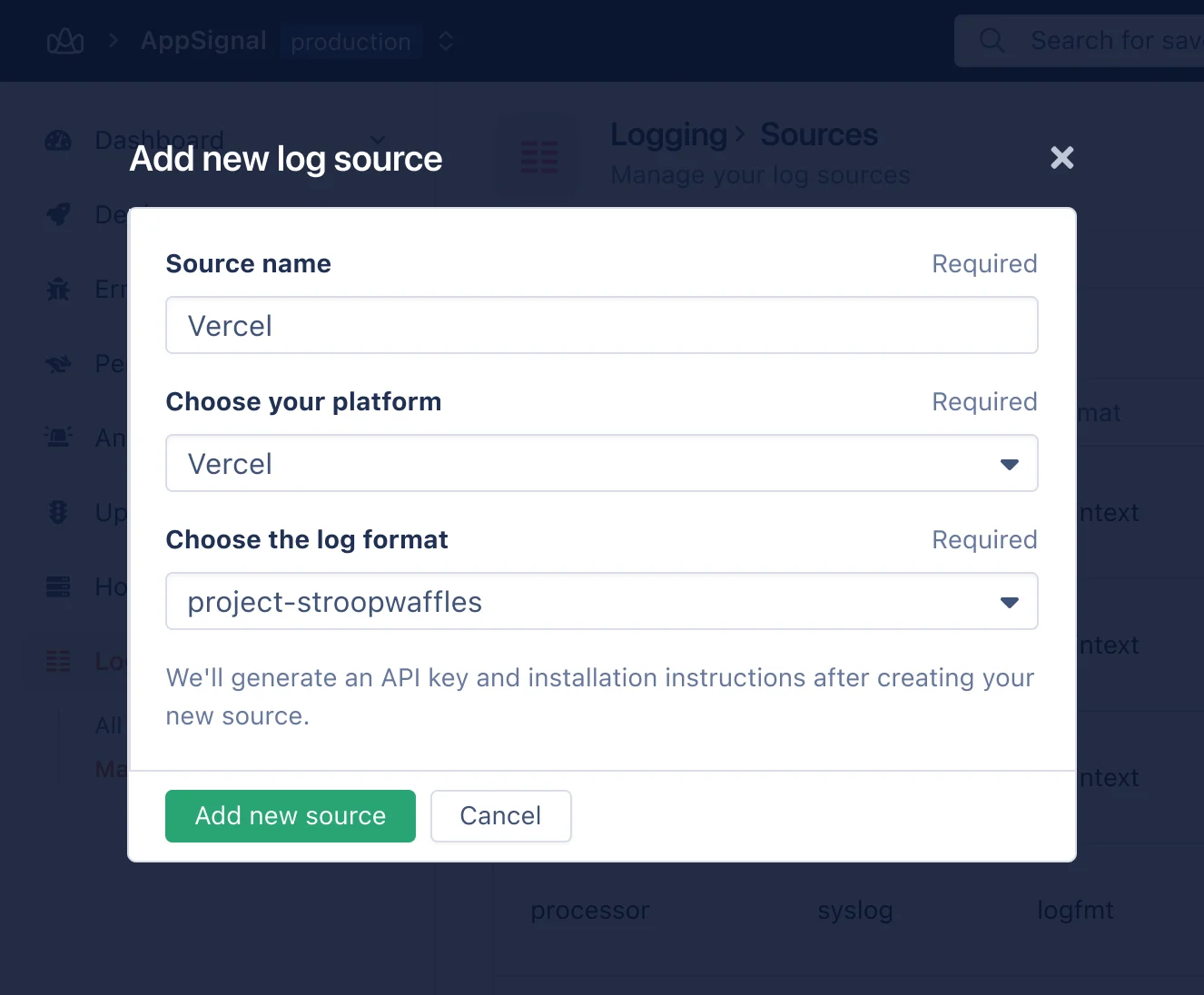
Our configuration documentation covers log sources in greater detail. To create a new log source navigate to the Logging page in the AppSignal application and click on the Add log source button in the top right of the page. A pop-up will appear, prompting you to name your source. It’s important to give your source a descriptive name like Redis or MongoDB so that you can successfully query these logs in the future. Once you’ve named your source, select “Vercel” as your log source’s platform. A notification will appear below the source dropdown asking you to authorize AppSignal via Vercel. Click “Authenticate with Vercel”. Vercel will open in a new browser tab.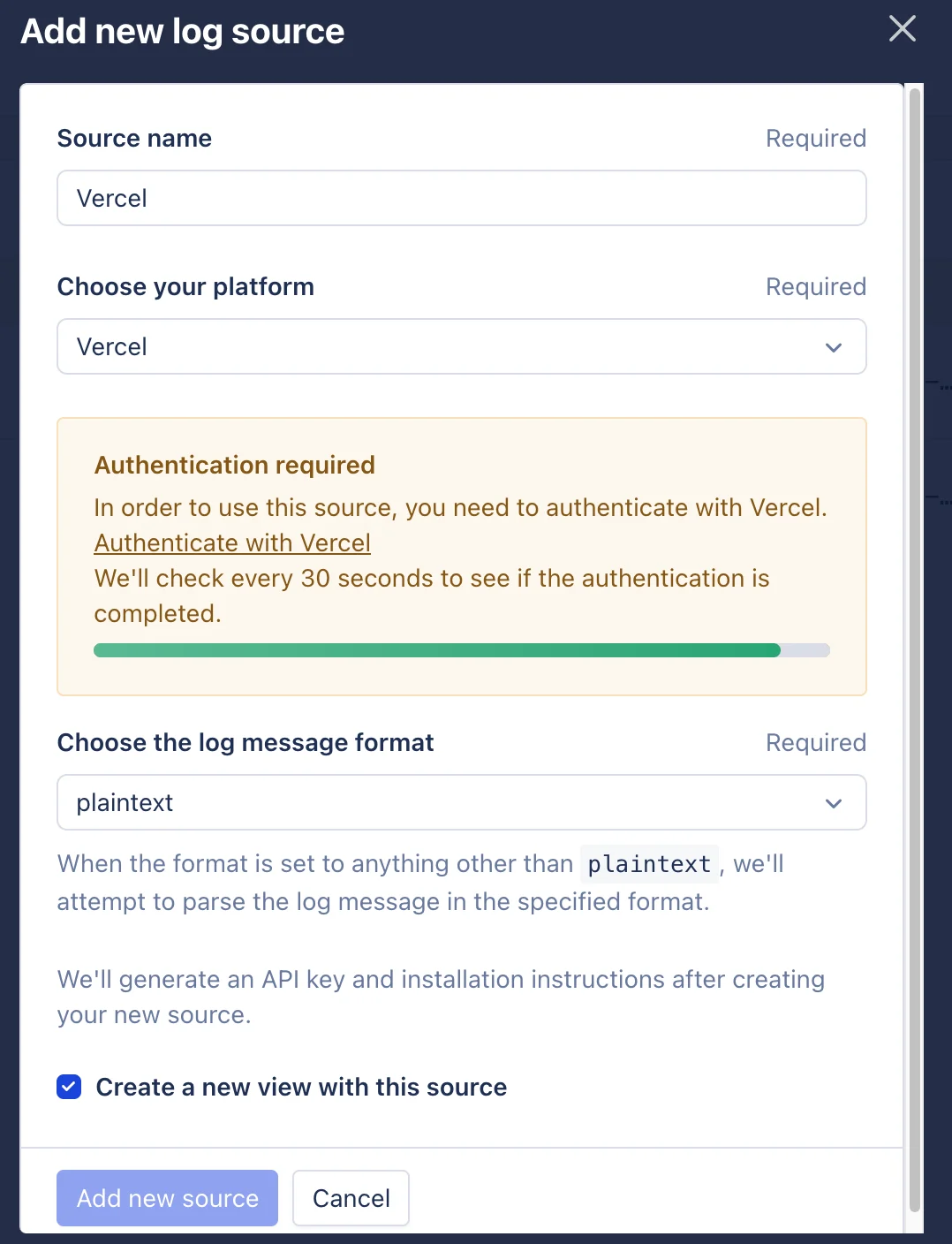
- Source name — a descriptive label for your source (e.g. “Vercel”).
- Choose your platform — select “Vercel”.
- Authenticate with Vercel — required to use this source.
- Log format — shown further down the form after authenticating; choose how AppSignal parses your log messages (e.g.
plaintextorJSON). - Create a new view with this source — optional; opens a logging view tied to this source after creation.
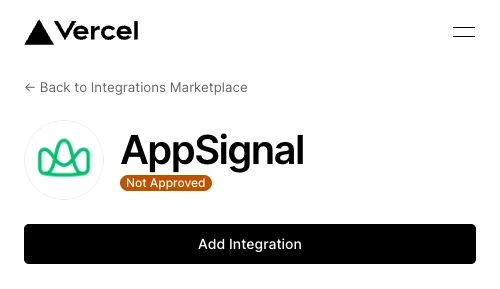
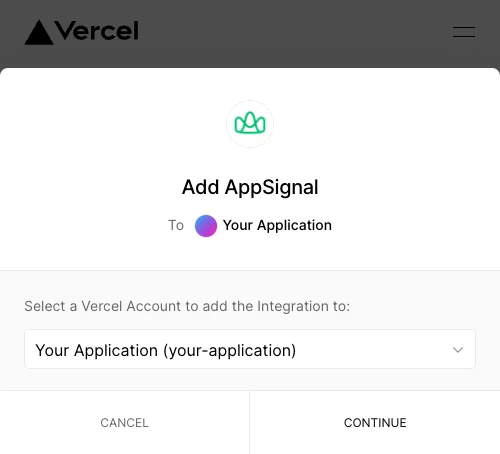
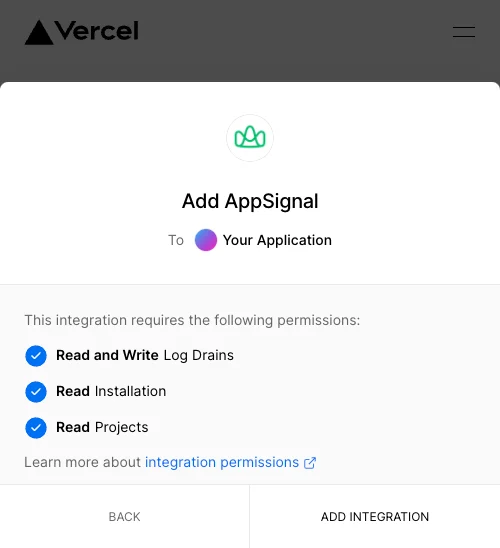
🛟 If you get stuck on this step, please get in
touch with us, and we’ll help you get your
Vercel logs flowing!