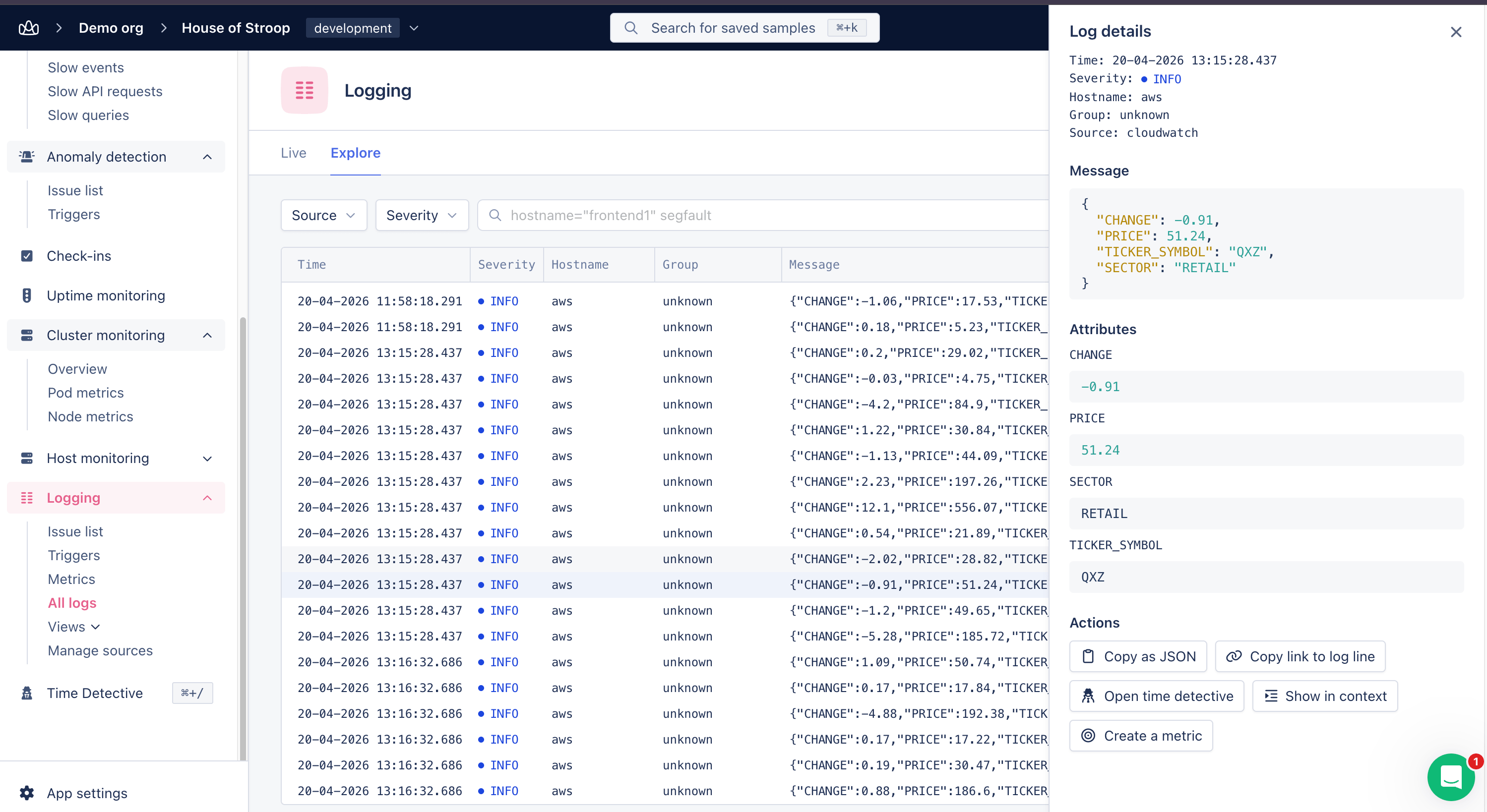
Turn data from your logs into metrics you can chart, alert on, and group across your application.
If you have indexed logs in AppSignal, you can generate metrics from them directly in the Explore view. Use these log-based metrics to track important signals over time, set up triggers, or add them to dashboards, all without changing your application code or leaving your log exploration workflow.Use log metrics to count how often an event happens, track the latest value of a numeric field, or follow its average and percentiles over time.When you spot something worth tracking in your logs, you can turn it into a metric without leaving the Logs page. The query, severity, and log source you’ve used to narrow your logs carry into the metric, so the filtering work you’ve already done is what defines what the metric tracks. Once the metric is saved, you can add it to a dashboard or use it in a trigger in the same flow.
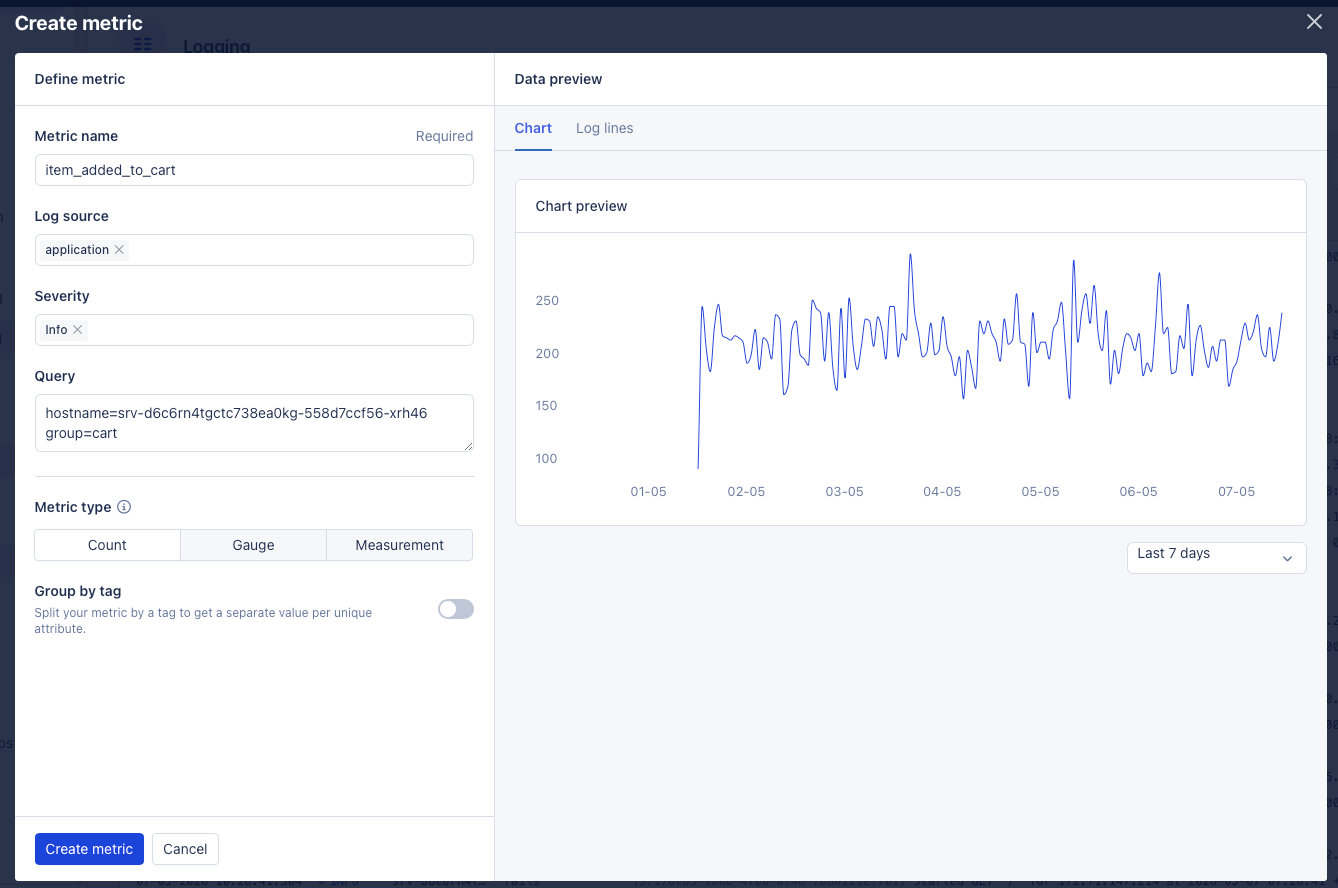
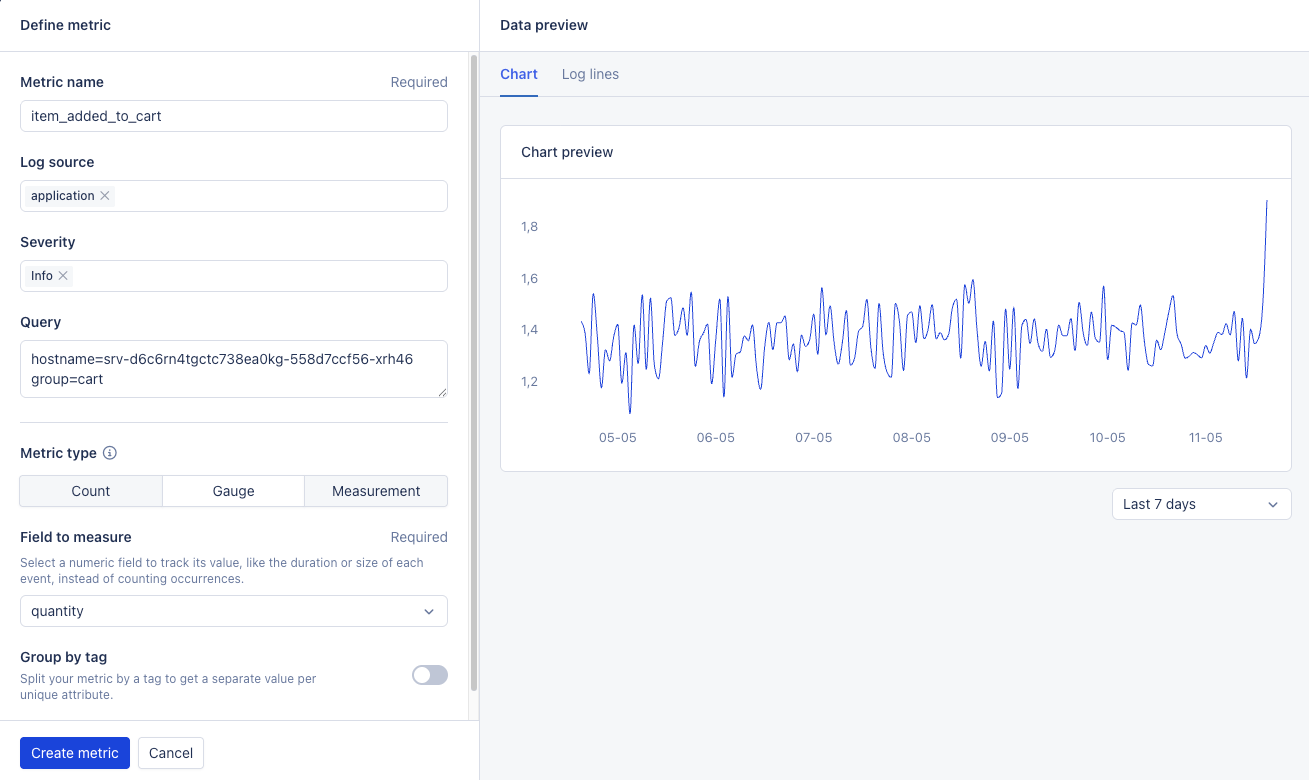
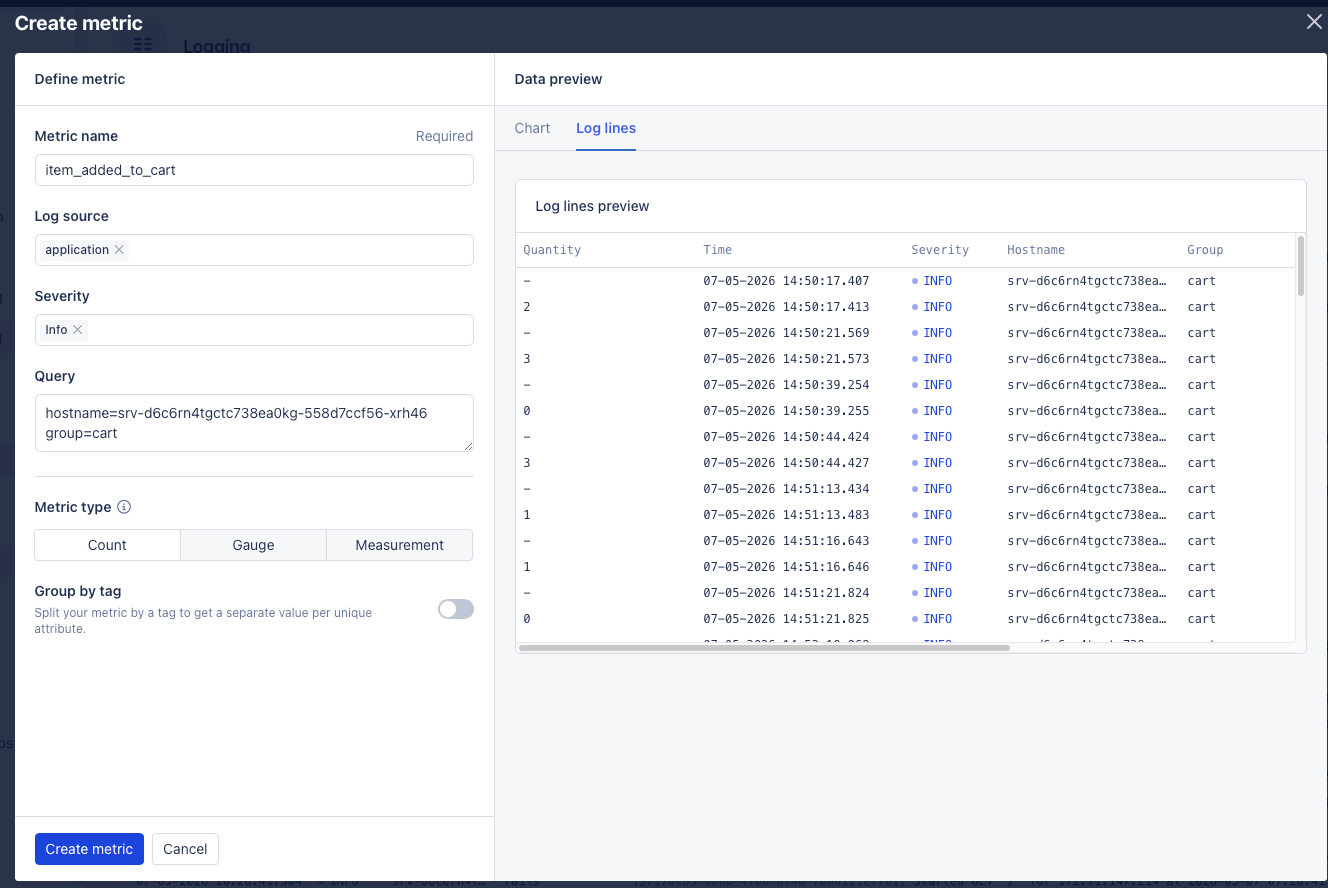
In the Define metric panel, fill in the fields that describe what you want to measure. As you change any field, the Data preview on the right updates so you can confirm the metric returns the data you expect.
Metric name: A unique name for the metric, used when you reference it on dashboards and triggers. See metric naming for the rules and recommendations.
Log source: The log source the metric draws events from.
Severity: Filter by severity, or select all to include every level.
Query: The query string used to match log lines. Same syntax as the Logs page.
Metric type: Count, Gauge, or Measurement. See metric types.
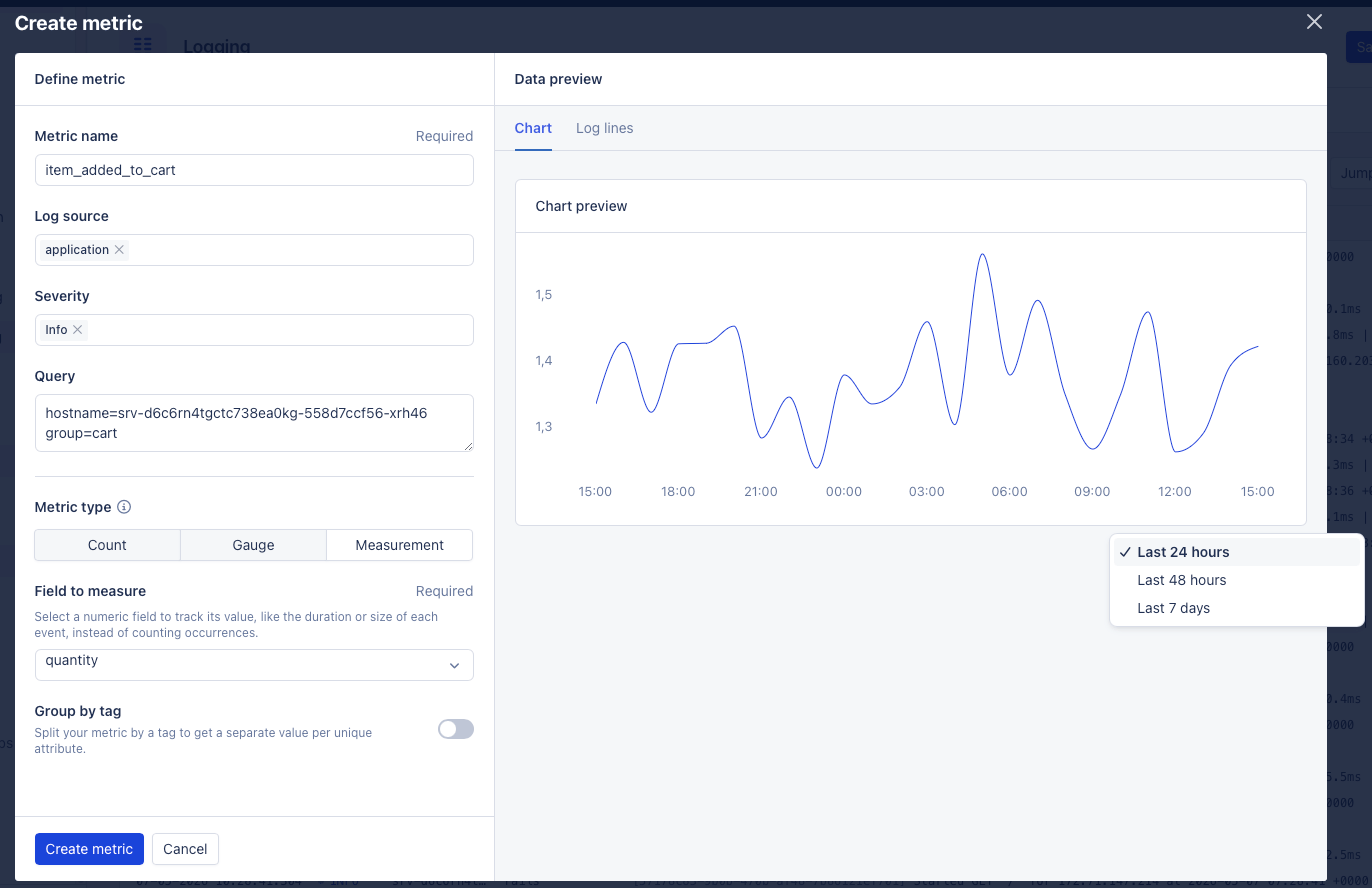
Field to measure: For Gauge and Measurement metrics, the numeric field to track — like the duration or size of each event, instead of counting occurrences.
Group by tag: Split the metric by a tag to get a separate series per unique value (for example, group by hostname to get one series per server).
We recommend naming your metrics something easily recognizable.Metric names only support numbers, letters, dots and underscores ([a-z0-9._]) as valid characters. Any other characters will be replaced with an underscore by our processor.Some examples of good metric names are:
database_size
account_count
users.count
notifier.failed
orders.request.duration
Note: We do not recommend adding dynamic values to your metric names
like so: eu.database_size, us.database_size and asia.database_size. This
creates multiple metrics that serve the same purpose. Instead we recommend
using Group by tag for this.
The metric type defines how AppSignal aggregates the data over time. The Field to measure field appears for Gauge and Measurement only, since Count just counts matching log lines.
The total number of matching events in a given time frame. Use this for events like errors, sign-ups, or job retries.Count does not require a Field to measure — it just counts every log line matching your query.
Averages, counts, and percentiles for a numeric field over time. Use this when the distribution matters, such as request duration.Measurement persists the mean, count, and 90th/95th percentiles of the Field to measure for each interval.
A live chart of the metric for the selected time range. The chart preview supports selecting multiple log sources and severities, and updates as you change any field in the Define metric panel.Use the time-range selector below the chart to switch between Last 24 hours, Last 48 hours, and Last 7 days.
The log lines that match your current query. When a Field to measure is set, that field is shown as a highlighted column so you can confirm the values before saving.
After you save a metric for the first time, AppSignal asks what you want to do with it:
Add to dashboard: Add the metric to a chart on an existing dashboard.
Create a trigger: Open the trigger creation flow with the metric prefilled.
Edit metric: Reopen the overlay to refine the configuration.
For follow-up metrics, AppSignal shows a confirmation toast instead. You can still reach the same options from the Metrics page.A new metric may take a moment to start collecting data, so a dashboard or trigger created right after may briefly show a “no data yet” warning.
Find the metric and select Edit from the three-dot menu.
Adjust the Severity, Query, Field to measure, or Group by tag fields.
Select Update metric to save.
The Metric name and Metric type are read-only when editing. To change either, create a new metric.From the row menu on the Metrics page, you can also add the metric to a dashboard, create a trigger from it, or delete it. The Modified by column shows who last updated each metric, so you can see at a glance which team member made the most recent change.