> ## Documentation Index
> Fetch the complete documentation index at: https://docs.appsignal.com/llms.txt
> Use this file to discover all available pages before exploring further.
# Traces from Vercel applications
When deploying applications or functions on Vercel, you can send telemetry data to AppSignal in one of two ways:
1. [Using Vercel's traces drain](#using-the-traces-drain). In addition to forwarding data collected by Vercel's OpenTelemetry instrumentation package, this will also provide visibility into Vercel's infrastructure, such as Vercel functions and edge network.
2. [Using Vercel's OpenTelemetry instrumentation package](#using-the-instrumentation-package).
Make sure you [have a hosted collector URL](/collector/hosted-vs-self-hosted#hosted-collector) before proceeding with these instructions.
## Using the traces drain
To forward traces from Vercel to AppSignal using the traces drain, you need to set up a traces drain in your Vercel project settings. It is also recommended to install [Vercel's OpenTelemetry instrumentation package](https://vercel.com/docs/tracing/instrumentation) in your application to capture telemetry data from your application.
Using Vercel's traces drain requires a Vercel plan on which drains are available. See [Vercel's drains documentation](https://vercel.com/docs/drains) for more information on available plans and pricing.
### Set up a traces drain
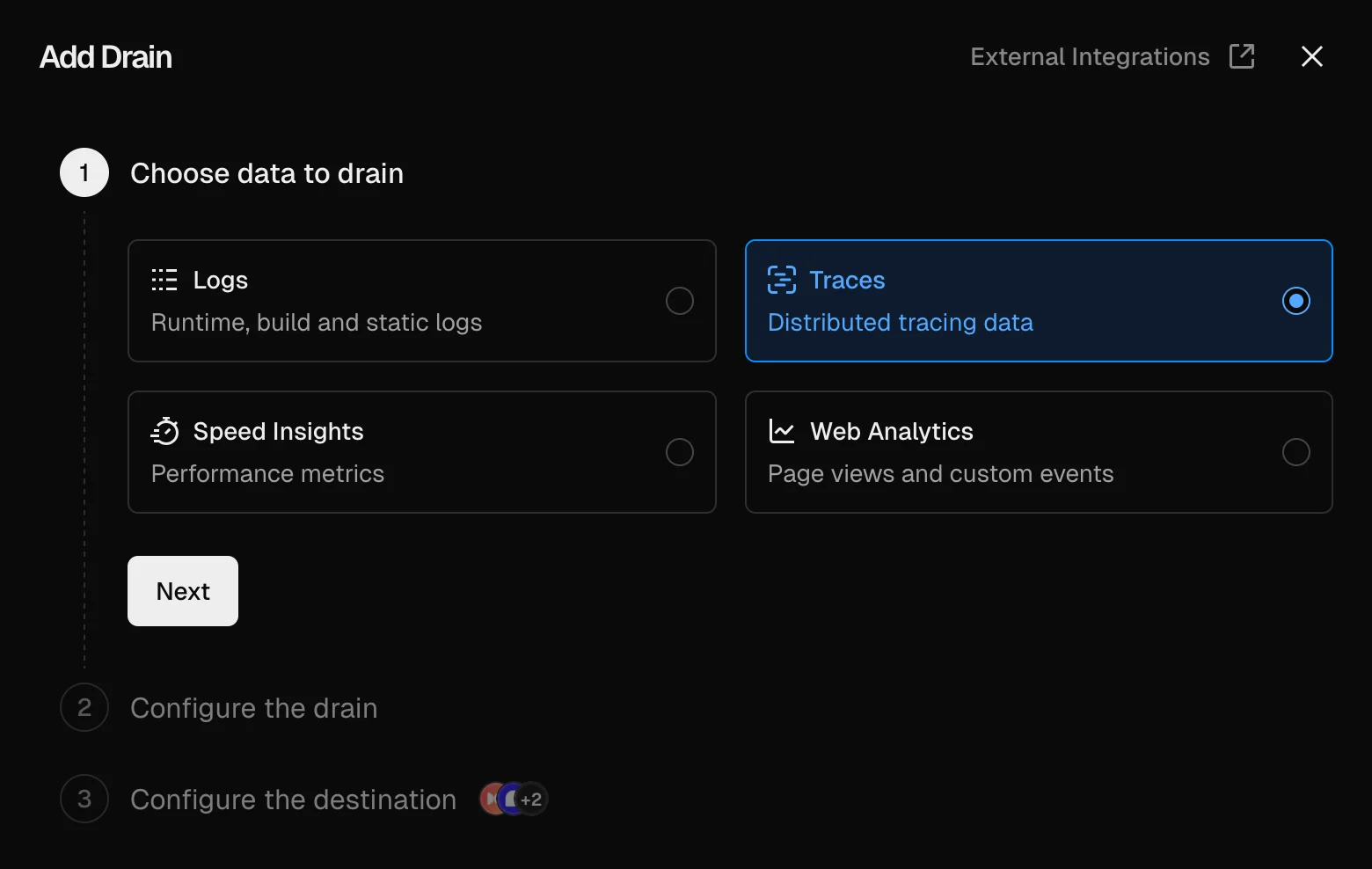
From the Vercel dashboard, navigate to your project and go to the **Settings > Drains** section. Click on **Add Drain** and select **Traces** as the drain type.
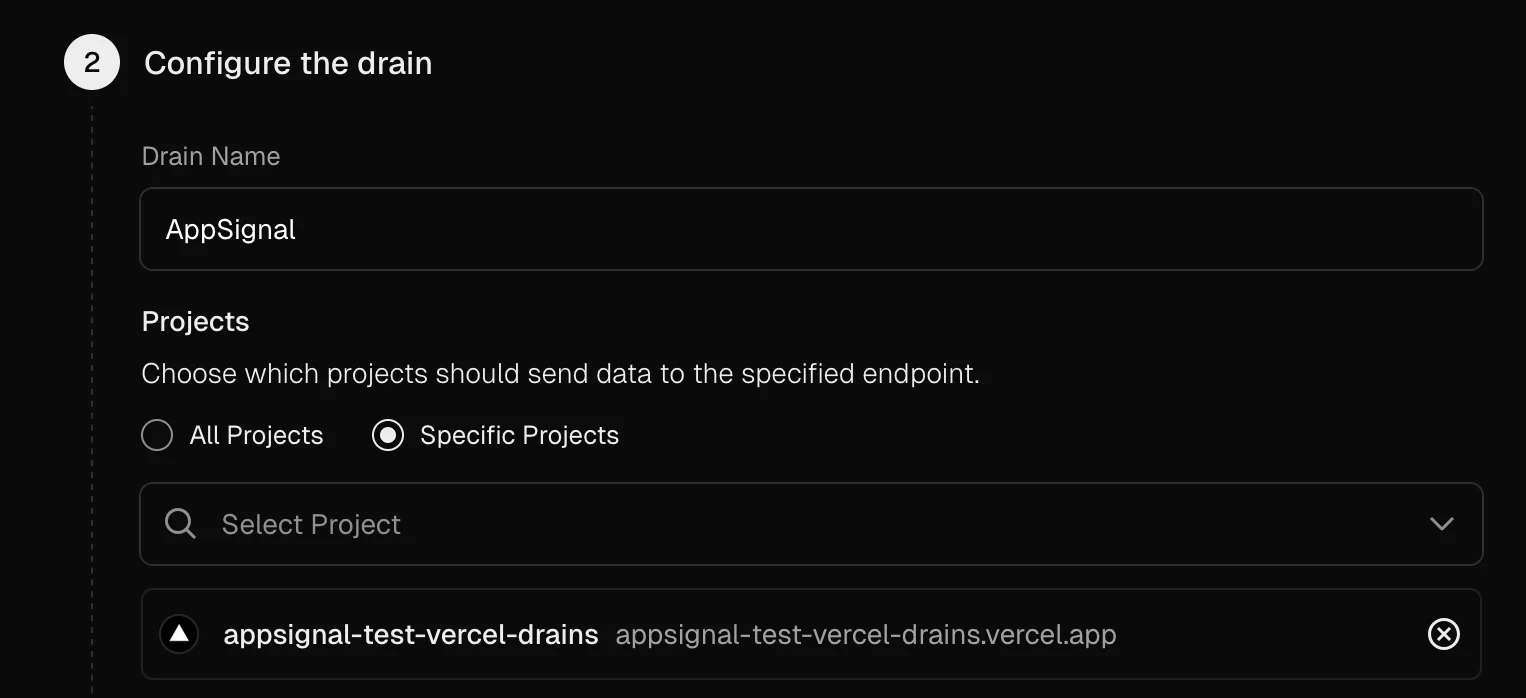
 When asked which projects should send data using this drain, make sure to only select this project.
 Under **Configure the destination**, select **Custom** endpoint and enter the URL of your AppSignal collector's OTLP endpoint, adding `/v1/traces` at the end:
```plaintext title="Example URL" theme={null}
https://your-appsignal-collector-host.com/v1/traces
```
In the **Encoding** dropdown, select **Protobuf**.
Enable **Custom Headers** and add the following headers to authenticate with AppSignal, replacing the placeholder values with your application's information as shown in AppSignal.
Your Push API key can be found in the [App settings](https://appsignal.com/redirect-to/app?to=info).
```yaml Custom Headers theme={null}
AppSignal-Config-Name:
AppSignal-Config-Environment:
AppSignal-Config-PushApiKey:
AppSignal-Config-Revision: vercel
AppSignal-Config-LanguageIntegration: nodejs
OpenTelemetry-HostName: vercel
```
Pressing **Test** will send a test trace to AppSignal and save the drain on success.
### Install and configure the instrumentation package
Use npm to add Vercel's OpenTelemetry instrumentation package and the OpenTelemetry API to your application's dependencies:
```shell Shell theme={null}
npm install @opentelemetry/api @vercel/otel
```
If you're using Next.js, add the `instrumentation.ts` file to your application. It must be placed in the root directory of the project (or inside the `src` folder if using one).
If you're using other frameworks or Vercel functions, make sure that this code is loaded early in the execution process to properly capture OpenTelemetry data.
```typescript TypeScript theme={null}
import { registerOTel } from "@vercel/otel";
export function register() {
registerOTel({
serviceName: "My service",
});
}
```
Update the service name to a recognizable name for your application.
## Using the instrumentation package
To send telemetry data to AppSignal using [Vercel's OpenTelemetry instrumentation package](https://vercel.com/docs/tracing/instrumentation), you need to install and configure the package in your application.
### Install the OpenTelemetry packages
Use npm to add Vercel's OpenTelemetry instrumentation package, the OpenTelemetry SDK and the OTLP exporter to your application's dependencies:
```shell Shell theme={null}
npm install @opentelemetry/api \
@opentelemetry/sdk-metrics \
@opentelemetry/exporter-trace-otlp-proto \
@opentelemetry/exporter-metrics-otlp-proto \
@vercel/otel
```
### Configure OpenTelemetry in your application
If you're using Next.js, add the `instrumentation.ts` file to your application. It must be placed in the root directory of the project (or inside `src` folder if using one).
If you're using other frameworks or Vercel functions, make sure that this code is loaded early in the execution process to properly capture OpenTelemetry data.
```typescript TypeScript theme={null}
import { registerOTel } from "@vercel/otel";
import { OTLPTraceExporter } from "@opentelemetry/exporter-trace-otlp-proto";
import { OTLPMetricExporter } from "@opentelemetry/exporter-metrics-otlp-proto";
import { PeriodicExportingMetricReader } from "@opentelemetry/sdk-metrics";
const collectorHost = "https://your-appsignal-collector-host.com";
export function register() {
registerOTel({
serviceName: "My service",
traceExporter: new OTLPTraceExporter({
url: `${collectorHost}/v1/traces`,
}),
metricReader: new PeriodicExportingMetricReader({
exportIntervalMillis: 1000,
exporter: new OTLPMetricExporter({
url: `${collectorHost}/v1/metrics`,
}),
}),
attributes: {
"appsignal.config.name": "My app",
"appsignal.config.environment": "production",
"appsignal.config.revision": "1",
"appsignal.config.language_integration": "nodejs",
"appsignal.config.push_api_key": "0000-0000-0000-0000",
"host.name": "vercel",
},
});
}
```
## Test the integration
Once you have completed one of the integration options above, deploy your application to Vercel (or run a preview deployment) and test if you see data arrive in AppSignal. Check the ["Errors > Issue list"](https://appsignal.com/redirect-to/app?to=exceptions) and ["Performance > Traces"](https://appsignal.com/redirect-to/app?to=performance/traces) page specifically.
If after following our installation instructions you still don't see data in AppSignal, [let us know](mailto:support@appsignal.com?subject=OpenTelemetry%20issue) and we'll help you finalize your OpenTelemetry installation!
Under **Configure the destination**, select **Custom** endpoint and enter the URL of your AppSignal collector's OTLP endpoint, adding `/v1/traces` at the end:
```plaintext title="Example URL" theme={null}
https://your-appsignal-collector-host.com/v1/traces
```
In the **Encoding** dropdown, select **Protobuf**.
Enable **Custom Headers** and add the following headers to authenticate with AppSignal, replacing the placeholder values with your application's information as shown in AppSignal.
Your Push API key can be found in the [App settings](https://appsignal.com/redirect-to/app?to=info).
```yaml Custom Headers theme={null}
AppSignal-Config-Name:
AppSignal-Config-Environment:
AppSignal-Config-PushApiKey:
AppSignal-Config-Revision: vercel
AppSignal-Config-LanguageIntegration: nodejs
OpenTelemetry-HostName: vercel
```
Pressing **Test** will send a test trace to AppSignal and save the drain on success.
### Install and configure the instrumentation package
Use npm to add Vercel's OpenTelemetry instrumentation package and the OpenTelemetry API to your application's dependencies:
```shell Shell theme={null}
npm install @opentelemetry/api @vercel/otel
```
If you're using Next.js, add the `instrumentation.ts` file to your application. It must be placed in the root directory of the project (or inside the `src` folder if using one).
If you're using other frameworks or Vercel functions, make sure that this code is loaded early in the execution process to properly capture OpenTelemetry data.
```typescript TypeScript theme={null}
import { registerOTel } from "@vercel/otel";
export function register() {
registerOTel({
serviceName: "My service",
});
}
```
Update the service name to a recognizable name for your application.
## Using the instrumentation package
To send telemetry data to AppSignal using [Vercel's OpenTelemetry instrumentation package](https://vercel.com/docs/tracing/instrumentation), you need to install and configure the package in your application.
### Install the OpenTelemetry packages
Use npm to add Vercel's OpenTelemetry instrumentation package, the OpenTelemetry SDK and the OTLP exporter to your application's dependencies:
```shell Shell theme={null}
npm install @opentelemetry/api \
@opentelemetry/sdk-metrics \
@opentelemetry/exporter-trace-otlp-proto \
@opentelemetry/exporter-metrics-otlp-proto \
@vercel/otel
```
### Configure OpenTelemetry in your application
If you're using Next.js, add the `instrumentation.ts` file to your application. It must be placed in the root directory of the project (or inside `src` folder if using one).
If you're using other frameworks or Vercel functions, make sure that this code is loaded early in the execution process to properly capture OpenTelemetry data.
```typescript TypeScript theme={null}
import { registerOTel } from "@vercel/otel";
import { OTLPTraceExporter } from "@opentelemetry/exporter-trace-otlp-proto";
import { OTLPMetricExporter } from "@opentelemetry/exporter-metrics-otlp-proto";
import { PeriodicExportingMetricReader } from "@opentelemetry/sdk-metrics";
const collectorHost = "https://your-appsignal-collector-host.com";
export function register() {
registerOTel({
serviceName: "My service",
traceExporter: new OTLPTraceExporter({
url: `${collectorHost}/v1/traces`,
}),
metricReader: new PeriodicExportingMetricReader({
exportIntervalMillis: 1000,
exporter: new OTLPMetricExporter({
url: `${collectorHost}/v1/metrics`,
}),
}),
attributes: {
"appsignal.config.name": "My app",
"appsignal.config.environment": "production",
"appsignal.config.revision": "1",
"appsignal.config.language_integration": "nodejs",
"appsignal.config.push_api_key": "0000-0000-0000-0000",
"host.name": "vercel",
},
});
}
```
## Test the integration
Once you have completed one of the integration options above, deploy your application to Vercel (or run a preview deployment) and test if you see data arrive in AppSignal. Check the ["Errors > Issue list"](https://appsignal.com/redirect-to/app?to=exceptions) and ["Performance > Traces"](https://appsignal.com/redirect-to/app?to=performance/traces) page specifically.
If after following our installation instructions you still don't see data in AppSignal, [let us know](mailto:support@appsignal.com?subject=OpenTelemetry%20issue) and we'll help you finalize your OpenTelemetry installation!