> ## Documentation Index
> Fetch the complete documentation index at: https://docs.appsignal.com/llms.txt
> Use this file to discover all available pages before exploring further.
# Speed Insights
Vercel Drains provide support for [Web Vitals](https://web.dev/articles/vitals) through the Speed Insights drain. These metrics can serve as signals for delivering great user experience on the web. To start receiving Web Vitals in AppSignal, enable **Speed Insights**, add `@vercel/speed-insights` package to your project and create a **Speed Insights drain**.
## 1. Enable Speed Insights
From your organisation's page, click on the project that you would like to enable the Speed Insights for. Then click on the **Speed Insights** tab, where you will be presented with an **Enable Speed Insights** dialog.
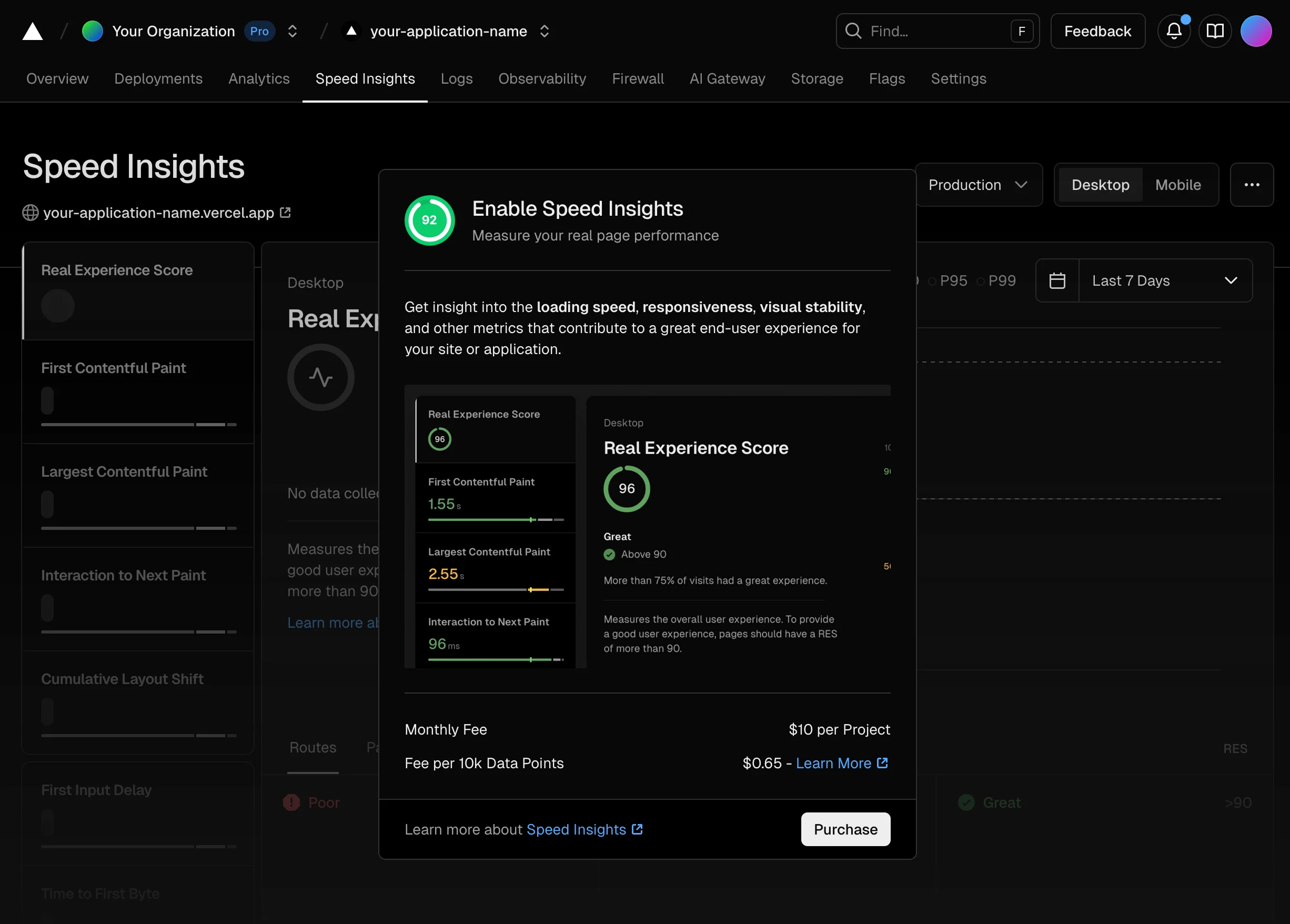 Click on **Purchase** to enable **Speed Insights**.
## 2. Add `@vercel/speed-insights` to your project
Add `@vercel/speed-insights` package to your project and include `` component in your app.
```shell Shell theme={null}
npm install @vercel/speed-insights
```
This will add a script to the page and start tracking Web Vitals. For more detailed instructions head over to [Vercel documentation page](https://vercel.com/docs/speed-insights/quickstart#add-the-speedinsights-component-to-your-app).
## 3. Configure Speed Insights drain
From a Vercel project navigate to **Settings > Drains** page and click on **Add Drain**.
Click on **Purchase** to enable **Speed Insights**.
## 2. Add `@vercel/speed-insights` to your project
Add `@vercel/speed-insights` package to your project and include `` component in your app.
```shell Shell theme={null}
npm install @vercel/speed-insights
```
This will add a script to the page and start tracking Web Vitals. For more detailed instructions head over to [Vercel documentation page](https://vercel.com/docs/speed-insights/quickstart#add-the-speedinsights-component-to-your-app).
## 3. Configure Speed Insights drain
From a Vercel project navigate to **Settings > Drains** page and click on **Add Drain**.
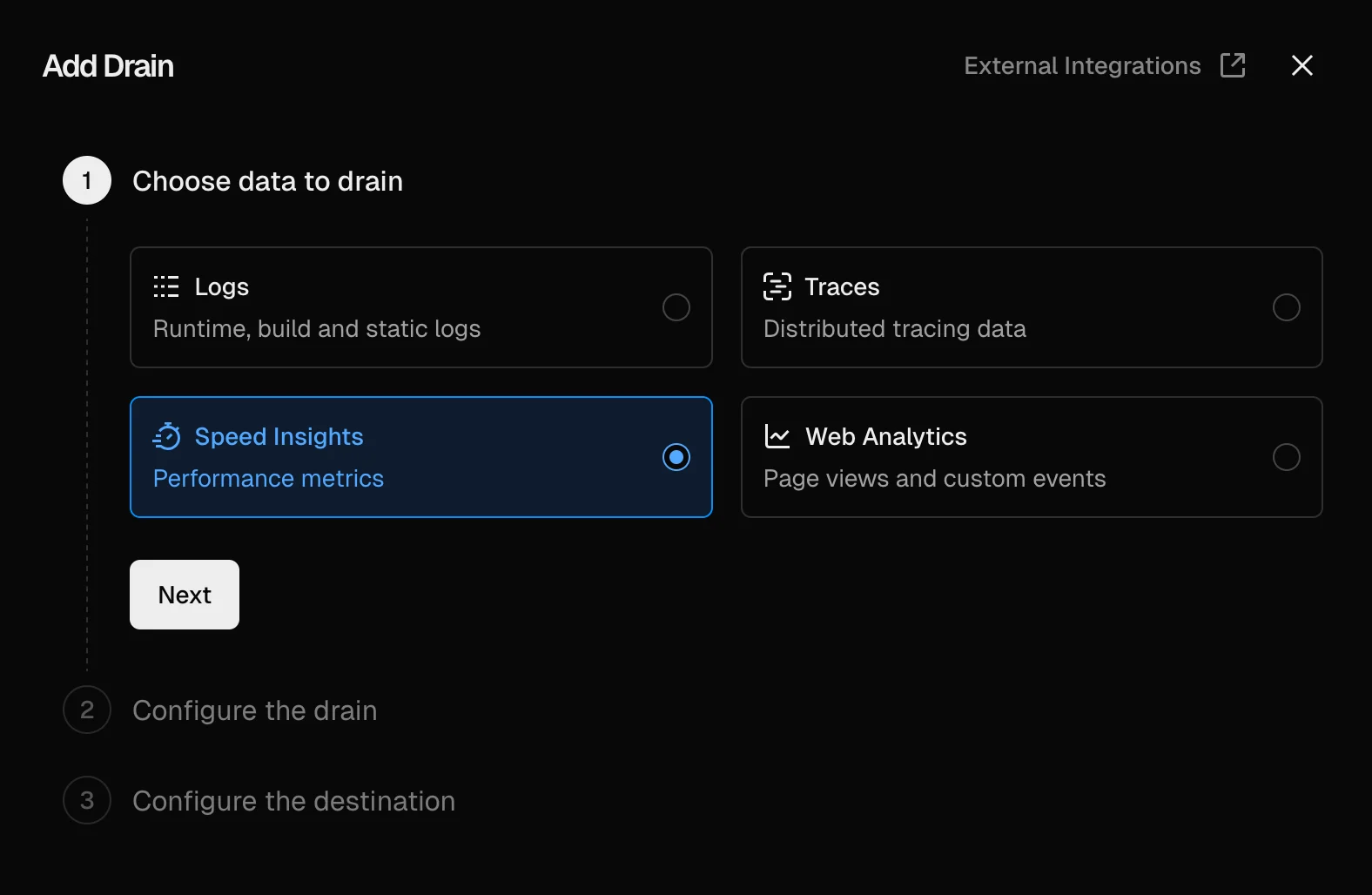 Select **Speed Insights** as the drain type and click **Next**.
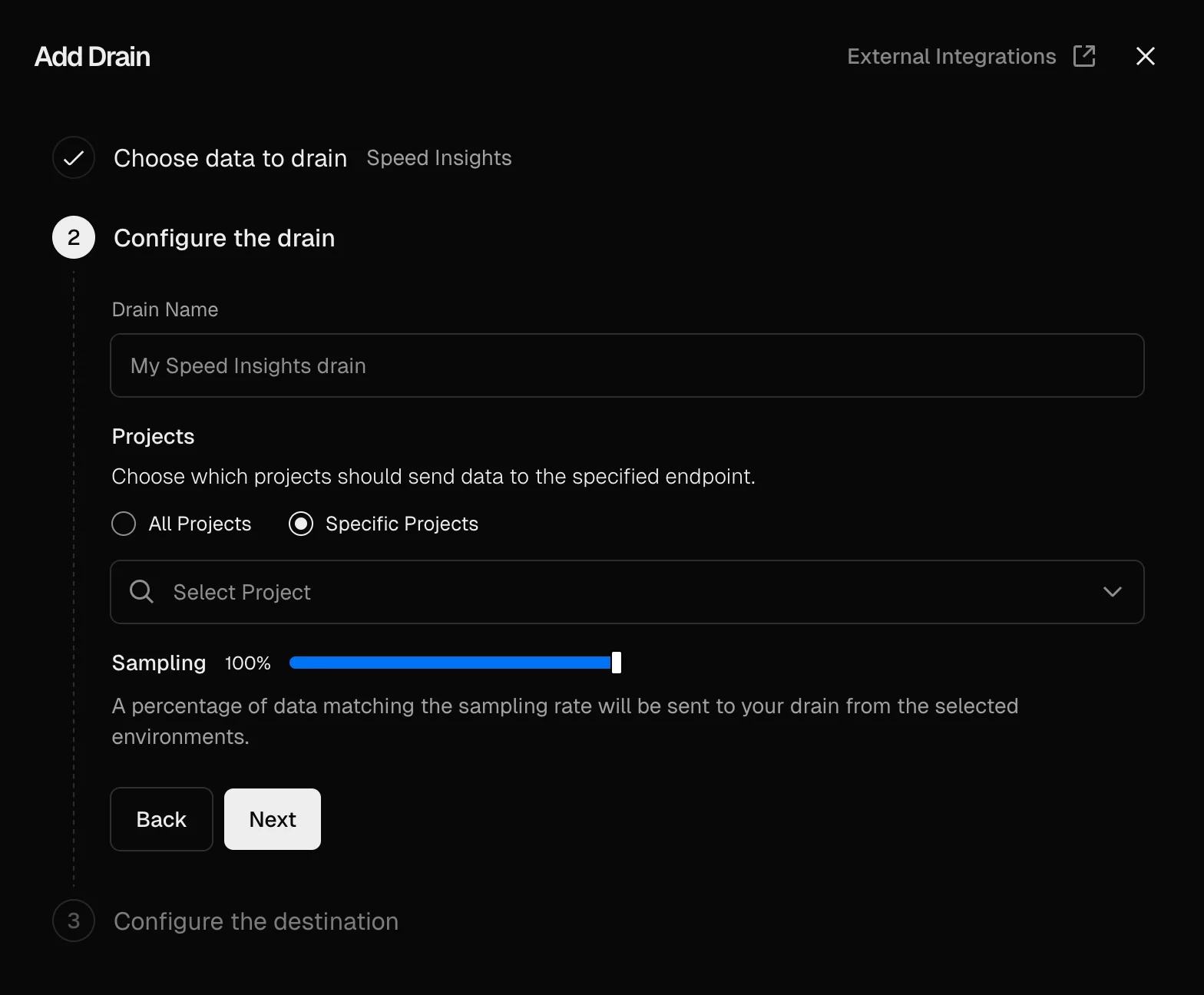 Add a descriptive name for the drain, such as 'AppSignal speed insights drain'. The **Specific projects** option along with your project should be pre-selected in the **Projects** section. If it is not, make sure to only select the project that you enabled Speed Insights for. Click **Next**.
 For **destination** enter the following URL replacing `` with your AppSignal app-level push API key, which can be found in [App settings](https://appsignal.com/redirect-to/app?to=api_keys\&key_tab=app):
```plaintext Text theme={null}
https://appsignal-endpoint.net/metrics/speed-insights?api_key=
```
You can find more information about **AppSignal API keys** in the AppSignal
API's [Public Endpoint Authentication
section](https://docs.appsignal.com/api/public-endpoint.html#authentication).
Pressing **Test** will send a test trace to AppSignal.
Click **Create Drain**.
On successful setup, a new [magic dashboard](https://blog.appsignal.com/2019/03/27/magic-dashboards.html) will be created for you with Next.js Web Vitals.
For **destination** enter the following URL replacing `` with your AppSignal app-level push API key, which can be found in [App settings](https://appsignal.com/redirect-to/app?to=api_keys\&key_tab=app):
```plaintext Text theme={null}
https://appsignal-endpoint.net/metrics/speed-insights?api_key=
```
You can find more information about **AppSignal API keys** in the AppSignal
API's [Public Endpoint Authentication
section](https://docs.appsignal.com/api/public-endpoint.html#authentication).
Pressing **Test** will send a test trace to AppSignal.
Click **Create Drain**.
On successful setup, a new [magic dashboard](https://blog.appsignal.com/2019/03/27/magic-dashboards.html) will be created for you with Next.js Web Vitals.