> ## Documentation Index
> Fetch the complete documentation index at: https://docs.appsignal.com/llms.txt
> Use this file to discover all available pages before exploring further.
# Setup
> Learn how to set up Render for AppSignal.
AppSignal's Render metrics and dashboards are available for [Render](https://render.com) workspaces and can be configured in just a few steps using Render's [Metrics Stream](https://render.com/docs/metrics-streams) feature.
Render's Metrics Stream feature requires the Render workspace to be on the Pro
plan or higher.
Please note that Render's Metrics Stream is configured per workspace, while
AppSignal's app-level push API key is per app. Choose the AppSignal app that
should receive metrics for the whole Render workspace before you continue. If
your Render workspace runs multiple applications, metrics from all Render
services will be sent to the AppSignal app that owns the configured key, and
currently cannot be split per service.
If you also want to access and manage your Render logs in AppSignal, you should additionally configure the [Render Log Stream for AppSignal Logging](/logging/platforms/render).
You only have to set up this metrics stream once per workspace and it will provide data for features such as host metrics and [magic dashboards](/render/dashboards).
To configure Render to send OpenTelemetry metrics to AppSignal, follow the steps below:
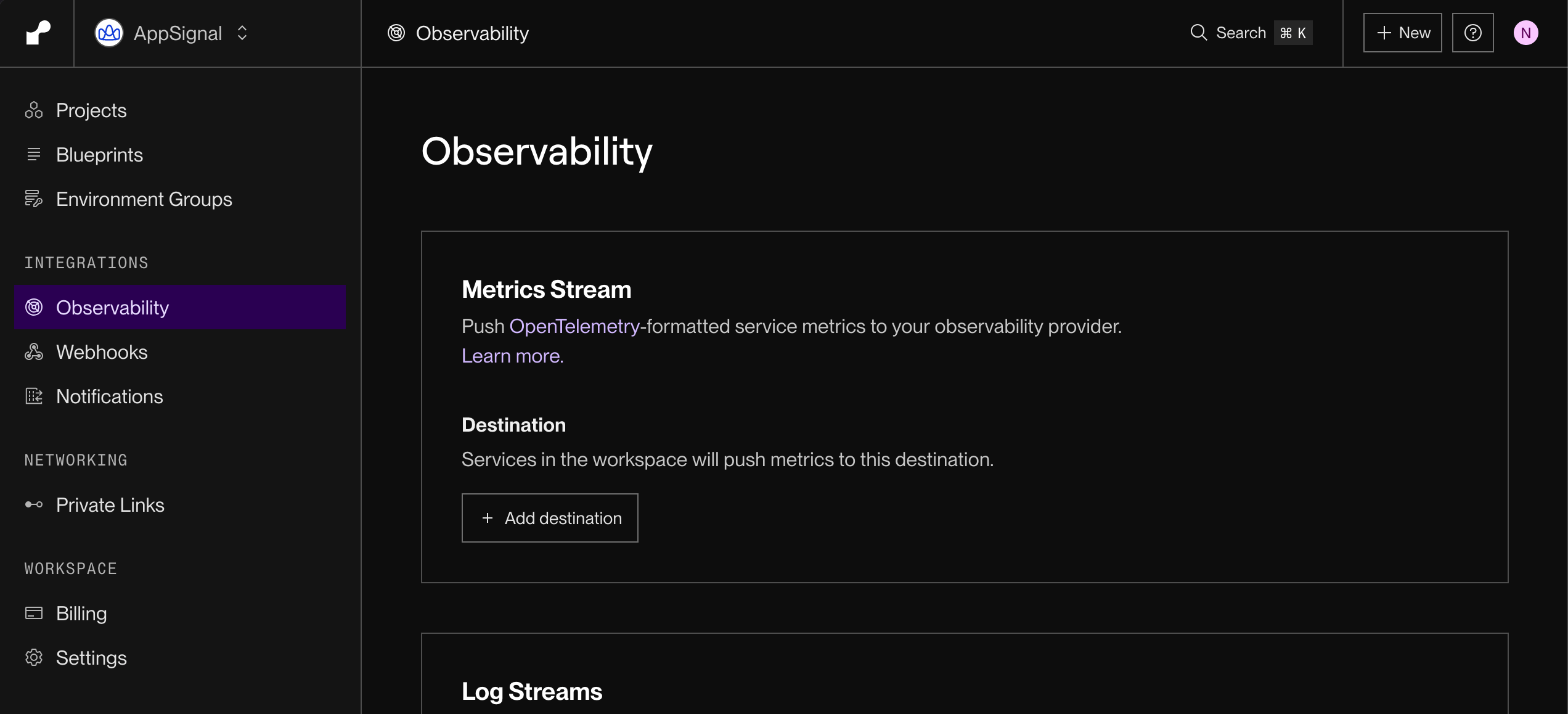
1. From your workspace's home in the Render Dashboard, select **Integrations > Observability** in the left sidebar, then select **+ Add destination** under **Metrics Stream**.
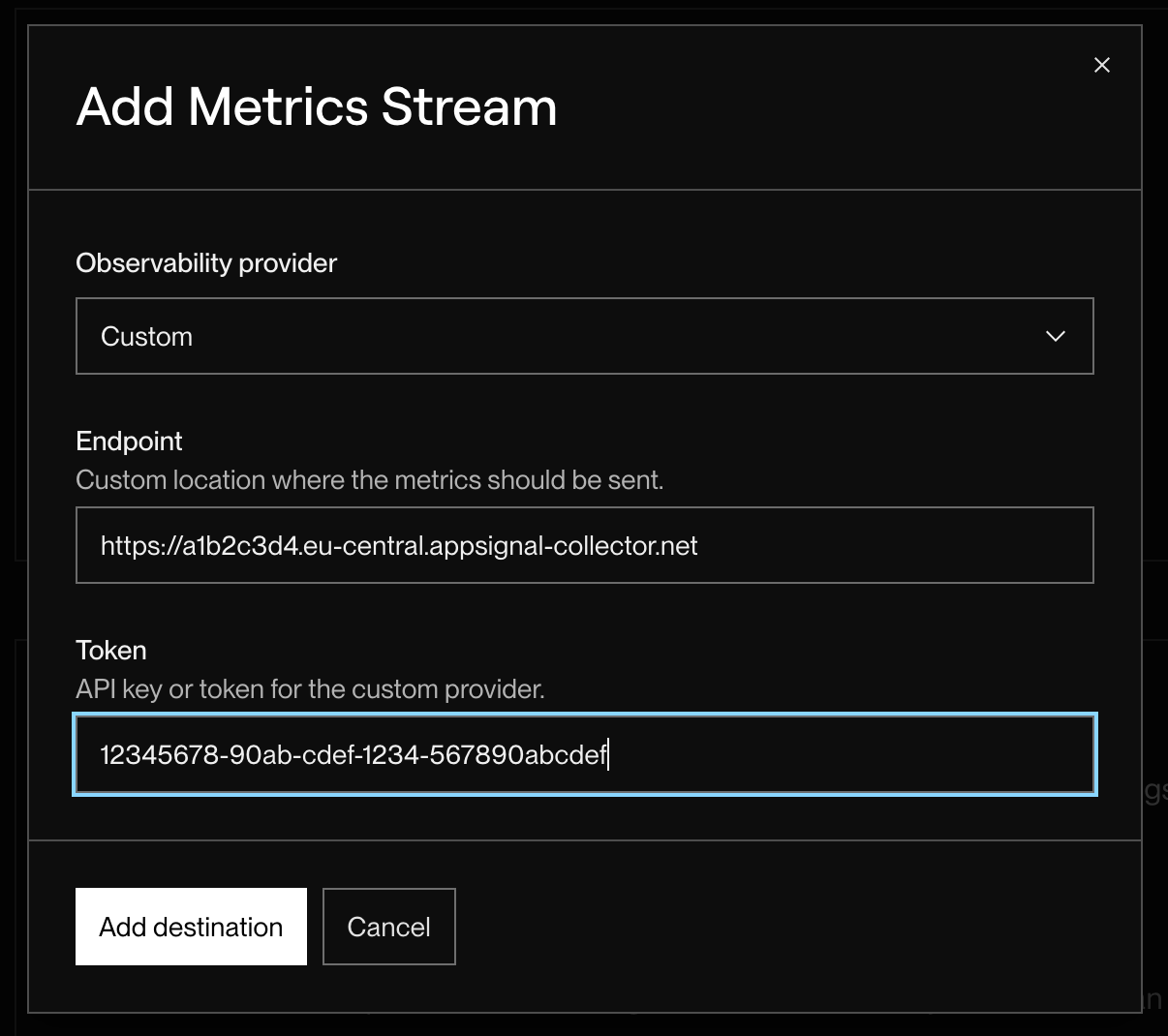
 2. Choose **Custom** as the **Observability provider**.
3. In the **Endpoint** field, enter the URL of your [Hosted Collector](/collector/hosted-vs-self-hosted), which you can find in your organization's [Hosted Collectors settings](https://appsignal.com/redirect-to/organization?to=admin/hosted_collectors).
4. In the **Token** field, enter your AppSignal app-level push API key, which can be found in [App settings](https://appsignal.com/redirect-to/app?to=api_keys\&key_tab=app).
5. Select **Add destination**.
2. Choose **Custom** as the **Observability provider**.
3. In the **Endpoint** field, enter the URL of your [Hosted Collector](/collector/hosted-vs-self-hosted), which you can find in your organization's [Hosted Collectors settings](https://appsignal.com/redirect-to/organization?to=admin/hosted_collectors).
4. In the **Token** field, enter your AppSignal app-level push API key, which can be found in [App settings](https://appsignal.com/redirect-to/app?to=api_keys\&key_tab=app).
5. Select **Add destination**.
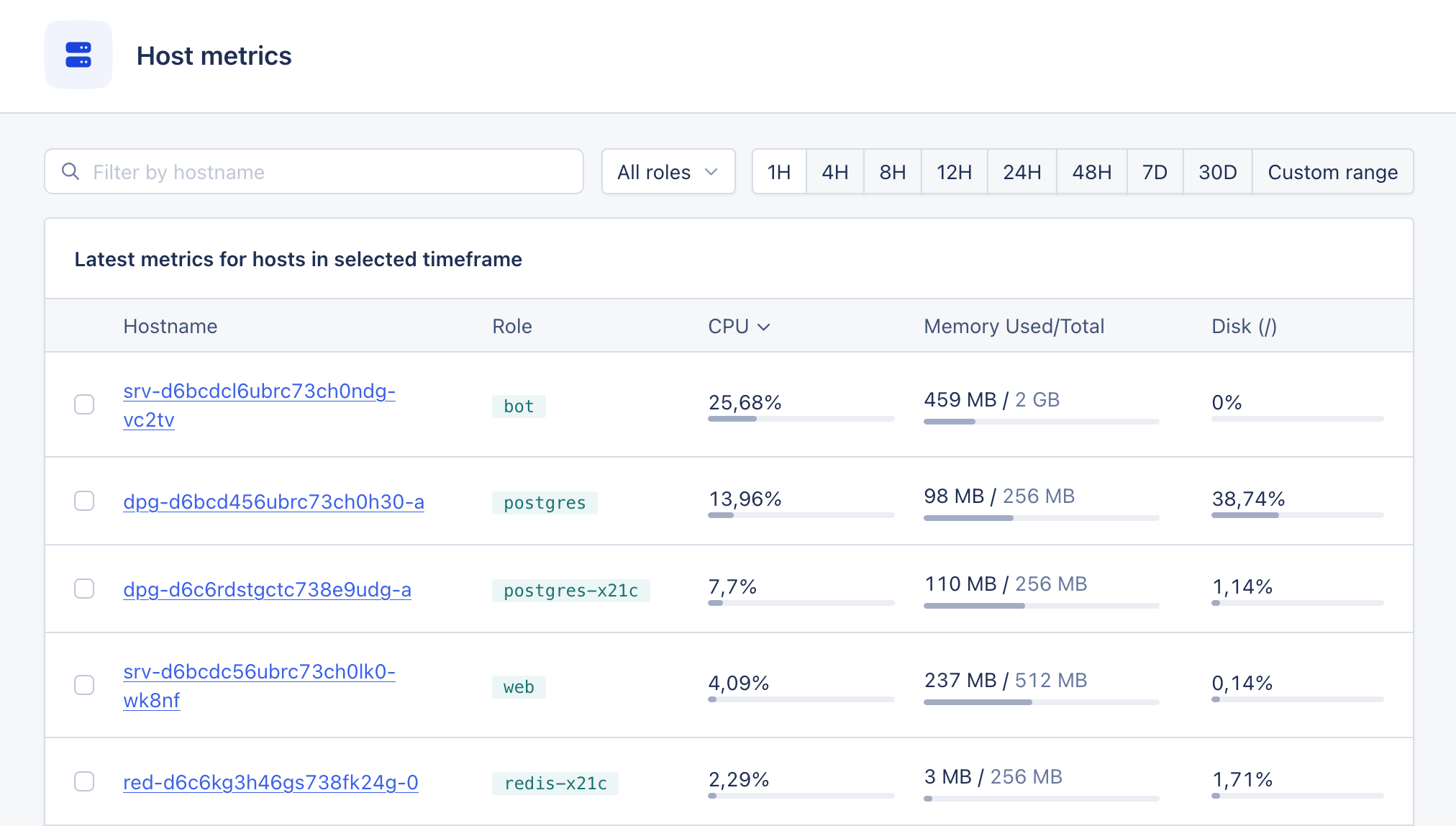
 After this, Render will create a metrics stream and send service metrics to AppSignal. CPU, memory, disk capacity, disk I/O and network I/O metrics will appear as [host metrics](/metrics/host-metrics) in your AppSignal app, alongside any other host metrics. HTTP, [Render Postgres](https://render.com/docs/postgresql) and [Render Key Value](https://render.com/docs/key-value) metrics power the [magic dashboards](/render/dashboards) that appear in your AppSignal app. If you do not see metrics yet, wait a few minutes and refresh the page.
 To report deploys from a Render service, install the AppSignal integration for your language. AppSignal will pick up Render's `RENDER_GIT_COMMIT` environment variable automatically; see [Render support](/application/markers/deploy-markers#render-support) in our deploy markers documentation for details.