> ## Documentation Index
> Fetch the complete documentation index at: https://docs.appsignal.com/llms.txt
> Use this file to discover all available pages before exploring further.
# Notifier management
Notifiers notify you when your application encounters an incident, such as an error, performance issue, or anomaly.
Admins can manage notifiers to streamline application set-up, for example, by setting up a default notifier and managing notifiers for all an organization's applications. This is particularly useful for organizations with many apps, like agencies.
### This documentation covers:
* [Notifiers available in AppSignal](#available-notifiers)
* [How to view all notifiers in AppSignal](#view-all-notifiers)
* [How to manage notifiers in AppSignal](#manage-notifiers)
## Available notifiers
AppSignal currently supports the following notifiers:
* [Discord](/application/integrations/discord)
* [Google Hangouts Chat](#google-hangouts-chat)
* [Microsoft Teams](/application/integrations/teams)
* [OpsGenie](/application/integrations/opsgenie)
* [PagerDuty](/application/integrations/pagerduty)
* [Slack](/application/integrations/slack)
* [Webhook](/application/integrations/webhooks)
Webhooks can be used to configure AppSignal to work with additional services. Many third-party notifiers offer their own documentation for connecting to AppSignal via our Webhook. For more details, you can read their documentation:
* [All Quiet](https://docs.allquiet.app/integrations/inbound/appsignal)
* [ilert](https://docs.ilert.com/inbound-integrations/appsignal)
* [Squadcast](https://support.squadcast.com/integrations/alert-source-integrations-native/appsignal)
* [Zenduty](https://www.zenduty.com/docs/appsignal-integration/)
You can see a complete list of supported third-party integrations in our [integrations documentation](https://docs.appsignal.com/application/integrations.html).
## View all notifiers
To manage notifiers you will need to have admin permissions for your organization.
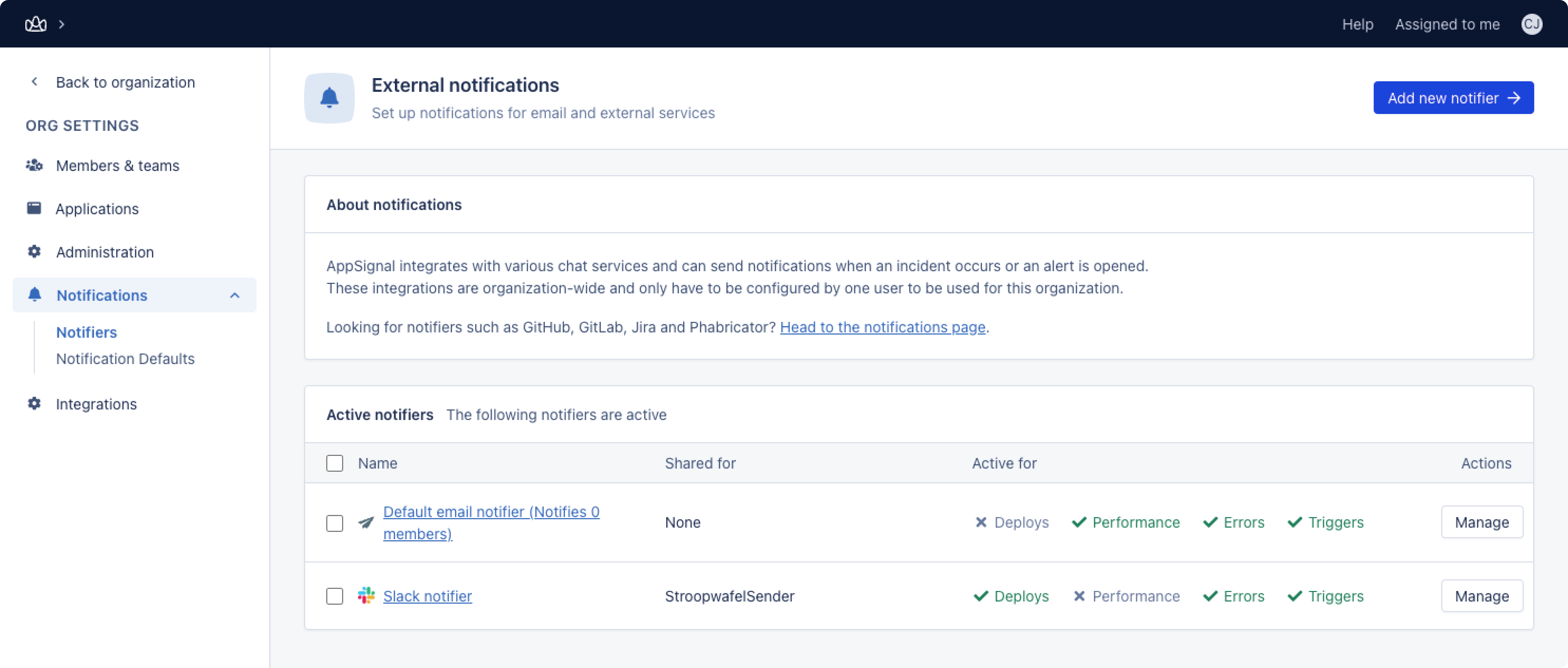
Admins can navigate to Organization settings > Notifications > Notifications. In the Notifications overview, you can manage and delete notifiers.
 ## Manage notifiers
To manage a notifier, click 'Manage'. Here you can:
* [Manage notifier settings](#manage-notifier-settings)
* [Manage notifier scope](#manage-notifier-scope)
* [Make notifier default on new applications](#make-notifier-default-on-new-applications)
* [Manage notifier events](#manage-notifier-events)
### Manage notifier settings
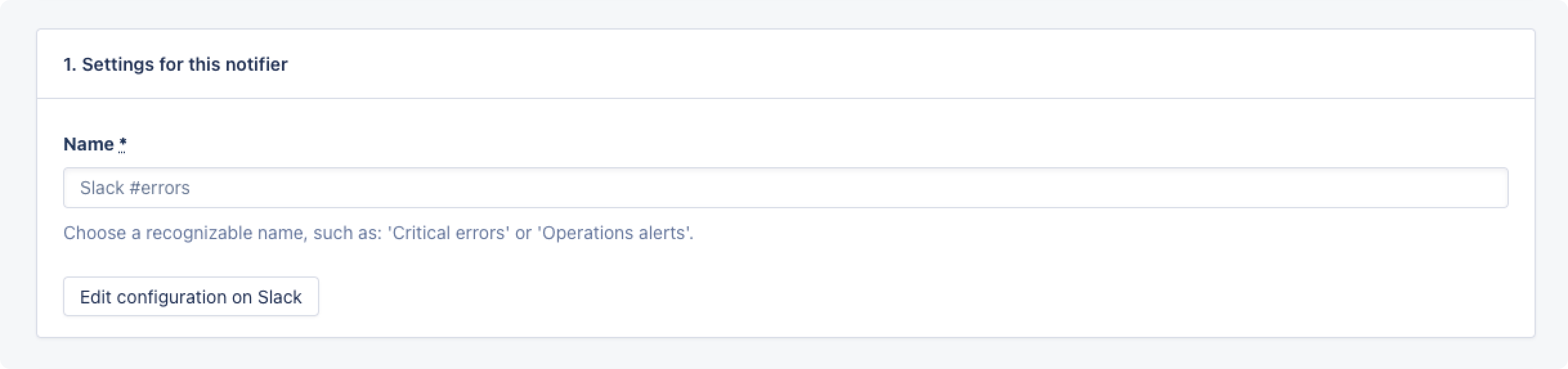
In the Settings for this notifier section, you can manage the name, and for email notifiers, the reminder interval of your notifier. The reminder interval instructs AppSignal how often to send a notification when there is an open alert.
## Manage notifiers
To manage a notifier, click 'Manage'. Here you can:
* [Manage notifier settings](#manage-notifier-settings)
* [Manage notifier scope](#manage-notifier-scope)
* [Make notifier default on new applications](#make-notifier-default-on-new-applications)
* [Manage notifier events](#manage-notifier-events)
### Manage notifier settings
In the Settings for this notifier section, you can manage the name, and for email notifiers, the reminder interval of your notifier. The reminder interval instructs AppSignal how often to send a notification when there is an open alert.
 ### Manage notifier scope
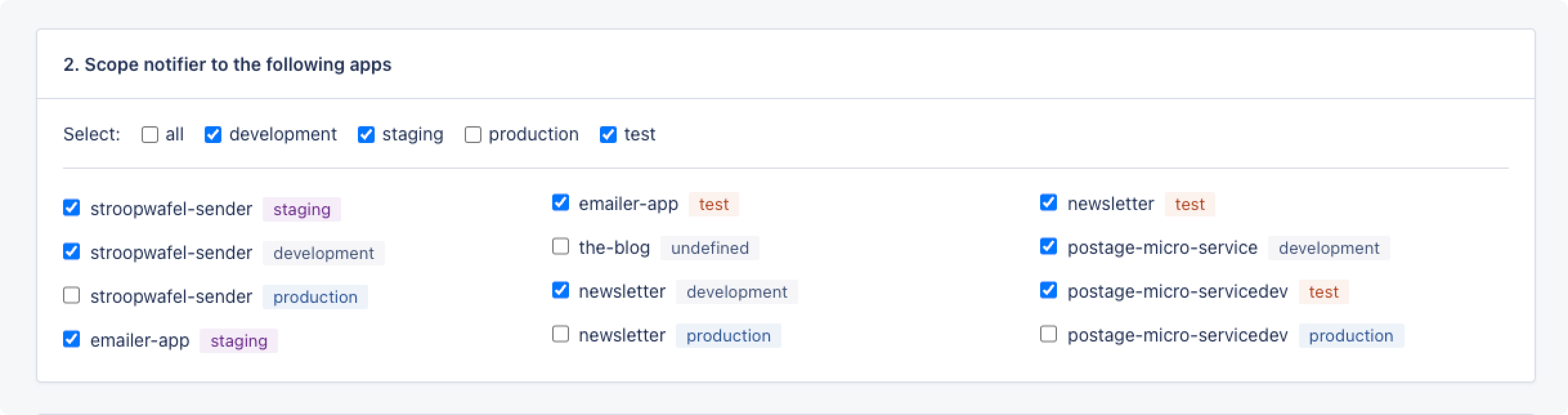
In notifier scope, you can manage the scope of a notifier across all of your organization's applications. Scope can be defined per application and per environment, so for example, for all apps running in the production environment.
### Manage notifier scope
In notifier scope, you can manage the scope of a notifier across all of your organization's applications. Scope can be defined per application and per environment, so for example, for all apps running in the production environment.
 ### Make notifier default on new applications
When enabled, this notifier will be set up by default on all new applications. If you have a Slack notifier for all production apps and make it default, all new applications you monitor with AppSignal will automatically have that notifier configured.
### Make notifier default on new applications
When enabled, this notifier will be set up by default on all new applications. If you have a Slack notifier for all production apps and make it default, all new applications you monitor with AppSignal will automatically have that notifier configured.
 ### Manage notifier events
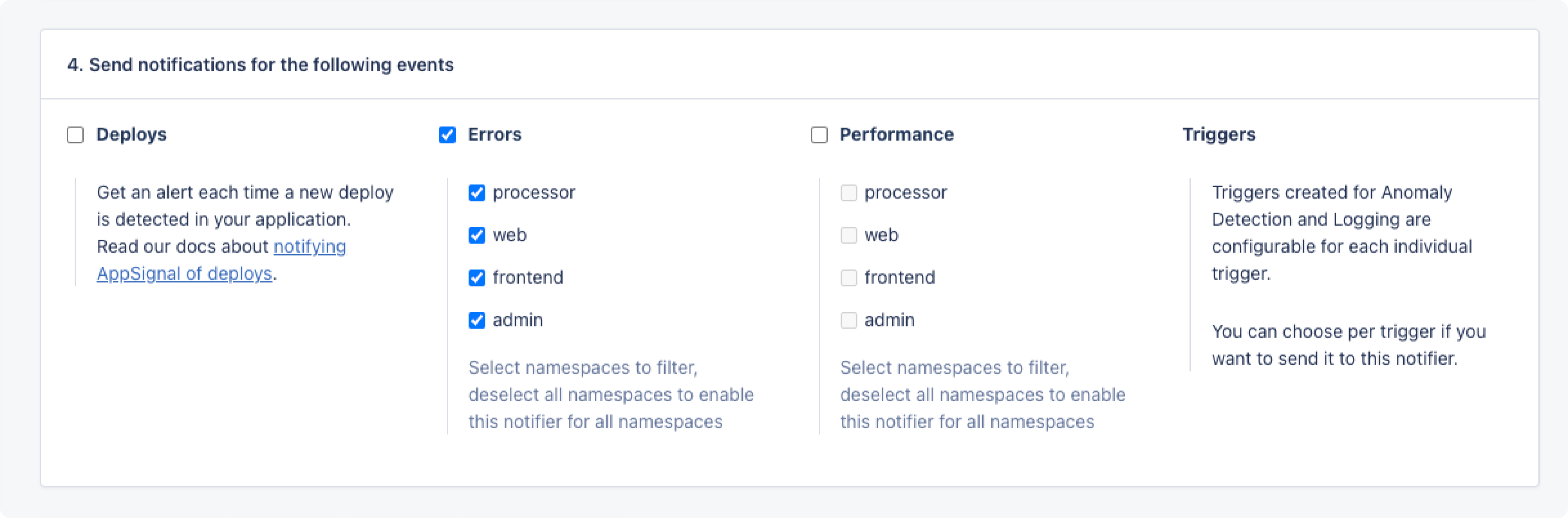
Here you can manage what application events trigger your notifier, such as deploys, errors, performance issues, and triggers, scoped per namespace. So, for example, only sending notifications for error events in the `API` namespace.
### Manage notifier events
Here you can manage what application events trigger your notifier, such as deploys, errors, performance issues, and triggers, scoped per namespace. So, for example, only sending notifications for error events in the `API` namespace.