> ## Documentation Index
> Fetch the complete documentation index at: https://docs.appsignal.com/llms.txt
> Use this file to discover all available pages before exploring further.
# Data-exports
Met AppSignal kunt u snel en gemakkelijk exports genereren van de exception- en performance-data van uw apps, zodat u exception- en performance-data kunt analyseren met uw favoriete third-party tools.
## In deze documentatie wordt uitgelegd hoe u:
* [Grafieken in AppSignal exporteert](#how-to-export-charts)
* [Performance- en exception-data in AppSignal exporteert](#how-to-export-data)
* [CSV-data-exports in AppSignal beheert en downloadt](#how-to-manage-exported-data)
## Exporteerbare data
U kunt de volgende data exporteren in de volgende formaten:
| Datatype | Pagina/Functie | Exportformaten |
| ----------- | ---------------------------- | -------------- |
| Exceptions | Exception Incidents | CSV |
| | Exception Incident Samples | CSV |
| Performance | Performance Incidents | CSV |
| | Performance Incident Samples | CSV |
| | Performance Actions | CSV |
| Grafieken | Chart Data | PNG, JSON, CSV |
Let op: alle CSV-exports worden geleverd in gzipped-formaat.
## Hoe u grafieken exporteert
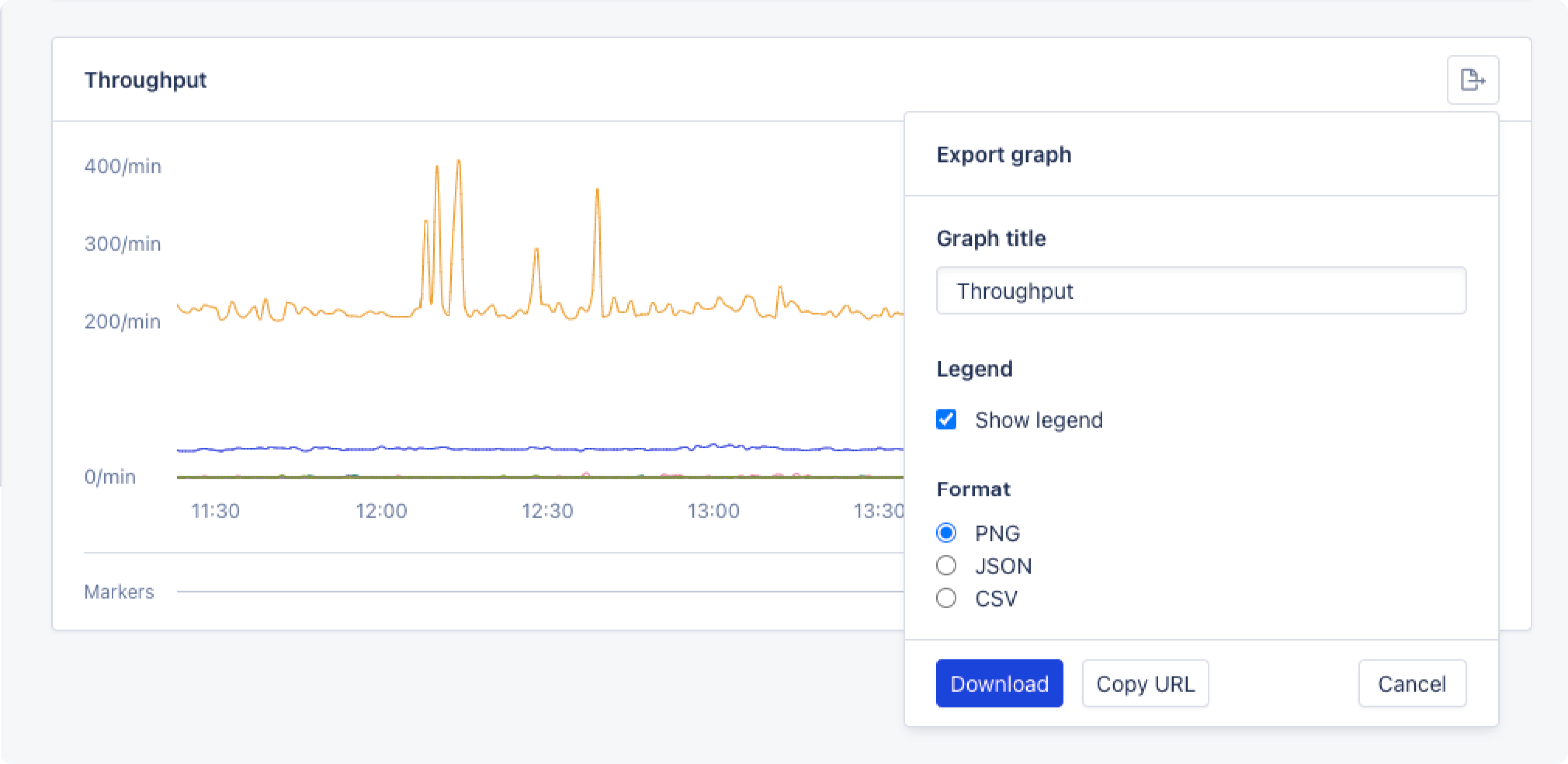
1. Klik op de "Share"-knop op de grafiek die u wilt exporteren.
2. Configureer de gewenste grafiektitel en het exportformaat.
3. Klik op download en sla de gegenereerde export op.
 ## Hoe u data exporteert
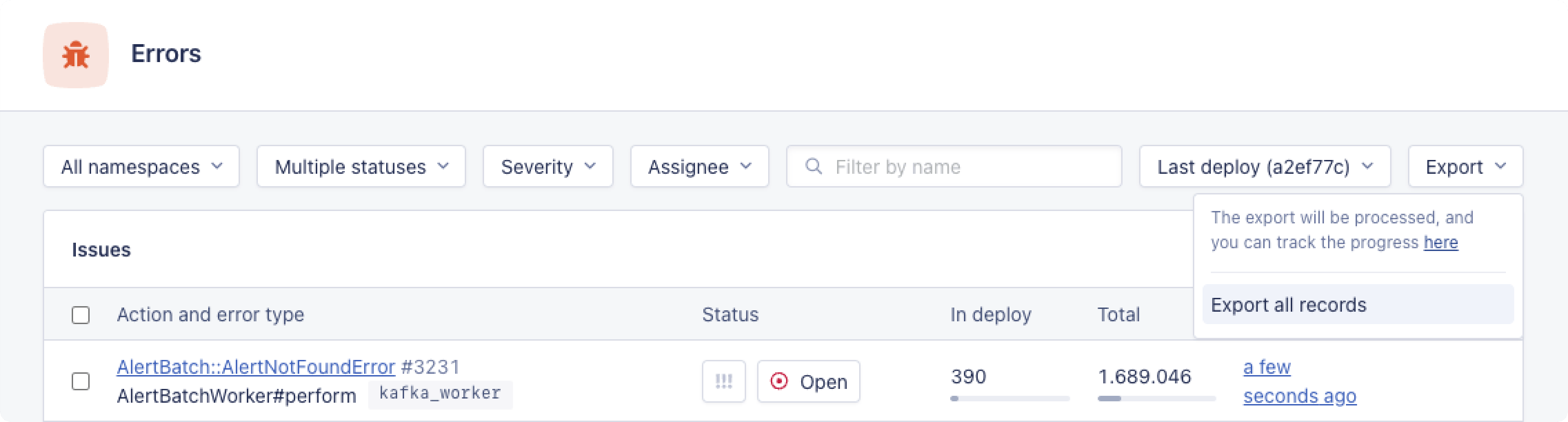
Data kan worden geëxporteerd door te klikken op de Export-dropdown in de filterbalk en "Export all records" te selecteren.
## Hoe u data exporteert
Data kan worden geëxporteerd door te klikken op de Export-dropdown in de filterbalk en "Export all records" te selecteren.
 Momenteel is het niet mogelijk om een gefilterde dataset te exporteren.
Dit genereert een export die, eenmaal verwerkt, kan worden gedownload via het exports-overzicht.
## Hoe u geëxporteerde data beheert
U kunt uw exports bekijken op de Exports-pagina van uw organisatie.
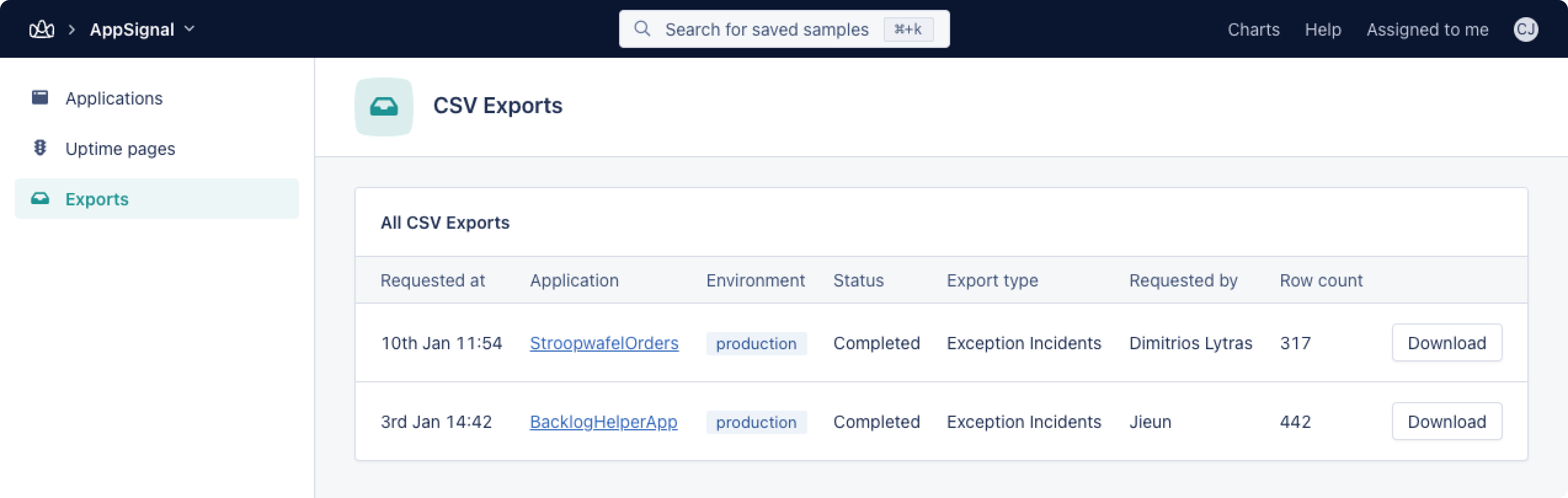
Hier worden alle exports getoond met hun aangevraagde exportdatum en -tijd, applicatie, environment, status, exporttype, aanvrager en rij-aantal.
De exportstatus wordt automatisch bijgewerkt; het is niet nodig om de pagina te verversen als u wacht tot een verwerkende export is voltooid.
Momenteel is het niet mogelijk om een gefilterde dataset te exporteren.
Dit genereert een export die, eenmaal verwerkt, kan worden gedownload via het exports-overzicht.
## Hoe u geëxporteerde data beheert
U kunt uw exports bekijken op de Exports-pagina van uw organisatie.
Hier worden alle exports getoond met hun aangevraagde exportdatum en -tijd, applicatie, environment, status, exporttype, aanvrager en rij-aantal.
De exportstatus wordt automatisch bijgewerkt; het is niet nodig om de pagina te verversen als u wacht tot een verwerkende export is voltooid.