> ## Documentation Index
> Fetch the complete documentation index at: https://docs.appsignal.com/llms.txt
> Use this file to discover all available pages before exploring further.
# Set up AppSignal MCP
AppSignal MCP is a public HTTP endpoint at `https://appsignal.com/api/mcp`. Authenticate once, then add the endpoint to your AI tool using the instructions for your editor or app.
## Authentication
You need an [AppSignal account][appsignal-sign-up] to get started. AppSignal MCP supports two authentication methods — pick whichever fits the AI agent you're configuring:
* **OAuth** — sign in with your AppSignal account once. Access is granted at the application level and exposes all read and write tools at once. The recommended path for GitHub Copilot CLI, and the simplest setup for editors that natively support remote MCP servers (Claude Code, VS Code) or that can run [`mcp-remote`][mcp-remote] as a bridge (Cursor, Windsurf, Zed).
* **Bearer token** — generate a long-lived [MCP token][appsignal-mcp-token] with fine-grained permissions per toolset. Each token can be set to `read`, `write`, or disabled per area, scoped to specific applications, and configured to automatically expose new tools as they ship. Best when you want to limit what an agent can do.
If you're getting started and your agent supports OAuth, that's the quicker path. If you need per-tool permissions or per-app scoping, generate an MCP token instead.
To generate a Bearer token:
1. Select your profile icon.
2. Go to **Account Settings**.
3. Select **MCP Tokens** to create a new token.
The token form has two long checklists: the applications to scope the token to, and the permissions to expose. Each list has a **Select all** toggle in its header that checks or clears every box at once.
## Configuration
Configure AppSignal MCP in your AI agent's settings using the HTTP endpoint `https://appsignal.com/api/mcp`. Each of the following sections has tabs for OAuth and Bearer token — pick whichever you set up in the Authentication section.
OAuth support is new across our supported editors. If the OAuth tab errors out
for your editor, fall back to the Bearer token tab and let us know in our{" "}
Discord community so we can
tighten these instructions.
### Claude Code
```bash OAuth theme={null}
claude mcp add --transport http appsignal https://appsignal.com/api/mcp
```
```bash Bearer token theme={null}
claude mcp add --transport http appsignal https://appsignal.com/api/mcp \
--header "Authorization: Bearer "
```
With OAuth, Claude Code starts the browser-based sign-in flow the first time AppSignal tools are invoked. See the [Claude Code MCP docs][claude-code-mcp] for transport flags and CLI reference.
### Cursor
Edit `~/.cursor/mcp.json`:
```json OAuth theme={null}
{
"mcpServers": {
"appsignal": {
"command": "npx",
"args": ["-y", "mcp-remote", "https://appsignal.com/api/mcp"]
}
}
}
```
```json Bearer token theme={null}
{
"mcpServers": {
"appsignal": {
"url": "https://appsignal.com/api/mcp",
"headers": {
"Authorization": "Bearer your-mcp-token"
}
}
}
}
```
The OAuth setup uses [`mcp-remote`][mcp-remote] as a local bridge to the HTTP endpoint. The browser-based sign-in flow opens the first time Cursor connects. See the [Cursor MCP docs][cursor-mcp] for the full schema.
### Windsurf
Edit `~/.codeium/windsurf/mcp_config.json`:
```json OAuth theme={null}
{
"mcpServers": {
"appsignal": {
"command": "npx",
"args": ["-y", "mcp-remote", "https://appsignal.com/api/mcp"]
}
}
}
```
```json Bearer token theme={null}
{
"mcpServers": {
"appsignal": {
"serverUrl": "https://appsignal.com/api/mcp",
"headers": {
"Authorization": "Bearer your-mcp-token"
}
}
}
}
```
See the [Windsurf MCP docs][windsurf-mcp] for the full schema and OAuth notes.
### Zed
Open your Zed settings file and add the `context_servers` section:
```json OAuth theme={null}
{
"context_servers": {
"appsignal": {
"settings": {},
"enabled": true,
"url": "https://appsignal.com/api/mcp"
}
}
}
```
```json Bearer token theme={null}
{
"context_servers": {
"appsignal": {
"settings": {},
"enabled": true,
"url": "https://appsignal.com/api/mcp",
"headers": {
"Authorization": "Bearer your-mcp-token"
}
}
}
}
```
When the `Authorization` header is omitted, Zed initiates the standard MCP OAuth flow against AppSignal. See the [Zed MCP docs][zed-mcp] for the full `context_servers` schema.
### VS Code
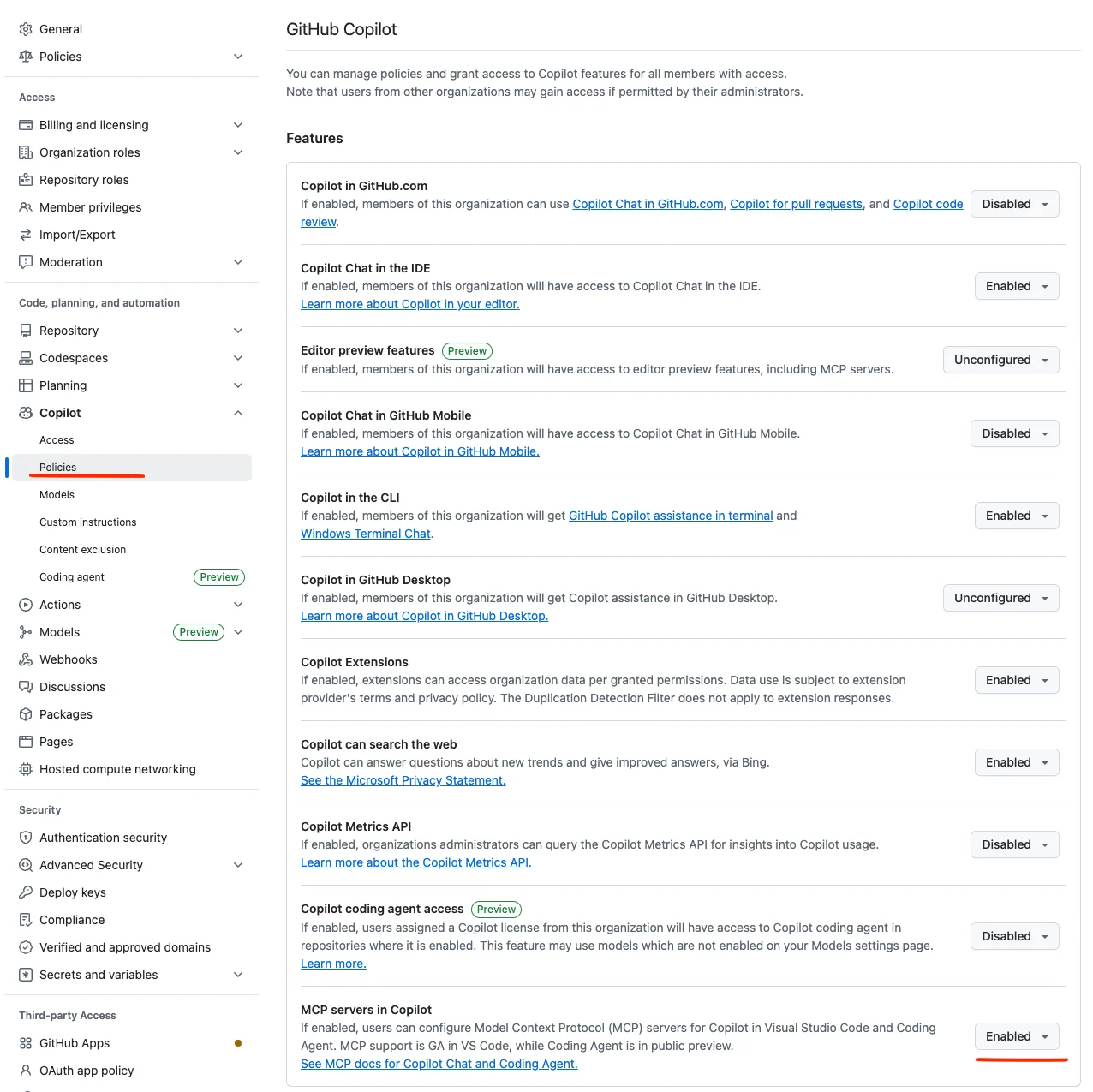
If you use GitHub Copilot under a company account, make sure **MCP servers in Copilot** is set to **Enabled** in your organization settings (Settings → Copilot → Policies → Features → MCP servers in Copilot).
 Add this to your `.vscode/mcp.json`:
```json OAuth theme={null}
{
"servers": {
"appsignal": {
"type": "http",
"url": "https://appsignal.com/api/mcp"
}
}
}
```
```json Bearer token theme={null}
{
"inputs": [
{
"type": "promptString",
"id": "appsignal_mcp_token",
"description": "AppSignal MCP token",
"password": true
}
],
"servers": {
"appsignal": {
"type": "http",
"url": "https://appsignal.com/api/mcp",
"headers": {
"Authorization": "Bearer ${input:appsignal_mcp_token}"
}
}
}
}
```
With OAuth, VS Code initiates the sign-in flow the first time AppSignal tools are used. See the [VS Code MCP docs][vscode-mcp] for input variables and headers.
### GitHub Copilot CLI
The GitHub Copilot CLI uses OAuth for MCP authentication. Run the following to add AppSignal:
```bash Bash theme={null}
copilot mcp add appsignal https://appsignal.com/api/mcp
```
Follow the OAuth prompt to authorize AppSignal. Once connected, AppSignal tools will be available in Copilot CLI sessions. See the [GitHub Copilot CLI MCP docs][copilot-cli-mcp] for the interactive `/mcp add` flow and config file location.
### Gemini CLI
Gemini CLI reads MCP servers from `~/.gemini/settings.json` (user-level) or `.gemini/settings.json` in a project. Add AppSignal under `mcpServers`:
```json OAuth theme={null}
{
"mcpServers": {
"appsignal": {
"httpUrl": "https://appsignal.com/api/mcp"
}
}
}
```
```json Bearer token theme={null}
{
"mcpServers": {
"appsignal": {
"httpUrl": "https://appsignal.com/api/mcp",
"headers": {
"Authorization": "Bearer your-mcp-token"
}
}
}
}
```
Leave `headers` out to use OAuth: when the endpoint returns `401`, Gemini CLI discovers the flow and opens the browser sign-in. You can also add the server from the command line with `gemini mcp add appsignal https://appsignal.com/api/mcp`. See the [Gemini CLI MCP docs][gemini-cli-mcp] for the full `mcpServers` schema and `gemini mcp` commands.
### Claude app
The Claude app — Claude.ai on the web, and the desktop and mobile apps — connects to AppSignal MCP as a custom connector over OAuth. There's no Bearer token option in the app.
1. In Claude, open **Settings**, then **Connectors**.
2. Select **Browse**, search for `appsignal`, and open the AppSignal connector. If it isn't listed, select **Add custom connector** and enter the URL `https://appsignal.com/api/mcp` instead.
3. Select **Connect**, then complete the AppSignal sign-in when prompted.
4. Start a chat and try a prompt such as *"List my AppSignal applications"*. You can connect or disconnect AppSignal at any time from **Settings → Connectors**.
Custom connectors are available on the Free, Pro, Max, Team, and Enterprise plans; Free is limited to one custom connector. On Team and Enterprise, an organization admin manages the available connectors. See the [Claude custom connector guide][claude-connectors] for details.
### OpenAI Codex
Codex connects to AppSignal MCP as a streamable HTTP server. Add it from the Codex app and authenticate with OAuth, or configure it in a file with a Bearer token.
To add it in the Codex app:
1. Open **Settings**, then **MCP servers**, and select **Add server**.
2. Choose the **Streamable HTTP** transport, enter the name `appsignal` and the URL `https://appsignal.com/api/mcp`, then save.
3. Select **Authenticate** next to the AppSignal server.
4. On the AppSignal authorization screen, choose your organization and, optionally, the applications to expose (leave them unchecked for all), then select **Allow access**.
To configure Codex from a file instead, edit `~/.codex/config.toml` (or `.codex/config.toml` in a project). Set `bearer_token_env_var` to the name of an environment variable that holds an [MCP token][appsignal-mcp-token]:
```toml theme={null}
[mcp_servers.appsignal]
url = "https://appsignal.com/api/mcp"
bearer_token_env_var = "APPSIGNAL_MCP_TOKEN"
```
Then set `APPSIGNAL_MCP_TOKEN` in your environment. See the [Codex MCP docs][codex-mcp] for `http_headers`, OAuth, and the full `mcp_servers` schema.
## Verify the connection
After adding the server, confirm your agent can reach it before you rely on it.
* **Claude Code**: run `claude mcp list` — AppSignal should show as `✔ Connected` — or run `/mcp` inside a session to inspect the server and its tools.
* **Other editors**: open the MCP or context-server panel in the editor's settings, where AppSignal should appear as connected.
Then try a prompt that calls a read tool, such as *"List my AppSignal applications"*. A list of your `app_name/app_environment` pairs confirms the tools are working. If the agent reports no applications, check that you authorized the right organization during OAuth, or that your MCP token is scoped to the applications you expect.
## Usage, logging, and data handling
### Rate limits and account access
AppSignal applies no rate limit specific to MCP. Tool calls run through the same infrastructure as the rest of `appsignal.com` and share its general protections.
What gates access is your account's plan. A locked account, or a free account past its trial and usage limit, gets an error instead of data — the same restriction the rest of the AppSignal API uses.
### What AppSignal MCP logs
AppSignal logs each tool call for reliability and abuse prevention: the tool name, the arguments you pass, and your account and user IDs. `get_more_tools` also logs the capability you asked for. Your email and organization name can appear in a tool's reply, but the log stores IDs, not those.
Because arguments are logged, don't pass secrets in free-text parameters such as log queries. MCP logs follow AppSignal's general [log retention](/logging); there is no separate retention window for MCP.
### Data handling and compliance
MCP reads and writes the same data as the rest of AppSignal, so it inherits AppSignal's data handling. AppSignal is GDPR compliant, ISO/IEC 27001 certified, and hosts data in the EU. HIPAA coverage is available through a Business Associate Agreement add-on.
For the details, see [GDPR](/appsignal/gdpr), [Security](/appsignal/security), and [Business add-ons](/support/business-add-ons).
## Troubleshooting
### The server won't connect, or OAuth fails
Fall back to a Bearer token. Generate an [MCP token][appsignal-mcp-token] and use the Bearer token tab for your editor. In Claude Code:
```bash Bash theme={null}
claude mcp add --transport http appsignal https://appsignal.com/api/mcp \
--header "Authorization: Bearer your-mcp-token"
```
Then run `claude mcp list` to confirm AppSignal shows as connected.
### No applications show up
Your OAuth sign-in authorized a different organization, or your MCP token isn't scoped to the apps you expect. Ask the agent to *"list my AppSignal applications"*. If the list is empty or missing apps, sign in again and pick the right organization, or regenerate the token with those applications selected.
### "Application not found"
`app_name` and `app_environment` are matched case-insensitively, but they must otherwise match an app you can access. The error lists those applications — retry with an exact name and environment from the list.
### A tool call reports that access is restricted
Your account is locked, or a free account has passed its trial and usage limit. MCP uses the same access rules as the rest of the AppSignal API. Resolve the plan or billing state, then retry.
### GitHub Copilot in VS Code shows no MCP servers
On Copilot Business or Enterprise, MCP servers are disabled by default and gated by an organization policy. An org owner sets **Settings → Copilot → Policies → Features → MCP servers in Copilot** to **Enabled**, then reconnect.
### Missing any tools?
An MCP token exposes only the toolsets you selected when you created it. A token created before a tool shipped won't include it unless you set the token to expose new tools automatically. Regenerate the token, or create one with the toolset enabled. OAuth exposes all read and write tools, so switch to OAuth if you want everything.
## Scope and roadmap
### Outside the toolset's scope
A few AppSignal features are intentionally not exposed through dedicated MCP tools. In most cases there's already a better way to access the data, or a natural-language interface isn't the right fit for the job. Every tool exposed also takes up space in your agent's context, so we'd rather keep the toolset focused than mirror every part of the app.
* **Uptime monitor management**: creating or changing uptime monitors is not exposed. You can still list your monitors and their settings through [`get_app_resources`](/mcp/reference#get_app_resources). Uptime results are stored as metrics (`uptime_monitor_error_count` and `uptime_monitor_duration`), so you can compute uptime yourself through the metrics tools (`get_metric_names`, `get_metric_tags`, `get_metrics_timeseries`, and `get_metrics_list`).
* **Notifier, user, and deploy marker management**: creating or modifying these requires owner-level permissions and has real consequences: a misinterpreted prompt could grant the wrong person access or misroute alerts. Admin operations like these are better handled in the AppSignal UI, where they're explicit and easy to audit. You can still read notifiers, users, and deploy markers through `get_app_resources`.
* **Custom metric and signal ingestion**: AppSignal's ingest path runs on dedicated endpoints optimized for high-throughput delivery, and AppSignal MCP is not designed for pushing data. To send [custom metrics](/metrics/custom), use the AppSignal integration in your application.
### On the roadmap if there's demand
* **Process monitor querying**: read access to cron and heartbeat process monitor data. We'd like to gauge interest before adding this.
These are current stances and can change as the way agents work evolves. If you hit a wall with the current toolset, let us know in the [Discord community][discord] so we can weigh it against the list.
## Getting help
We encourage you to join our [Discord community][discord] where you can:
* Get help with AppSignal MCP setup
* Share feedback and suggestions
* Connect with other developers using AppSignal MCP
* Stay updated on new features and improvements
Look for the dedicated `#mcp` channel where our team actively monitors and responds to questions.
[appsignal-sign-up]: https://appsignal.com/users/sign_up
[appsignal-mcp-token]: https://appsignal.com/users/mcp_tokens
[discord]: https://discord.gg/fT2cbMuQSJ
[mcp-remote]: https://www.npmjs.com/package/mcp-remote
[claude-code-mcp]: https://code.claude.com/docs/en/mcp
[cursor-mcp]: https://cursor.com/docs/mcp
[windsurf-mcp]: https://docs.windsurf.com/windsurf/cascade/mcp
[zed-mcp]: https://zed.dev/docs/ai/mcp
[vscode-mcp]: https://code.visualstudio.com/docs/copilot/chat/mcp-servers
[copilot-cli-mcp]: https://docs.github.com/en/copilot/how-tos/copilot-cli/customize-copilot/add-mcp-servers
[gemini-cli-mcp]: https://github.com/google-gemini/gemini-cli/blob/main/docs/tools/mcp-server.md
[claude-connectors]: https://support.anthropic.com/en/articles/11175166-getting-started-with-custom-connectors-using-remote-mcp
[codex-mcp]: https://developers.openai.com/codex/mcp
Add this to your `.vscode/mcp.json`:
```json OAuth theme={null}
{
"servers": {
"appsignal": {
"type": "http",
"url": "https://appsignal.com/api/mcp"
}
}
}
```
```json Bearer token theme={null}
{
"inputs": [
{
"type": "promptString",
"id": "appsignal_mcp_token",
"description": "AppSignal MCP token",
"password": true
}
],
"servers": {
"appsignal": {
"type": "http",
"url": "https://appsignal.com/api/mcp",
"headers": {
"Authorization": "Bearer ${input:appsignal_mcp_token}"
}
}
}
}
```
With OAuth, VS Code initiates the sign-in flow the first time AppSignal tools are used. See the [VS Code MCP docs][vscode-mcp] for input variables and headers.
### GitHub Copilot CLI
The GitHub Copilot CLI uses OAuth for MCP authentication. Run the following to add AppSignal:
```bash Bash theme={null}
copilot mcp add appsignal https://appsignal.com/api/mcp
```
Follow the OAuth prompt to authorize AppSignal. Once connected, AppSignal tools will be available in Copilot CLI sessions. See the [GitHub Copilot CLI MCP docs][copilot-cli-mcp] for the interactive `/mcp add` flow and config file location.
### Gemini CLI
Gemini CLI reads MCP servers from `~/.gemini/settings.json` (user-level) or `.gemini/settings.json` in a project. Add AppSignal under `mcpServers`:
```json OAuth theme={null}
{
"mcpServers": {
"appsignal": {
"httpUrl": "https://appsignal.com/api/mcp"
}
}
}
```
```json Bearer token theme={null}
{
"mcpServers": {
"appsignal": {
"httpUrl": "https://appsignal.com/api/mcp",
"headers": {
"Authorization": "Bearer your-mcp-token"
}
}
}
}
```
Leave `headers` out to use OAuth: when the endpoint returns `401`, Gemini CLI discovers the flow and opens the browser sign-in. You can also add the server from the command line with `gemini mcp add appsignal https://appsignal.com/api/mcp`. See the [Gemini CLI MCP docs][gemini-cli-mcp] for the full `mcpServers` schema and `gemini mcp` commands.
### Claude app
The Claude app — Claude.ai on the web, and the desktop and mobile apps — connects to AppSignal MCP as a custom connector over OAuth. There's no Bearer token option in the app.
1. In Claude, open **Settings**, then **Connectors**.
2. Select **Browse**, search for `appsignal`, and open the AppSignal connector. If it isn't listed, select **Add custom connector** and enter the URL `https://appsignal.com/api/mcp` instead.
3. Select **Connect**, then complete the AppSignal sign-in when prompted.
4. Start a chat and try a prompt such as *"List my AppSignal applications"*. You can connect or disconnect AppSignal at any time from **Settings → Connectors**.
Custom connectors are available on the Free, Pro, Max, Team, and Enterprise plans; Free is limited to one custom connector. On Team and Enterprise, an organization admin manages the available connectors. See the [Claude custom connector guide][claude-connectors] for details.
### OpenAI Codex
Codex connects to AppSignal MCP as a streamable HTTP server. Add it from the Codex app and authenticate with OAuth, or configure it in a file with a Bearer token.
To add it in the Codex app:
1. Open **Settings**, then **MCP servers**, and select **Add server**.
2. Choose the **Streamable HTTP** transport, enter the name `appsignal` and the URL `https://appsignal.com/api/mcp`, then save.
3. Select **Authenticate** next to the AppSignal server.
4. On the AppSignal authorization screen, choose your organization and, optionally, the applications to expose (leave them unchecked for all), then select **Allow access**.
To configure Codex from a file instead, edit `~/.codex/config.toml` (or `.codex/config.toml` in a project). Set `bearer_token_env_var` to the name of an environment variable that holds an [MCP token][appsignal-mcp-token]:
```toml theme={null}
[mcp_servers.appsignal]
url = "https://appsignal.com/api/mcp"
bearer_token_env_var = "APPSIGNAL_MCP_TOKEN"
```
Then set `APPSIGNAL_MCP_TOKEN` in your environment. See the [Codex MCP docs][codex-mcp] for `http_headers`, OAuth, and the full `mcp_servers` schema.
## Verify the connection
After adding the server, confirm your agent can reach it before you rely on it.
* **Claude Code**: run `claude mcp list` — AppSignal should show as `✔ Connected` — or run `/mcp` inside a session to inspect the server and its tools.
* **Other editors**: open the MCP or context-server panel in the editor's settings, where AppSignal should appear as connected.
Then try a prompt that calls a read tool, such as *"List my AppSignal applications"*. A list of your `app_name/app_environment` pairs confirms the tools are working. If the agent reports no applications, check that you authorized the right organization during OAuth, or that your MCP token is scoped to the applications you expect.
## Usage, logging, and data handling
### Rate limits and account access
AppSignal applies no rate limit specific to MCP. Tool calls run through the same infrastructure as the rest of `appsignal.com` and share its general protections.
What gates access is your account's plan. A locked account, or a free account past its trial and usage limit, gets an error instead of data — the same restriction the rest of the AppSignal API uses.
### What AppSignal MCP logs
AppSignal logs each tool call for reliability and abuse prevention: the tool name, the arguments you pass, and your account and user IDs. `get_more_tools` also logs the capability you asked for. Your email and organization name can appear in a tool's reply, but the log stores IDs, not those.
Because arguments are logged, don't pass secrets in free-text parameters such as log queries. MCP logs follow AppSignal's general [log retention](/logging); there is no separate retention window for MCP.
### Data handling and compliance
MCP reads and writes the same data as the rest of AppSignal, so it inherits AppSignal's data handling. AppSignal is GDPR compliant, ISO/IEC 27001 certified, and hosts data in the EU. HIPAA coverage is available through a Business Associate Agreement add-on.
For the details, see [GDPR](/appsignal/gdpr), [Security](/appsignal/security), and [Business add-ons](/support/business-add-ons).
## Troubleshooting
### The server won't connect, or OAuth fails
Fall back to a Bearer token. Generate an [MCP token][appsignal-mcp-token] and use the Bearer token tab for your editor. In Claude Code:
```bash Bash theme={null}
claude mcp add --transport http appsignal https://appsignal.com/api/mcp \
--header "Authorization: Bearer your-mcp-token"
```
Then run `claude mcp list` to confirm AppSignal shows as connected.
### No applications show up
Your OAuth sign-in authorized a different organization, or your MCP token isn't scoped to the apps you expect. Ask the agent to *"list my AppSignal applications"*. If the list is empty or missing apps, sign in again and pick the right organization, or regenerate the token with those applications selected.
### "Application not found"
`app_name` and `app_environment` are matched case-insensitively, but they must otherwise match an app you can access. The error lists those applications — retry with an exact name and environment from the list.
### A tool call reports that access is restricted
Your account is locked, or a free account has passed its trial and usage limit. MCP uses the same access rules as the rest of the AppSignal API. Resolve the plan or billing state, then retry.
### GitHub Copilot in VS Code shows no MCP servers
On Copilot Business or Enterprise, MCP servers are disabled by default and gated by an organization policy. An org owner sets **Settings → Copilot → Policies → Features → MCP servers in Copilot** to **Enabled**, then reconnect.
### Missing any tools?
An MCP token exposes only the toolsets you selected when you created it. A token created before a tool shipped won't include it unless you set the token to expose new tools automatically. Regenerate the token, or create one with the toolset enabled. OAuth exposes all read and write tools, so switch to OAuth if you want everything.
## Scope and roadmap
### Outside the toolset's scope
A few AppSignal features are intentionally not exposed through dedicated MCP tools. In most cases there's already a better way to access the data, or a natural-language interface isn't the right fit for the job. Every tool exposed also takes up space in your agent's context, so we'd rather keep the toolset focused than mirror every part of the app.
* **Uptime monitor management**: creating or changing uptime monitors is not exposed. You can still list your monitors and their settings through [`get_app_resources`](/mcp/reference#get_app_resources). Uptime results are stored as metrics (`uptime_monitor_error_count` and `uptime_monitor_duration`), so you can compute uptime yourself through the metrics tools (`get_metric_names`, `get_metric_tags`, `get_metrics_timeseries`, and `get_metrics_list`).
* **Notifier, user, and deploy marker management**: creating or modifying these requires owner-level permissions and has real consequences: a misinterpreted prompt could grant the wrong person access or misroute alerts. Admin operations like these are better handled in the AppSignal UI, where they're explicit and easy to audit. You can still read notifiers, users, and deploy markers through `get_app_resources`.
* **Custom metric and signal ingestion**: AppSignal's ingest path runs on dedicated endpoints optimized for high-throughput delivery, and AppSignal MCP is not designed for pushing data. To send [custom metrics](/metrics/custom), use the AppSignal integration in your application.
### On the roadmap if there's demand
* **Process monitor querying**: read access to cron and heartbeat process monitor data. We'd like to gauge interest before adding this.
These are current stances and can change as the way agents work evolves. If you hit a wall with the current toolset, let us know in the [Discord community][discord] so we can weigh it against the list.
## Getting help
We encourage you to join our [Discord community][discord] where you can:
* Get help with AppSignal MCP setup
* Share feedback and suggestions
* Connect with other developers using AppSignal MCP
* Stay updated on new features and improvements
Look for the dedicated `#mcp` channel where our team actively monitors and responds to questions.
[appsignal-sign-up]: https://appsignal.com/users/sign_up
[appsignal-mcp-token]: https://appsignal.com/users/mcp_tokens
[discord]: https://discord.gg/fT2cbMuQSJ
[mcp-remote]: https://www.npmjs.com/package/mcp-remote
[claude-code-mcp]: https://code.claude.com/docs/en/mcp
[cursor-mcp]: https://cursor.com/docs/mcp
[windsurf-mcp]: https://docs.windsurf.com/windsurf/cascade/mcp
[zed-mcp]: https://zed.dev/docs/ai/mcp
[vscode-mcp]: https://code.visualstudio.com/docs/copilot/chat/mcp-servers
[copilot-cli-mcp]: https://docs.github.com/en/copilot/how-tos/copilot-cli/customize-copilot/add-mcp-servers
[gemini-cli-mcp]: https://github.com/google-gemini/gemini-cli/blob/main/docs/tools/mcp-server.md
[claude-connectors]: https://support.anthropic.com/en/articles/11175166-getting-started-with-custom-connectors-using-remote-mcp
[codex-mcp]: https://developers.openai.com/codex/mcp