> ## Documentation Index
> Fetch the complete documentation index at: https://docs.appsignal.com/llms.txt
> Use this file to discover all available pages before exploring further.
# Logs query autocomplete
Picture this: your Rails app logs under several groups, such as `rails`, `shop`, and `audit`. You want to see only the `shop` lines, but can't remember whether the field is called `group` or `namespace`. The Logs query bar suggests fields, operators, and severity values as you type. Use the suggestions to build a query without memorizing the syntax. You can also type a query directly and pick suggestions for the parts you don't remember.
Build a query
Select the query bar to open suggestions grouped under **Fields** and **Attributes**:
* **Fields** are available on every log line: `severity`, `hostname`, `group`, and `message`.
* **Attributes** are the keys AppSignal finds in the JSON of the log lines shown, such as `amount` or `cart_id`. The list shows five attributes until you type. Type part of a name to filter the list.
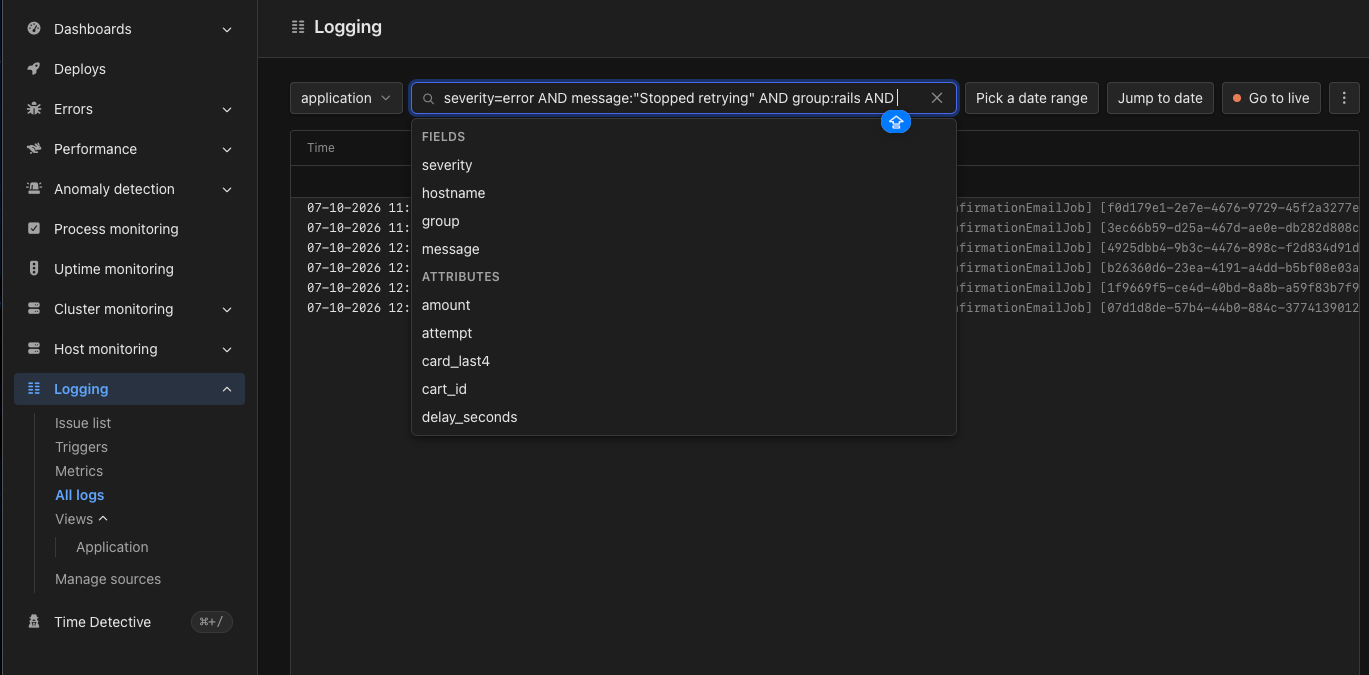 Say a background job fails and you want every error-level line that mentions Active Job. Build `severity=error AND message:"ActiveJob"` from the suggestions:
1. Select `severity`. Severity skips the operator step and offers the severity levels, such as `error`, `warn`, and `info`. These suggestions insert text into the query but you can still type or edit them directly.
2. Select `error`. The bar now reads `severity=error`.
3. Type a space and select **AND** from the join suggestions, or type it yourself.
4. Select `message`, then choose an operator: **contains**, **is**, **is not**, or **does not contain**. Select **contains** and the bar reads `severity=error AND message:`.
5. Type `"ActiveJob"` and press Enter to run the query. Quotes are optional for one word and required once the value contains a space, such as `message:"Error performing"`.
The page now shows only error-level lines whose message contains `ActiveJob`. Add `AND group=shop` to narrow it to one group. To match more than one severity, combine filters with OR, for example `(severity=error OR severity=warn)`.
Use the arrow keys to highlight a suggestion and Enter to insert it. With no suggestion highlighted, Enter runs the query. Press Escape to close the suggestions. Select the clear button at the right of the bar to remove the query and show all logs.
While the query bar has focus, live tailing pauses so the current lines stay in place. It resumes when you leave the bar.
Say a background job fails and you want every error-level line that mentions Active Job. Build `severity=error AND message:"ActiveJob"` from the suggestions:
1. Select `severity`. Severity skips the operator step and offers the severity levels, such as `error`, `warn`, and `info`. These suggestions insert text into the query but you can still type or edit them directly.
2. Select `error`. The bar now reads `severity=error`.
3. Type a space and select **AND** from the join suggestions, or type it yourself.
4. Select `message`, then choose an operator: **contains**, **is**, **is not**, or **does not contain**. Select **contains** and the bar reads `severity=error AND message:`.
5. Type `"ActiveJob"` and press Enter to run the query. Quotes are optional for one word and required once the value contains a space, such as `message:"Error performing"`.
The page now shows only error-level lines whose message contains `ActiveJob`. Add `AND group=shop` to narrow it to one group. To match more than one severity, combine filters with OR, for example `(severity=error OR severity=warn)`.
Use the arrow keys to highlight a suggestion and Enter to insert it. With no suggestion highlighted, Enter runs the query. Press Escape to close the suggestions. Select the clear button at the right of the bar to remove the query and show all logs.
While the query bar has focus, live tailing pauses so the current lines stay in place. It resumes when you leave the bar.
Type a query directly
The query bar is a text field, so you can also type or paste a query. The full [Log Query Syntax](/logging/query-syntax) still works in the bar if you need more than the logs autocomplete suggestions offer.
Logs query autocomplete is in beta through [AppSignal Labs](/labs) and sits behind a feature flag. Contact [Support](mailto:support@appsignal.com) to enable it for your organization. Share feedback on our [Discord server](https://discord.gg/EjF6ykYx63). Once a query returns the lines you need, you can turn them into a [log-based metric](/logging/metrics) without leaving the page.
This documentation is built and hosted on [Mintlify](https://mintlify.com), a developer documentation platform.