> ## Documentation Index
> Fetch the complete documentation index at: https://docs.appsignal.com/llms.txt
> Use this file to discover all available pages before exploring further.
# Long-Term Log Storage
Long-Term Log Storage is a paid-for Business Add-On. Please [contact
us](mailto:support@appsignal.com) for more information, see our [Business
Add-Ons documentation](/support/business-add-ons).
Long-term Log Storage allows you to export and store your AppSignal logs in S3-compatible storage. You need a paid-for Business Add-On to use this feature. AppSignal will continue to store your logs for 30 days.
Follow the following steps to configure Long-Term Log Storage:
1. [Ensure you have all requirements](#requirements)
2. [Configure S3 Storage](#configure-s3-storage)
3. [Add storage to log source](#add-storage-to-log-source)
## Requirements
To set up Long Term Log Storage you will need:
* [The Long-Term Log Storage Business Add-On](/support/business-add-ons#long-term-log-storage)
* S3-Compatible Storage
## Configure S3 Storage
You will need S3-compatible storage to use Long-Term Log Storage. We have documented the steps for:
* [AWS S3 Storage](#configuring-aws-s3-storage)
* [DigitalOcean Spaces](#configuring-digitalocean-spaces)
If you are using a different service, please read our [Configuring Other S3 Compatible Storage Service](#configuring-other-s3-compatible-storage-services) section.
If you plan to use the same bucket and credentials to export multiple log
sources, make sure to include a unique path for each log source. This will
prevent logs from different sources attempting to overwrite each other.
### Configuring AWS S3 Storage
Follow the following steps to configure AWS S3 storage for Long Term Log Storage:
1. **[Create a new S3 bucket and retrieve it's URL.](https://s3.console.aws.amazon.com/s3/bucket/create)** You will need to provide AppSignal with the bucket's URL. You can generate this URL with the following pattern: `https://s3.[region-code].amazonaws.com/[bucket-name]`, replacing `[region]` and `[bucket-name]` respectively.
2. **[Create a new user with Programmatic access and `read/write` access to the bucket you intend to store logs in.](https://console.aws.amazon.com/iam/home#/users\$new?step=details)** You will need to provide AppSignal with the user's `access key ID` and `access secret key`. An example IAM policy is:
```json JSON theme={null}
"Statement": [
{
"Effect": "Allow",
"Action": [
"s3:PutObject",
"s3:GetObject",
"s3:ListBucket"
],
"Resource": [
"arn:aws:s3:::",
"arn:aws:s3:::/*"
]
}
]
```
3. **[Add storage to log source.](#add-storage-to-log-source)**
### Configuring DigitalOcean Spaces
Follow the following steps to configure DigitalOcean Spaces for Long Term Log Storage:
1. **[Create a new space with `Restrict File Listing` and retrieve it's URL.](https://cloud.digitalocean.com/spaces/new)** You will need to provide AppSignal with the spaces' URL. You can generate this URL with the following pattern: `[region].digitaloceanspaces.com/[spacename]`, replacing `[region]` and `[spacename]` respectively.
2. **[Generate a new DigitalOcean API token key.](https://cloud.digitalocean.com/account/api/tokens)** You will need to provide AppSignal with the key's `access key` and `secret key`.
3. **[Add storage to log source.](#add-storage-to-log-source)**
### Configuring Other S3-Compatible Storage Services
Follow the following steps to configure S3-compatible storage services for Long Term Log Storage:
1. **Create a new bucket and retrieve its URL.** You will need to provide AppSignal with the bucket's URL, see your S3 storage service's documentation for details on where to locate this.
2. **Create a new access key.** You will need to provide AppSignal with the key's `access key` and `secret key`, see your S3 storage service's documentation for details on how to generate this.
3. **[Add storage to log source.](#add-storage-to-log-source)**
## Add Storage To Log Source
Before adding storage to a log source, make sure you've followed the storage set-up steps and have the following information:
* Bucket URL
* `access key` and `secret key`
Once you have this information to hand, follow the following steps to add your S3 storage to your desired log source.
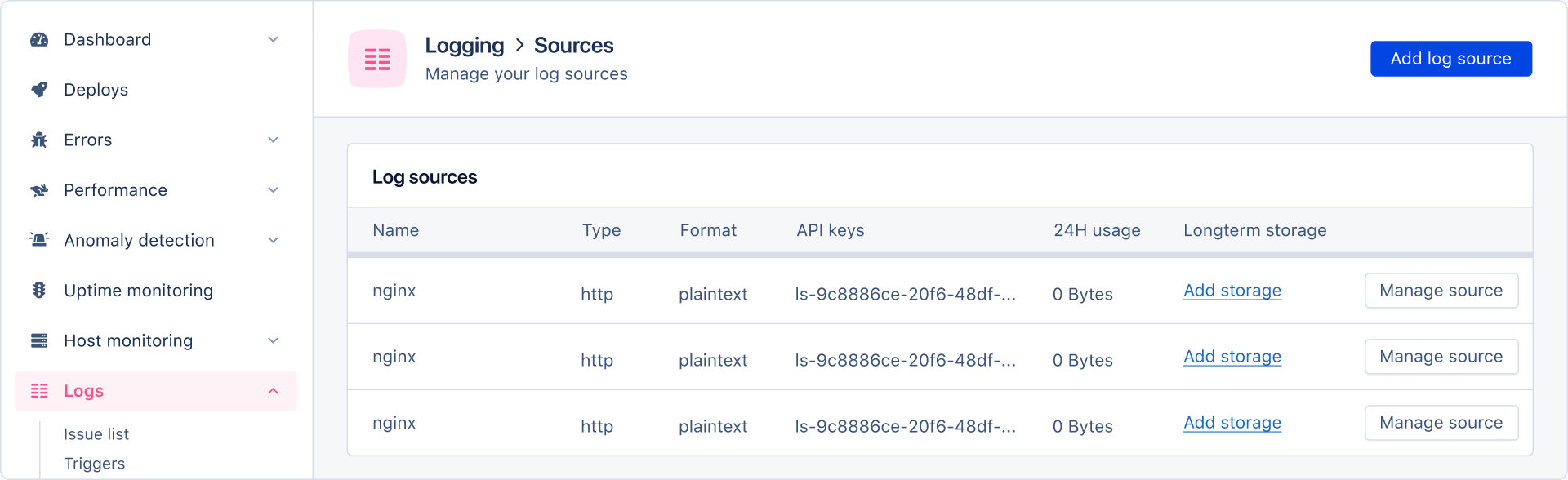
1. Navigate to Log Sources and click "Add storage" on the desired log source:
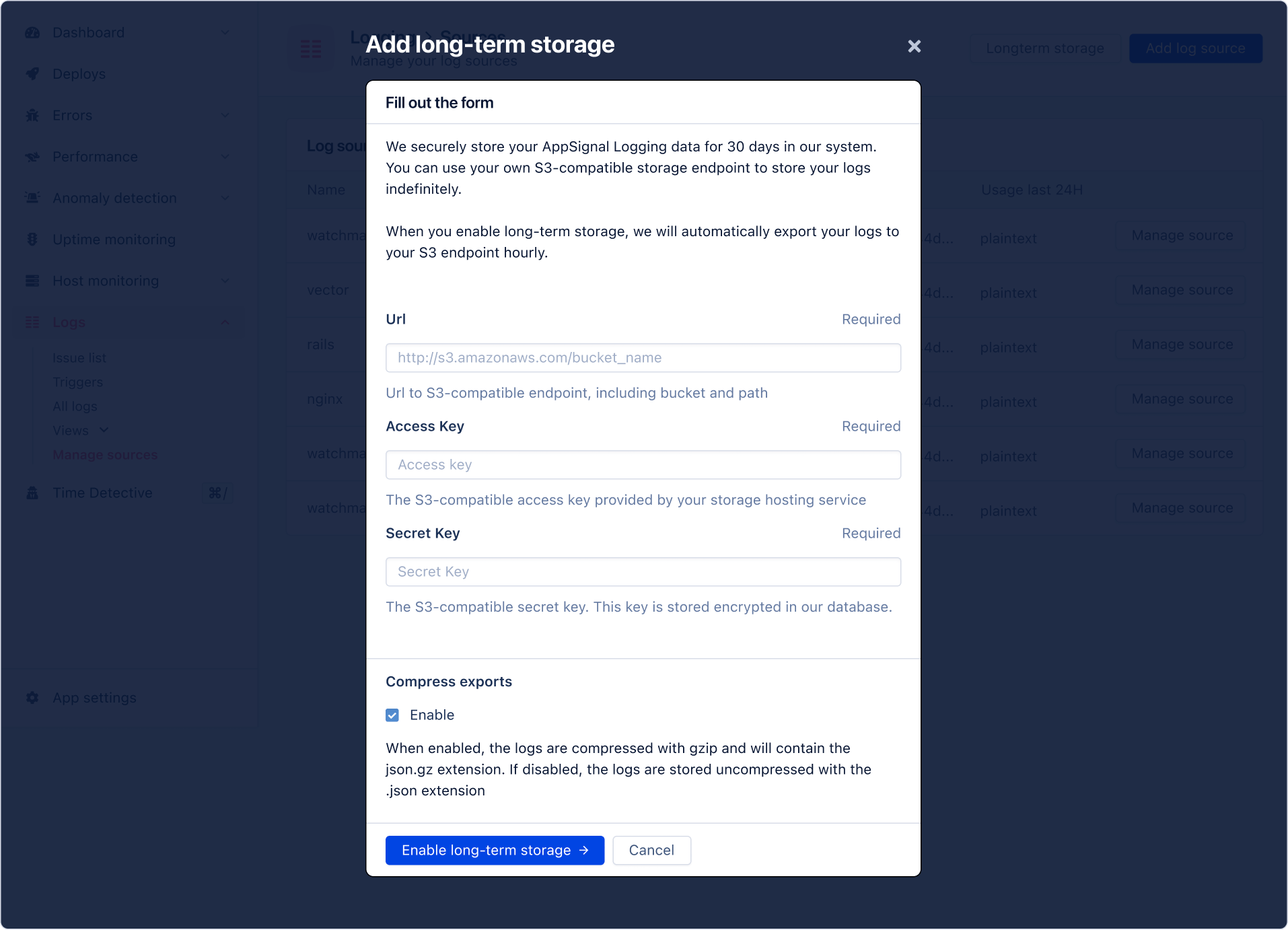
 1. Provide AppSignal with your `buckets URL`, `access key` and `secret key` and complete setup by clicking `Send long-term storage request`.
 Once set-up is complete, AppSignal will enqueue a storage job to begin writing log data to your S3 bucket.
Each job will create a file in your S3 bucket with the following filename and format:
`/yyyy-mm/yyyy-mm-ddThhmmss-yyyy-mm-ddThhmmss.json.gz`
For example:
`https://s3.com/2015-01/2015-01-01T100000-2015-01-02T110000.json.gz`
You can read more about storage jobs in the [Storage Jobs and Exceptions](#storage-jobs-and-exceptions) section.
## Storage Jobs and Exceptions
In this section, you can learn more about the writing of logs to S3 storage via storage jobs, and how AppSignal handles job exceptions.
### Storage jobs
Storage jobs are run every hour. Each job writes **one hour** of log data from **25 hours ago**.
For example, a job that runs on `12/01/2024` at `10:00`, will write a file of logs from: `11/01/2024` that were created between `09:00` and `09:59:59` to your S3 storage.
This ensures that any log lines, that may have been delayed, are included in the storage job.
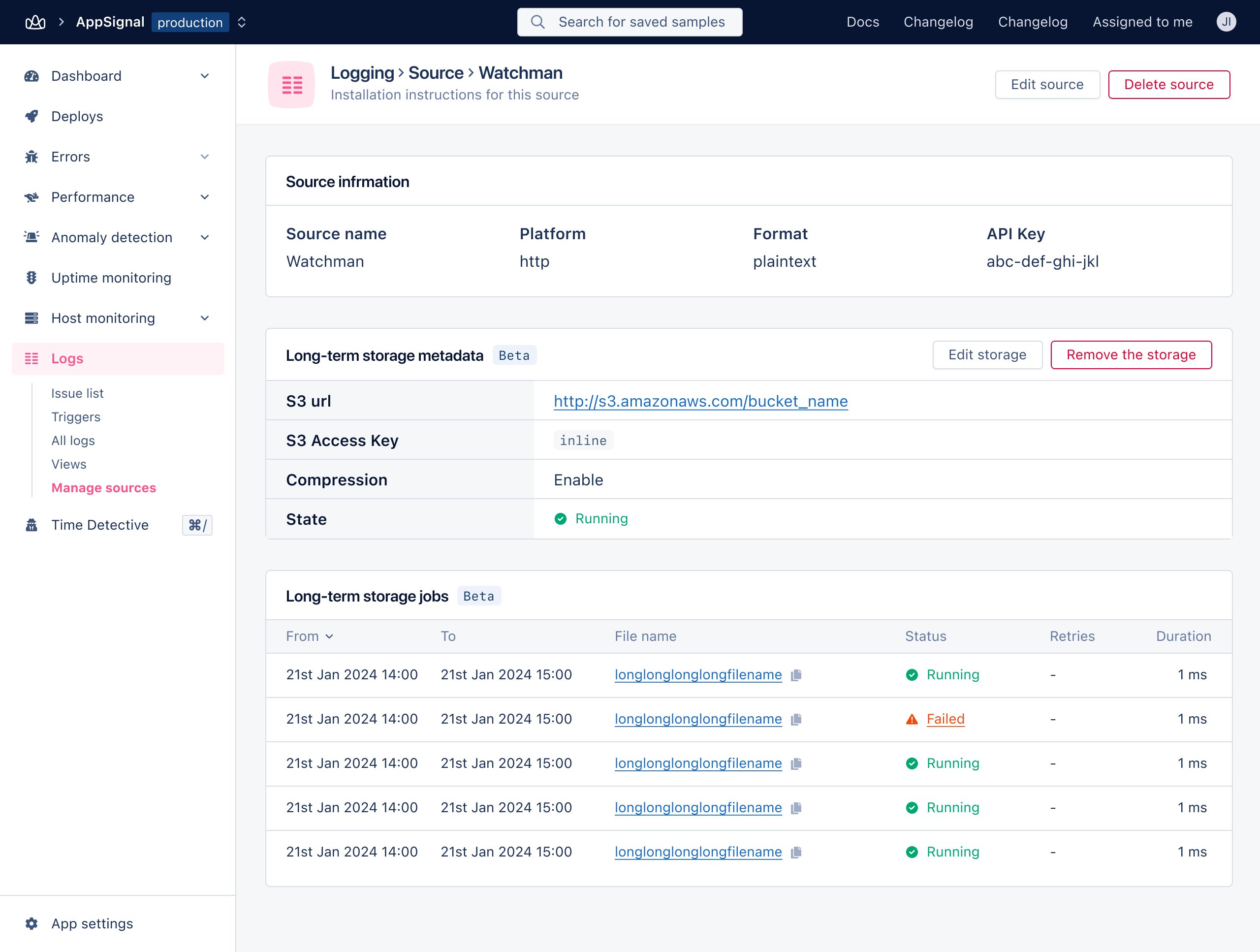
If a job is successful, a job for the next hour of data is enqueued and your source's long-term storage will have the status of "Running".
You can view and manage storage jobs from the "Manage source" page.
Once set-up is complete, AppSignal will enqueue a storage job to begin writing log data to your S3 bucket.
Each job will create a file in your S3 bucket with the following filename and format:
`/yyyy-mm/yyyy-mm-ddThhmmss-yyyy-mm-ddThhmmss.json.gz`
For example:
`https://s3.com/2015-01/2015-01-01T100000-2015-01-02T110000.json.gz`
You can read more about storage jobs in the [Storage Jobs and Exceptions](#storage-jobs-and-exceptions) section.
## Storage Jobs and Exceptions
In this section, you can learn more about the writing of logs to S3 storage via storage jobs, and how AppSignal handles job exceptions.
### Storage jobs
Storage jobs are run every hour. Each job writes **one hour** of log data from **25 hours ago**.
For example, a job that runs on `12/01/2024` at `10:00`, will write a file of logs from: `11/01/2024` that were created between `09:00` and `09:59:59` to your S3 storage.
This ensures that any log lines, that may have been delayed, are included in the storage job.
If a job is successful, a job for the next hour of data is enqueued and your source's long-term storage will have the status of "Running".
You can view and manage storage jobs from the "Manage source" page.
 ### Exceptions
If a storage job fails, AppSignal will attempt to re-run the storage job each hour, for 24 hours (so 24 attempts).
If after 24 attempts AppSignal is unable to complete the storage job, we will notify you of a `failed` job.
### Restoring A Failed Job
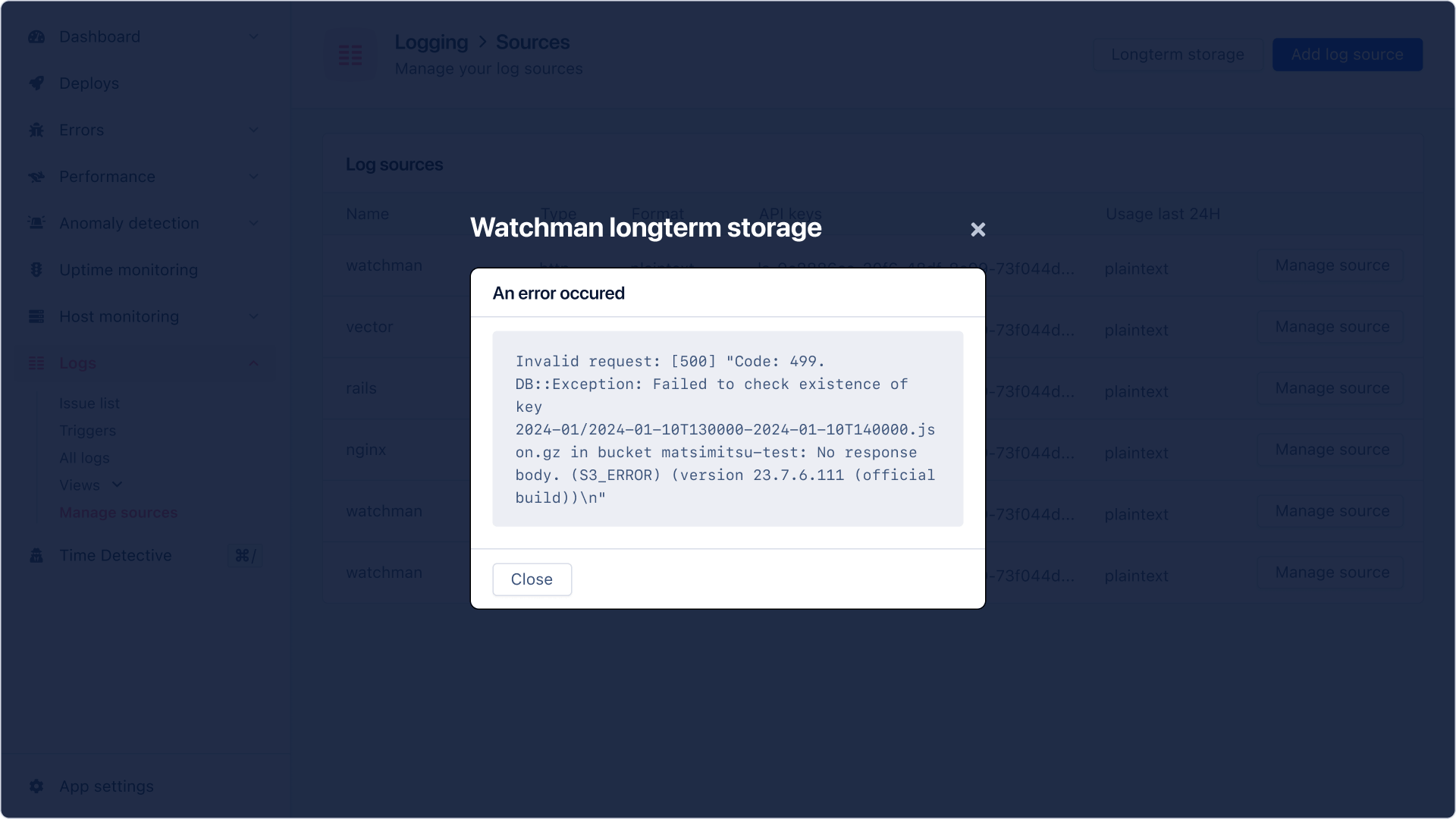
When a Log source has a storage job with a `failed` status, AppSignal will stop enqueueing new jobs. Clicking on the `failed` status will display the error AppSignal encountered when trying to run the storage job.
### Exceptions
If a storage job fails, AppSignal will attempt to re-run the storage job each hour, for 24 hours (so 24 attempts).
If after 24 attempts AppSignal is unable to complete the storage job, we will notify you of a `failed` job.
### Restoring A Failed Job
When a Log source has a storage job with a `failed` status, AppSignal will stop enqueueing new jobs. Clicking on the `failed` status will display the error AppSignal encountered when trying to run the storage job.
 You will need to manually verify the Log source's settings to re-try the job, this can be done via the "Manage source" page.
Once verified, AppSignal will re-try the job. If this succeeds, AppSignal will resume hourly storage jobs and your source's long-term storage will have the status of "Running".
You have until 48 hours before your AppSignal log retention cut-off to store logs with your S3 storage.
For example, with 30 days of retention, you would have until `10:00` on `29/01/2024` to store logs from `09:00-09:59:59` on `01/01/2024`.
## Removing storage
To remove long-term storage from a source navigate to the source's "Manage source" page and click "Remove storage".
Once confirmed AppSignal will remove the source's storage and delete the source's storage job history. Log data already stored in your storage will not be deleted.
You will need to manually verify the Log source's settings to re-try the job, this can be done via the "Manage source" page.
Once verified, AppSignal will re-try the job. If this succeeds, AppSignal will resume hourly storage jobs and your source's long-term storage will have the status of "Running".
You have until 48 hours before your AppSignal log retention cut-off to store logs with your S3 storage.
For example, with 30 days of retention, you would have until `10:00` on `29/01/2024` to store logs from `09:00-09:59:59` on `01/01/2024`.
## Removing storage
To remove long-term storage from a source navigate to the source's "Manage source" page and click "Remove storage".
Once confirmed AppSignal will remove the source's storage and delete the source's storage job history. Log data already stored in your storage will not be deleted.