> ## Documentation Index
> Fetch the complete documentation index at: https://docs.appsignal.com/llms.txt
> Use this file to discover all available pages before exploring further.
# Log Management
🔐 Do not send Personal Identifiable Information (PII) to AppSignal. Filter PII (e.g., names, emails) from logs and use an ID, hash, or pseudonymized identifier instead.
For **HIPAA-covered entities**, more information about signing a Business Associate Agreement (BAA) can be found in our [Business Add-Ons documentation](/support/business-add-ons).
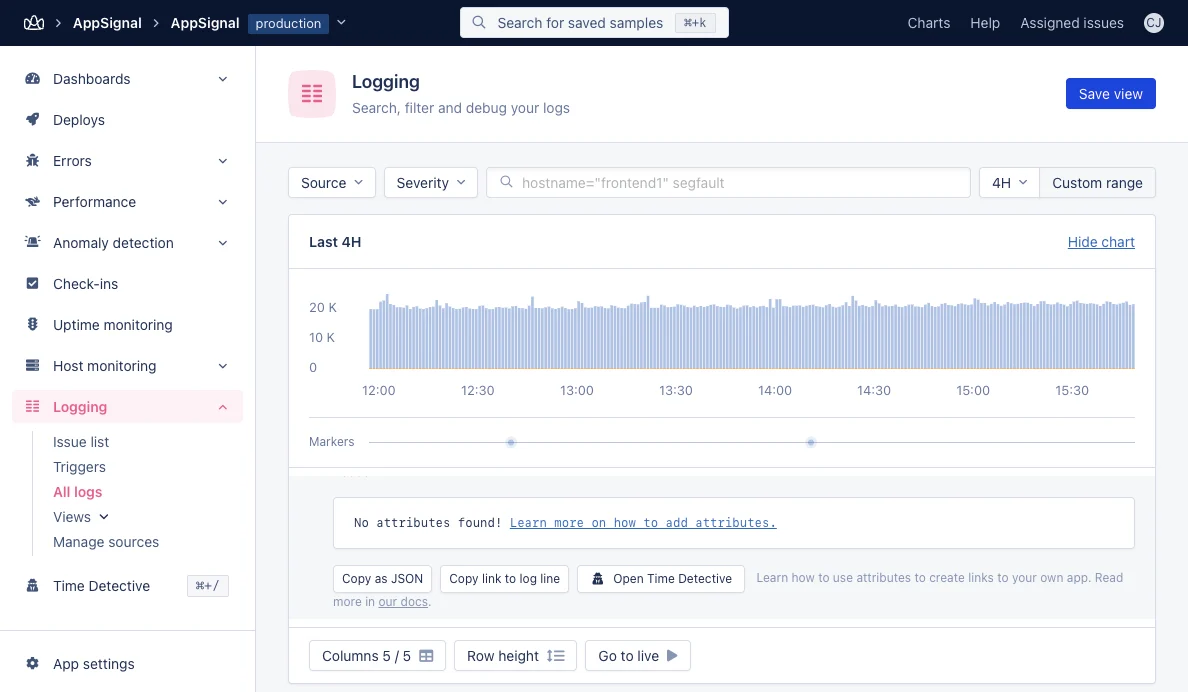 Once AppSignal Logging is successfully configured, you'll be able to see logs for all of your sources from within the AppSignal application. You can filter and query logs and expand specific logs for their trace data. When viewing your logs you can:
* [Filter and Query Logs](#filter-and-query-logs)
* [Copy Log Meta Data as JSON](#copy-log-meta-data-as-json)
* [Share Log](#share-log)
* [View What Happened Here](#what-happened-here)
* [Time Detective](#time-detective)
* [View Live Trail](#live-trail)
#### Filter and Query Logs
Use the "Source" drop down to filter which sources you see the logs for.
Use the "Severity" drop down to filter the severity of logs
Filtering and querying are further explained in the [Query Syntax](/logging/query-syntax) section of this guide.
#### Copy Log Meta Data As JSON
Expand a log by pressing the "+" button, click "Copy as JSON". Meta data will automatically be copied to your clipboard as a valid JSON object.
#### Share Log
Click "Copy link to log line" and a link to this log line will automatically be copied to your clipboard.
Only users within your AppSignal Organization will be able to access the logs
via this link
#### What Happened Here
Want to see a snapshot of your application's metric at the exact time the log line was written? Click "What Happened Here"
#### Time Detective
Use the "Time Detective" button to investigate application wide data at the time a log line was written.
#### Live Trail
Clicking "Go to live" will take you to a live trail of your logs.
## Managing Sources
To modify a source go to AppSignal > Logging > Sources and click "Manage source"
Once AppSignal Logging is successfully configured, you'll be able to see logs for all of your sources from within the AppSignal application. You can filter and query logs and expand specific logs for their trace data. When viewing your logs you can:
* [Filter and Query Logs](#filter-and-query-logs)
* [Copy Log Meta Data as JSON](#copy-log-meta-data-as-json)
* [Share Log](#share-log)
* [View What Happened Here](#what-happened-here)
* [Time Detective](#time-detective)
* [View Live Trail](#live-trail)
#### Filter and Query Logs
Use the "Source" drop down to filter which sources you see the logs for.
Use the "Severity" drop down to filter the severity of logs
Filtering and querying are further explained in the [Query Syntax](/logging/query-syntax) section of this guide.
#### Copy Log Meta Data As JSON
Expand a log by pressing the "+" button, click "Copy as JSON". Meta data will automatically be copied to your clipboard as a valid JSON object.
#### Share Log
Click "Copy link to log line" and a link to this log line will automatically be copied to your clipboard.
Only users within your AppSignal Organization will be able to access the logs
via this link
#### What Happened Here
Want to see a snapshot of your application's metric at the exact time the log line was written? Click "What Happened Here"
#### Time Detective
Use the "Time Detective" button to investigate application wide data at the time a log line was written.
#### Live Trail
Clicking "Go to live" will take you to a live trail of your logs.
## Managing Sources
To modify a source go to AppSignal > Logging > Sources and click "Manage source"
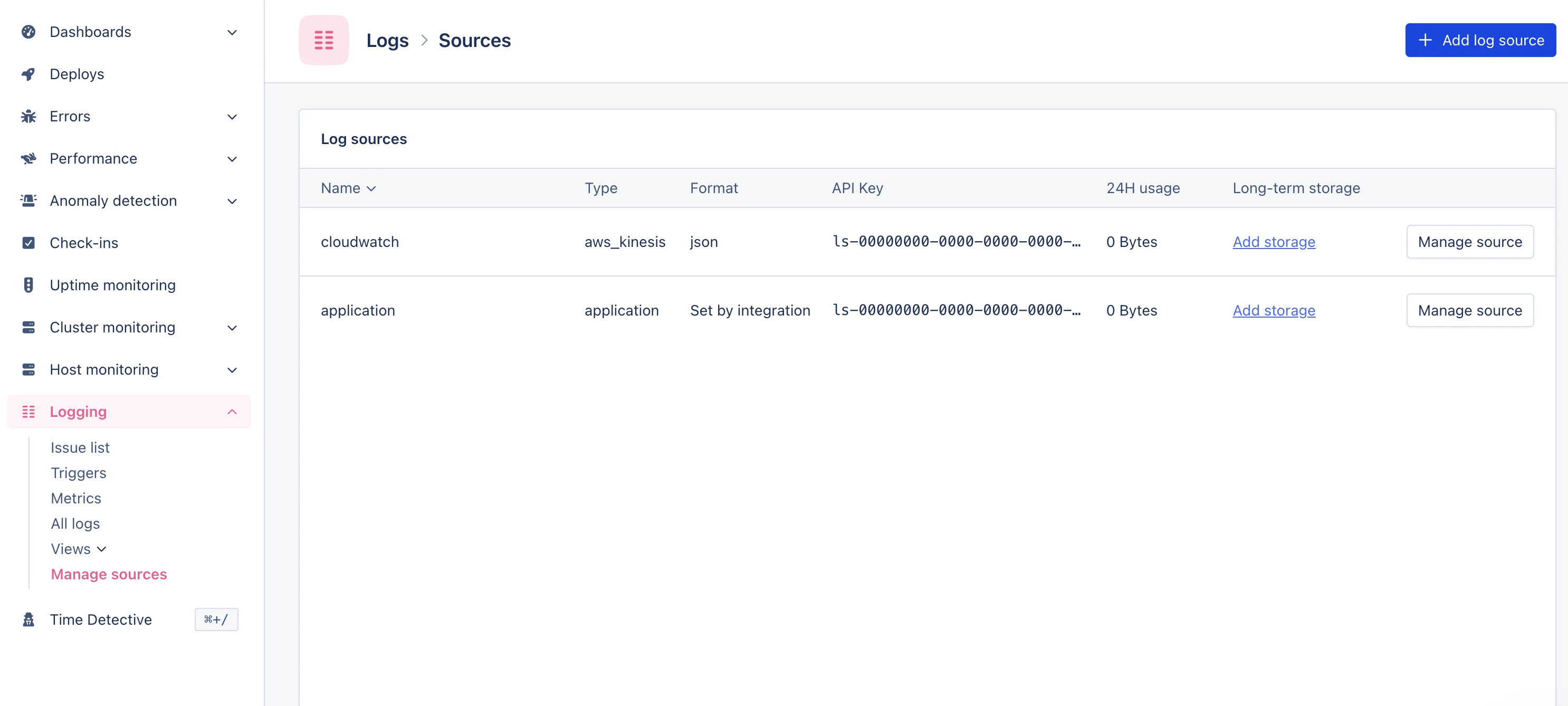 When managing a source, you can:
* [Edit Source](#edit-source)
* [Remove Source](#remove-source)
### Edit Source
To edit the source click "Edit source" in the top right corner of the screen. You can edit the following source attributes:
* Name
* Platform (currently limited to syslog)
* Format
Changing the log format only applies to new log lines. The attributes and message of existing log lines will not change.
### Remove Source
Deletion is permanent and will revoke the API key used for that source.
Before removing a log source, we recommend ensuring that the source is no longer sending logs to AppSignal so that your application is not making unnecessary calls to third parties. Before removing the log source in AppSignal, remove the rsyslog configuration file for this log source (located in `etc/rsyslog.d`) and restart rsyslog with the below command.
```bash Bash theme={null}
/etc/rc.d/init.d/systemctl restart rsyslogd
```
When managing a source, you can:
* [Edit Source](#edit-source)
* [Remove Source](#remove-source)
### Edit Source
To edit the source click "Edit source" in the top right corner of the screen. You can edit the following source attributes:
* Name
* Platform (currently limited to syslog)
* Format
Changing the log format only applies to new log lines. The attributes and message of existing log lines will not change.
### Remove Source
Deletion is permanent and will revoke the API key used for that source.
Before removing a log source, we recommend ensuring that the source is no longer sending logs to AppSignal so that your application is not making unnecessary calls to third parties. Before removing the log source in AppSignal, remove the rsyslog configuration file for this log source (located in `etc/rsyslog.d`) and restart rsyslog with the below command.
```bash Bash theme={null}
/etc/rc.d/init.d/systemctl restart rsyslogd
```
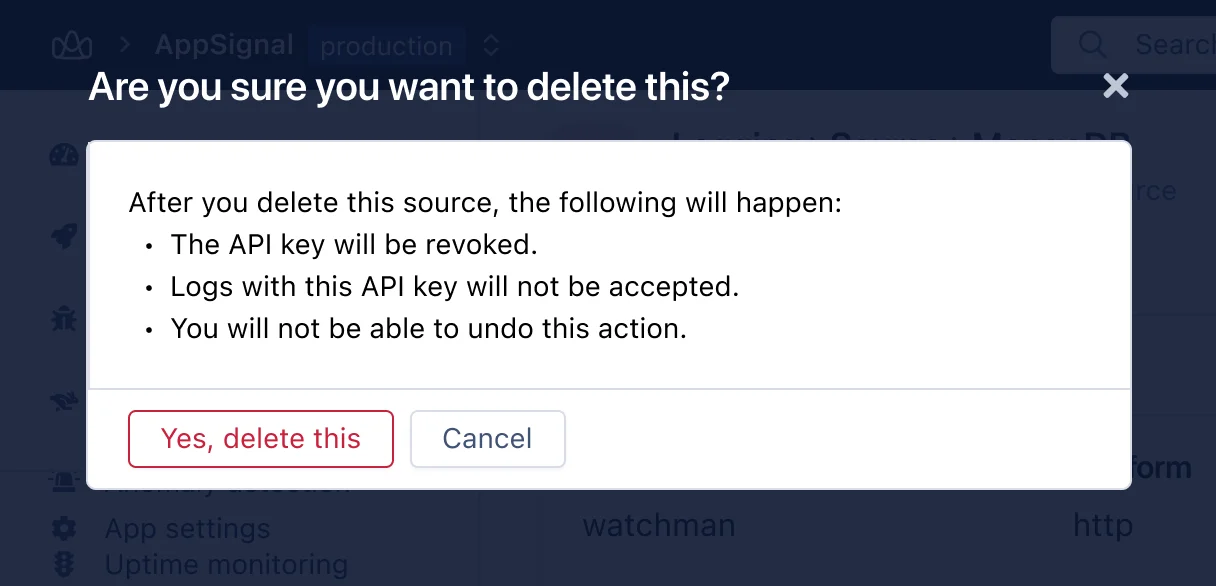 To remove a source click "Remove source" from the Source Management page. When prompted to confirm removal read the dialogue box carefully and click "Yes, delete this". The source will be deleted.