> ## Documentation Index
> Fetch the complete documentation index at: https://docs.appsignal.com/llms.txt
> Use this file to discover all available pages before exploring further.
# Syslog Configuration
🔐 Do not send Personal Identifiable Information (PII) to AppSignal. Filter PII (e.g., names, emails) from logs and use an ID, hash, or pseudonymized identifier instead.
For **HIPAA-covered entities**, more information about signing a Business Associate Agreement (BAA) can be found in our [Business Add-Ons documentation](/support/business-add-ons).
## Install TLS Package
To send logs to AppSignal via syslog, you'll need to have installed rsyslog's [TLS (Transport Layer Security)](/appsignal/terminology#tls) package. You can check to see if the package is already installed on your server using the below command:
```shell Shell theme={null}
sudo apt list rsyslog-gnutls --installed
```
If the package is not installed, you can install it using the below command:
```shell Shell theme={null}
sudo apt install rsyslog-gnutls
```
## Setup Syslog
AppSignal generates a Syslog code snippet for you, available on the source management page.
To view this snippet, find the source you wish to configure from the Manage Sources overview and click "Manage source".
You will be redirected to a page, that will look similar to the example below:
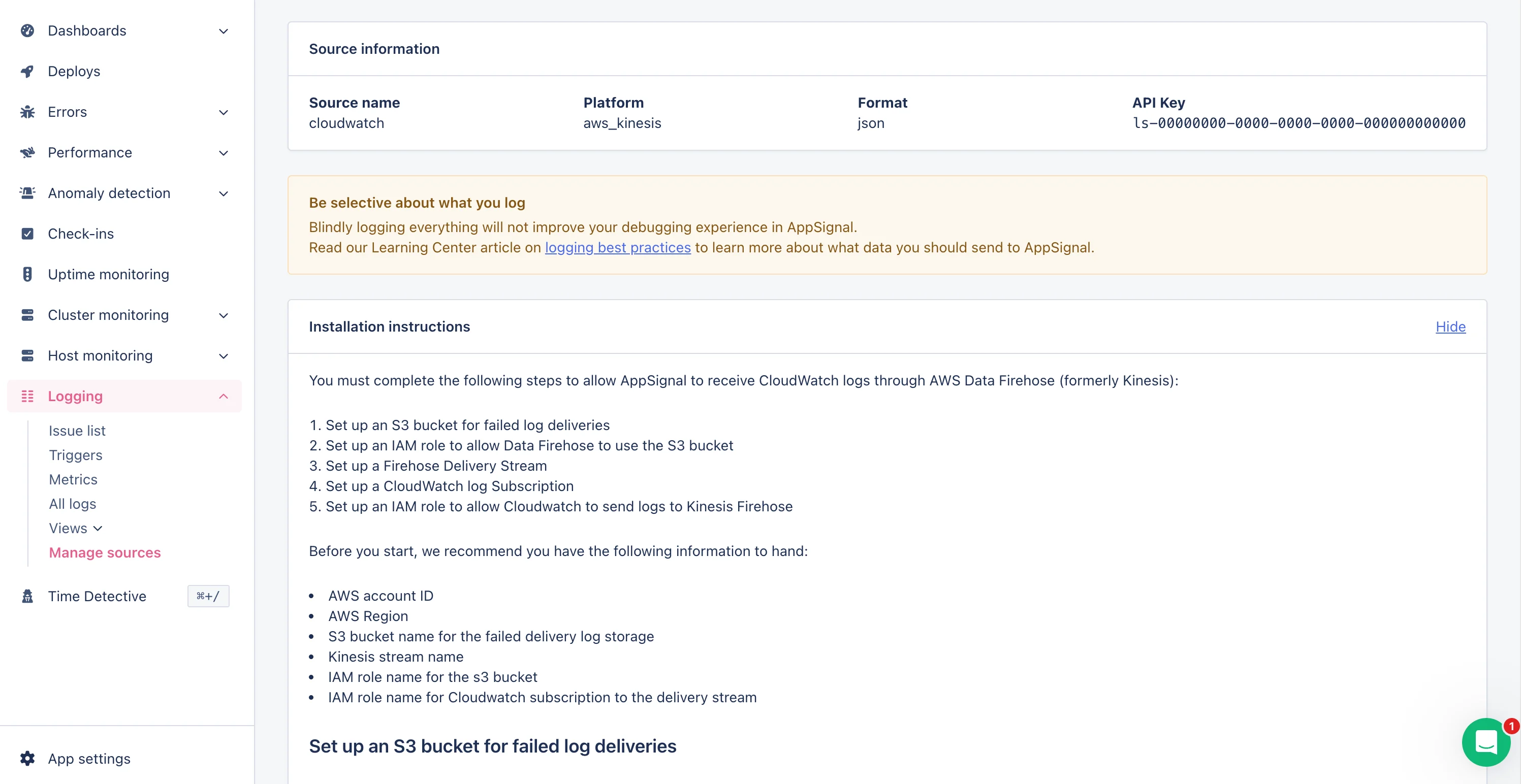 On this page, you will be able to find the "Installation instructions" for your source. These instructions will include a code snippet you copy and use as your configuration file. You should save this file in the `etc/rsyslog.d` directory.
Once you've created and saved your configuration, you will need to restart rsyslog so that it begins sending logs to AppSignal, using the restart command from a terminal with root access:
```shell Shell theme={null}
/etc/rc.d/init.d/systemctl restart rsyslogd
```
If you are unsure about this step, you can always [reach out](mailto:support@appsignal.com) for assistance. We'll help you to get those logs flowing!
## Domain and Port Information
Our domain and port are as follows:
| Domain | Port |
| ------------------------ | ------ |
| `appsignal-endpoint.net` | `6514` |
## Structured messages
The `message` part of a syslog message can be formatted either in `JSON`, `Logfmt` or `Plaintext`.
Formatting the message in `JSON` or `Logfmt` allows you to add additional (structured) data attributes that can be used to find/filter messages on.
For more information about the specifics of message formatting, see our [formatting](/logging/formatting) documentation.
On this page, you will be able to find the "Installation instructions" for your source. These instructions will include a code snippet you copy and use as your configuration file. You should save this file in the `etc/rsyslog.d` directory.
Once you've created and saved your configuration, you will need to restart rsyslog so that it begins sending logs to AppSignal, using the restart command from a terminal with root access:
```shell Shell theme={null}
/etc/rc.d/init.d/systemctl restart rsyslogd
```
If you are unsure about this step, you can always [reach out](mailto:support@appsignal.com) for assistance. We'll help you to get those logs flowing!
## Domain and Port Information
Our domain and port are as follows:
| Domain | Port |
| ------------------------ | ------ |
| `appsignal-endpoint.net` | `6514` |
## Structured messages
The `message` part of a syslog message can be formatted either in `JSON`, `Logfmt` or `Plaintext`.
Formatting the message in `JSON` or `Logfmt` allows you to add additional (structured) data attributes that can be used to find/filter messages on.
For more information about the specifics of message formatting, see our [formatting](/logging/formatting) documentation.