> ## Documentation Index
> Fetch the complete documentation index at: https://docs.appsignal.com/llms.txt
> Use this file to discover all available pages before exploring further.
# Configure Logging
This documentation will take you through all the necessary steps and additional information needed when adding a new log source to your application.
## Creating a Log Source
✨ You do not need to create a log source when sending logs directly from an
AppSignal integration. A log source will be automatically created for you.
Follow the instructions for [logging from AppSignal
integrations](/logging/integrations).
To send logs to AppSignal, you'll first need to configure your log sources. Your application could have many log sources, like a database or app process. You will need to do this once per log source.
For example, if you want to send MongoDB and NGINX logs to AppSignal, you'd need to create a source for each of these integrations.
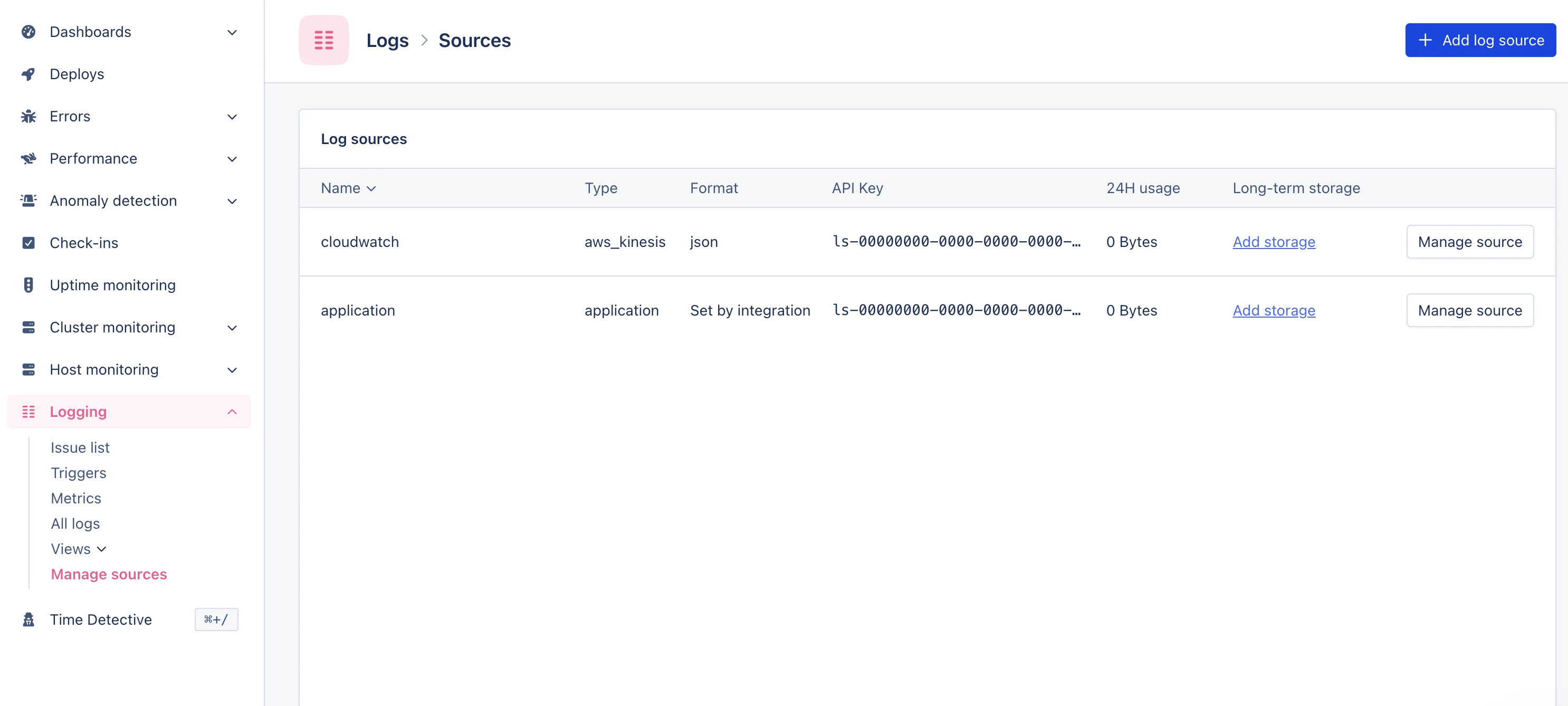 To do this, navigate to the Logging page in the AppSignal application and click on the `Add log source` button in the top right of the page.
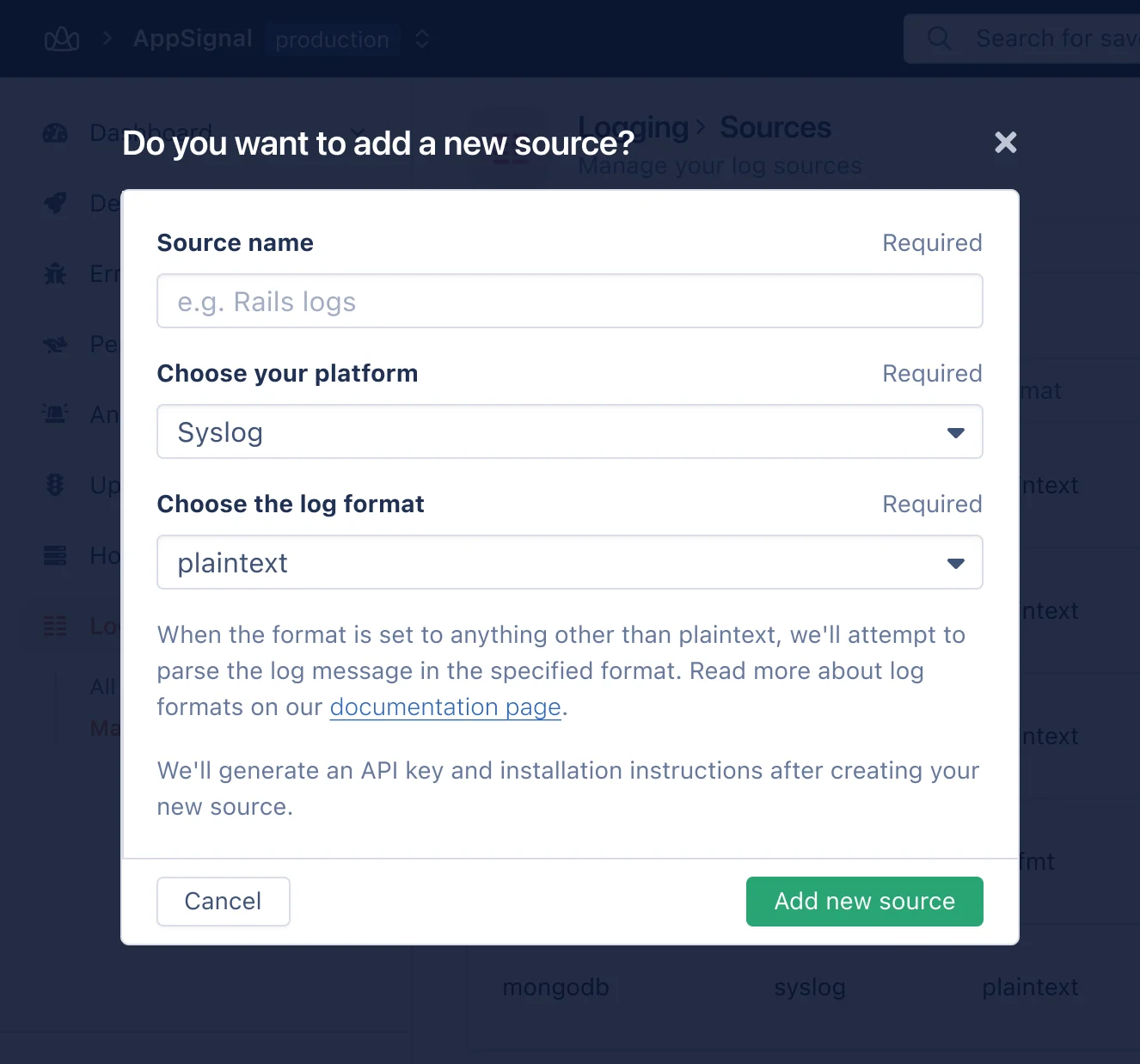
A pop-up will appear, prompting you to name your source. It's important to give your source a descriptive name like Redis or MongoDB so that you can successfully query these logs in the future.
To do this, navigate to the Logging page in the AppSignal application and click on the `Add log source` button in the top right of the page.
A pop-up will appear, prompting you to name your source. It's important to give your source a descriptive name like Redis or MongoDB so that you can successfully query these logs in the future.
 ### Choose Your Platform
Are you setting up logging for Vercel? There are some additional steps
required when creating a Vercel log source. Read our [Vercel Configuration
documentation](/vercel/logs) for step-to-step setup instructions.
We support sending logs to AppSignal from various sources and platforms and are hard at work to add support for more. You can find out more about the platforms supported in this documentation's [Platform Configuration](#platform-configuration) section.
If your platform is not listed, you can send logs to [one of our endpoints](/logging/endpoints) directly.
### Choose The Message Format
🔐 Do not send Personal Identifiable Information (PII) to AppSignal. Filter PII (e.g., names, emails) from logs and use an ID, hash, or pseudonymized identifier instead.
### Choose Your Platform
Are you setting up logging for Vercel? There are some additional steps
required when creating a Vercel log source. Read our [Vercel Configuration
documentation](/vercel/logs) for step-to-step setup instructions.
We support sending logs to AppSignal from various sources and platforms and are hard at work to add support for more. You can find out more about the platforms supported in this documentation's [Platform Configuration](#platform-configuration) section.
If your platform is not listed, you can send logs to [one of our endpoints](/logging/endpoints) directly.
### Choose The Message Format
🔐 Do not send Personal Identifiable Information (PII) to AppSignal. Filter PII (e.g., names, emails) from logs and use an ID, hash, or pseudonymized identifier instead.
For **HIPAA-covered entities**, more information about signing a Business Associate Agreement (BAA) can be found in our [Business Add-Ons documentation](/support/business-add-ons).
Some sources are based on a third-party integration, where you can't control the format of the log line. In this case, you can choose the format of the log line that AppSignal will attempt to parse the `message` from.
This allows you to add structure to your log lines, without controlling the surrounding log line format. For example, if you use the Netlify integration, which takes care of sending log lines to AppSignal in their own format, allowing us to extract the correct time and hostname, you can choose the `json` log format to add additional attributes to a log line.
When we support parsing the log message, we support these formats:
* [Plaintext](/logging/formatting#plaintext)
* [Logfmt](/logging/formatting/logfmt)
* [JSON](/logging/formatting/json)
Read more about how to format your messages in the [Formatting Documentation](/logging/formatting).
### Create Source
Once you've chosen the name and format of your new source is created, it will be listed in the Log Sources table on the Logs page, alongside a generated API key.
 You will now need to configure your application to send logs to AppSignal using one of the [platforms we support](#platform-configuration).
## Platform Configuration
Once you've created a new source, you'll need to configure your application to send logs to AppSignal. This should be via the same platform you defined when creating your log source.
### Supported Logging Platforms
* AWS CloudWatch logs through Amazon Data Firehose
* [Manual setup](/logging/platforms/cloudwatch)
* [CloudFormation setup](/logging/platforms/cloudwatch-cloudformation)
* [Clever Cloud](/logging/platforms/clevercloud)
* [Gigalixir Log Drain](/logging/platforms/gigalixir)
* [Heroku](/logging/platforms/heroku)
* [Netlify](/logging/platforms/netlify)
* [Render](/logging/platforms/render)
* [Scalingo](/logging/platforms/scalingo)
* [Vector](/logging/platforms/vector)
* [Vercel](/vercel/logs)
### Supported Logging Endpoints
* [HTTP](/logging/endpoints/http)
* [HTTP-JSON](/logging/endpoints/http-json)
* [HTTP-Syslog](/logging/endpoints/http-syslog)
* [Syslog](/logging/endpoints/syslog)
## Completing Setup
As AppSignal only stores logs that are sent to it from your application, you
will only be able to see logs created **after** you've completed your
configuration.
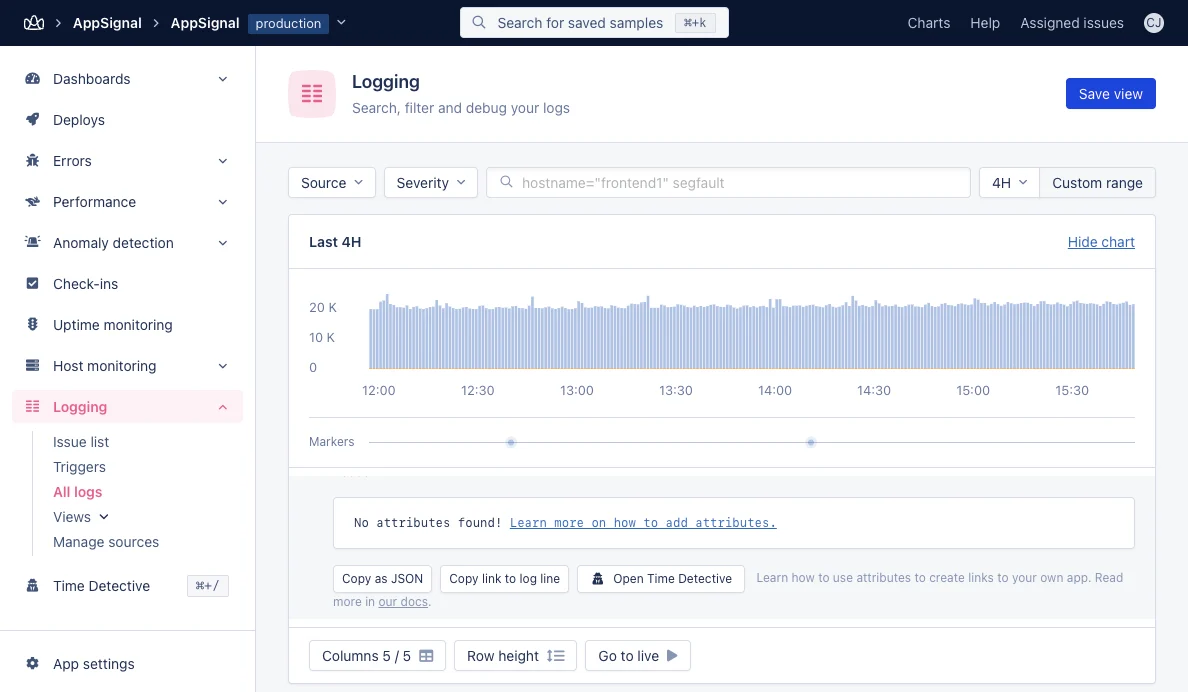
Once you've configured your chosen platform, you'll be able to view and query your logs from the `All logs` page in the AppSignal application. There's more information on how to manage, view, and query your logs in this guide's [next step](/logging/log-management).
You will now need to configure your application to send logs to AppSignal using one of the [platforms we support](#platform-configuration).
## Platform Configuration
Once you've created a new source, you'll need to configure your application to send logs to AppSignal. This should be via the same platform you defined when creating your log source.
### Supported Logging Platforms
* AWS CloudWatch logs through Amazon Data Firehose
* [Manual setup](/logging/platforms/cloudwatch)
* [CloudFormation setup](/logging/platforms/cloudwatch-cloudformation)
* [Clever Cloud](/logging/platforms/clevercloud)
* [Gigalixir Log Drain](/logging/platforms/gigalixir)
* [Heroku](/logging/platforms/heroku)
* [Netlify](/logging/platforms/netlify)
* [Render](/logging/platforms/render)
* [Scalingo](/logging/platforms/scalingo)
* [Vector](/logging/platforms/vector)
* [Vercel](/vercel/logs)
### Supported Logging Endpoints
* [HTTP](/logging/endpoints/http)
* [HTTP-JSON](/logging/endpoints/http-json)
* [HTTP-Syslog](/logging/endpoints/http-syslog)
* [Syslog](/logging/endpoints/syslog)
## Completing Setup
As AppSignal only stores logs that are sent to it from your application, you
will only be able to see logs created **after** you've completed your
configuration.
Once you've configured your chosen platform, you'll be able to view and query your logs from the `All logs` page in the AppSignal application. There's more information on how to manage, view, and query your logs in this guide's [next step](/logging/log-management).
 ## Adding Long-Term Storage
You can configure a source for storing logs with your own secure S3-compatible storage using AppSignal's Long-term Log Storage. This feature requires a paid Business Add-On. AppSignal will continue to retain your logs for 30 days.
Learn more in our [Long-Term Log Storage documentation](/logging/long-term-log-storage).
## Troubleshooting and support
If you've followed the above steps and cannot see any logs in AppSignal, you may want to read our [Troubleshooting Guide](/logging/troubleshooting) or [reach out to us for assistance](mailto:support@appsignal.com).
## Adding Long-Term Storage
You can configure a source for storing logs with your own secure S3-compatible storage using AppSignal's Long-term Log Storage. This feature requires a paid Business Add-On. AppSignal will continue to retain your logs for 30 days.
Learn more in our [Long-Term Log Storage documentation](/logging/long-term-log-storage).
## Troubleshooting and support
If you've followed the above steps and cannot see any logs in AppSignal, you may want to read our [Troubleshooting Guide](/logging/troubleshooting) or [reach out to us for assistance](mailto:support@appsignal.com).