> ## Documentation Index
> Fetch the complete documentation index at: https://docs.appsignal.com/llms.txt
> Use this file to discover all available pages before exploring further.
# Vercel Logs
AppSignal kann Vercel-Protokolle automatisch erfassen.
Diese Einrichtung erfordert einen zusätzlichen Autorisierungsschritt, der in dieser Schritt-für-Schritt-Dokumentation beschrieben wird. Stellen Sie sicher, dass Sie Zugriff auf Ihre Vercel-Anmeldedaten haben, bevor Sie eine neue Vercel-Protokollquelle erstellen.
## Erstellen einer Vercel-Protokollquelle
Unsere Konfigurationsdokumentation behandelt Protokollquellen ausführlicher.
Um eine neue Protokollquelle zu erstellen, navigieren Sie zur Logging-Seite in der AppSignal-Anwendung und klicken Sie oben rechts auf der Seite auf die Schaltfläche „Add log source". Ein Pop-up wird angezeigt, das Sie auffordert, Ihre Quelle zu benennen. Es ist wichtig, Ihrer Quelle einen aussagekräftigen Namen wie Redis oder MongoDB zu geben, damit Sie diese Protokolle in Zukunft erfolgreich abfragen können.
Sobald Sie Ihre Quelle benannt haben, wählen Sie „Vercel" als Plattform Ihrer Protokollquelle aus. Unter dem Quell-Dropdown wird eine Benachrichtigung angezeigt, die Sie auffordert, AppSignal über Vercel zu autorisieren. Klicken Sie auf „Authenticate with Vercel". Vercel öffnet sich in einem neuen Browser-Tab.
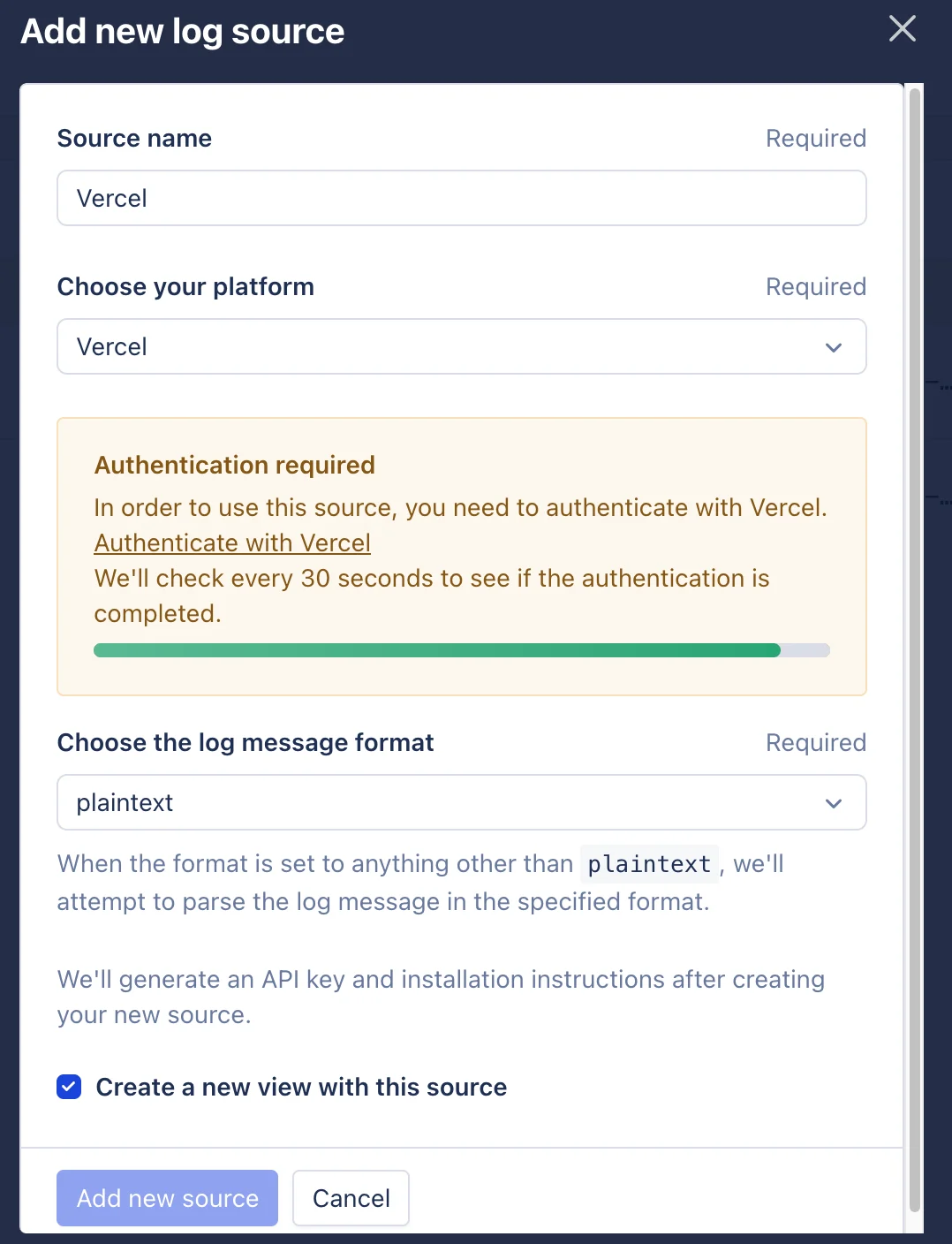 Das Pop-up enthält die folgenden Felder:
* **Source name** — eine aussagekräftige Bezeichnung für Ihre Quelle (z. B. „Vercel").
* **Choose your platform** — wählen Sie „Vercel".
* **Authenticate with Vercel** — erforderlich, um diese Quelle zu verwenden.
* **Log format** — wird nach der Authentifizierung weiter unten im Formular angezeigt; wählen Sie, wie AppSignal Ihre Protokollmeldungen analysiert (z. B. `plaintext` oder `JSON`).
* **Create a new view with this source** — optional; öffnet nach der Erstellung eine Logging-Ansicht, die mit dieser Quelle verbunden ist.
Vercel fordert Sie auf, die AppSignal-Integration hinzuzufügen. Klicken Sie auf „Add Integration".
Das Pop-up enthält die folgenden Felder:
* **Source name** — eine aussagekräftige Bezeichnung für Ihre Quelle (z. B. „Vercel").
* **Choose your platform** — wählen Sie „Vercel".
* **Authenticate with Vercel** — erforderlich, um diese Quelle zu verwenden.
* **Log format** — wird nach der Authentifizierung weiter unten im Formular angezeigt; wählen Sie, wie AppSignal Ihre Protokollmeldungen analysiert (z. B. `plaintext` oder `JSON`).
* **Create a new view with this source** — optional; öffnet nach der Erstellung eine Logging-Ansicht, die mit dieser Quelle verbunden ist.
Vercel fordert Sie auf, die AppSignal-Integration hinzuzufügen. Klicken Sie auf „Add Integration".
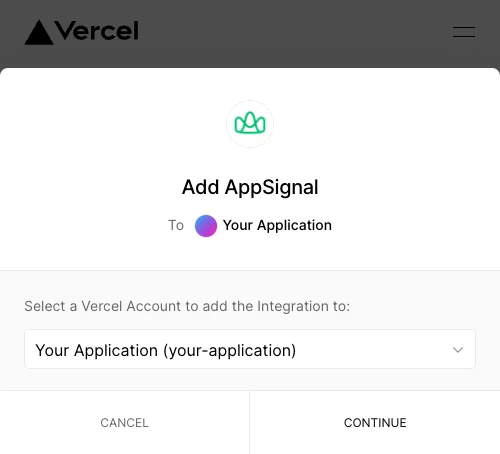
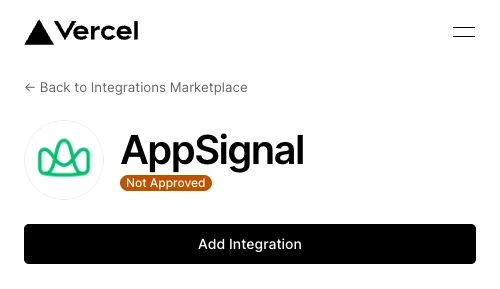 Wählen Sie als Nächstes aus, zu welchem Vercel-Konto Sie AppSignal hinzufügen möchten.
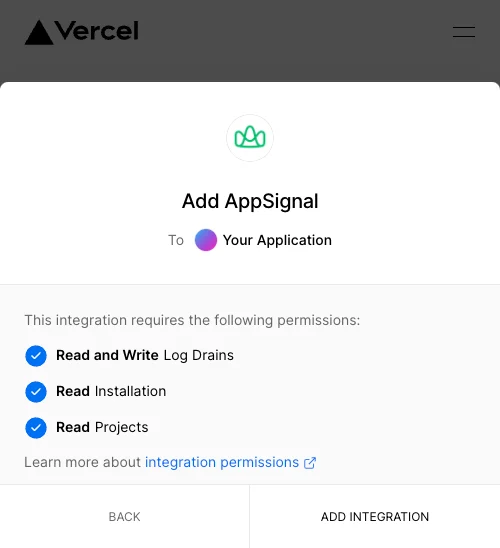
 Folgen Sie den Schritten auf Vercel, bis Sie zum letzten Bildschirm gelangen. Hier müssen Sie auf „Add Integration" klicken:
 Als Nächstes müssen Sie auswählen, mit welcher AppSignal-Organisation Sie Vercel verknüpfen möchten.
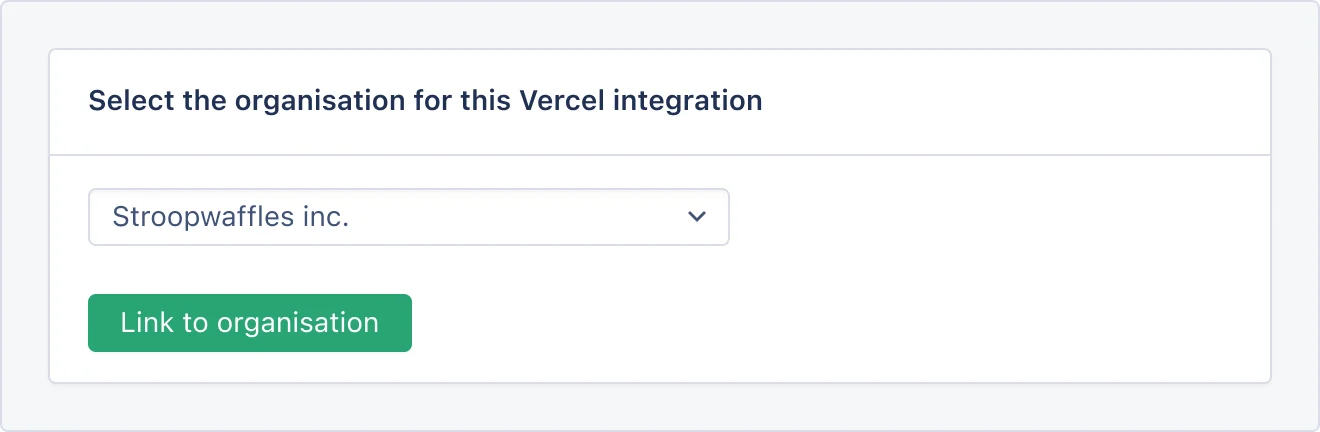 Jetzt können Sie zu AppSignal zurückkehren.
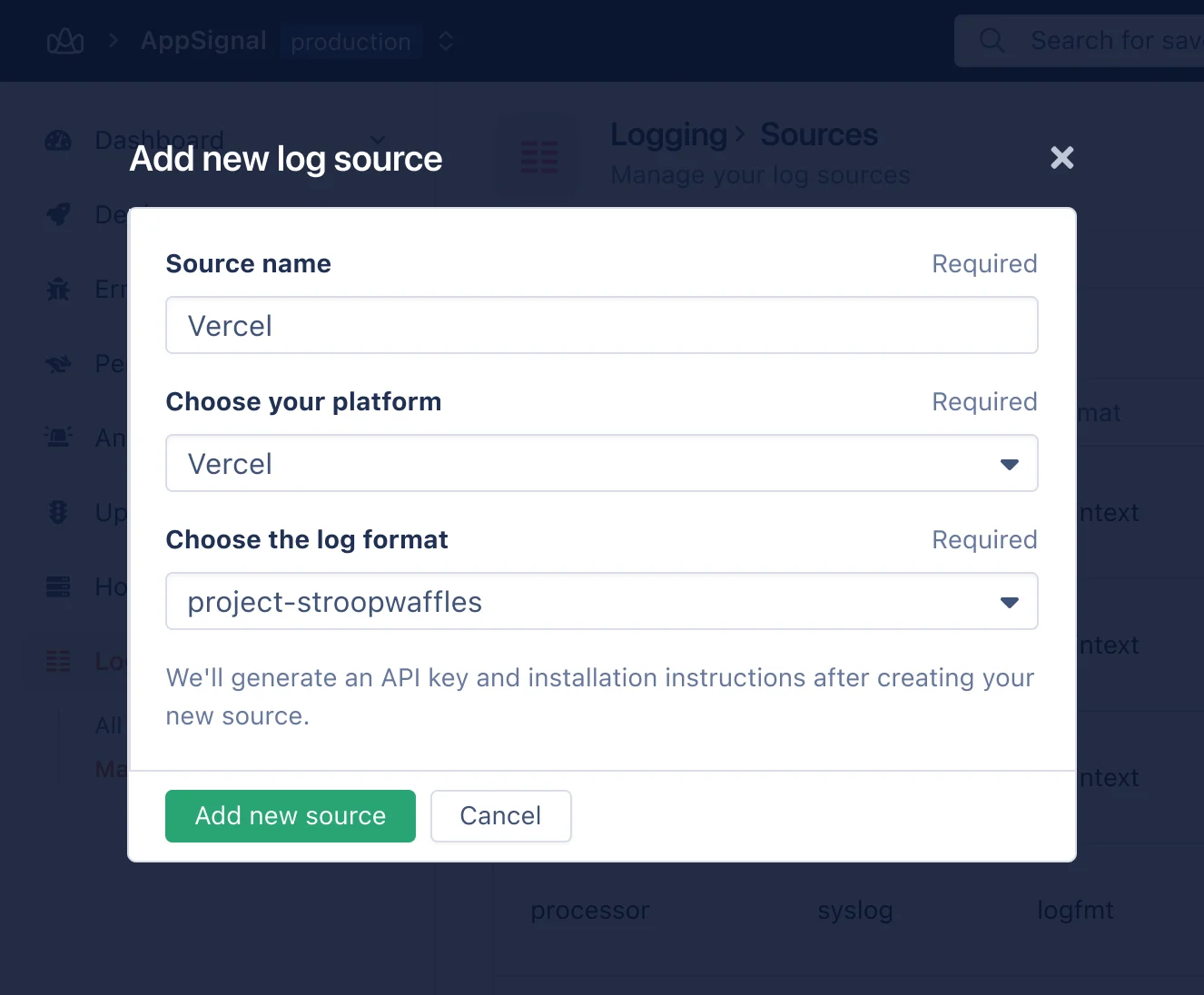
AppSignal prüft alle 30 Sekunden bei Vercel, ob es autorisiert wurde. Speichern Sie Ihre Protokollquelle nicht, bis die Autorisierung abgeschlossen ist und ein Dropdown Ihrer Vercel-Projekte angezeigt wird:
Jetzt können Sie zu AppSignal zurückkehren.
AppSignal prüft alle 30 Sekunden bei Vercel, ob es autorisiert wurde. Speichern Sie Ihre Protokollquelle nicht, bis die Autorisierung abgeschlossen ist und ein Dropdown Ihrer Vercel-Projekte angezeigt wird:
 🛟 Wenn Sie bei diesem Schritt nicht weiterkommen, [kontaktieren Sie uns
bitte](mailto:support@appsignal.com), und wir helfen Ihnen, Ihre
Vercel-Protokolle zum Fließen zu bringen!
Wählen Sie das Projekt aus, von dem Sie Protokolle erfassen möchten, und klicken Sie auf „Add log source"
Sobald Ihre neue Protokollquelle erstellt wurde, sollten Protokolle in AppSignal erscheinen. Wenn Sie immer noch keine Protokolle sehen können, [kontaktieren Sie uns](mailto:support@appsignal.com) bitte für Support.
🛟 Wenn Sie bei diesem Schritt nicht weiterkommen, [kontaktieren Sie uns
bitte](mailto:support@appsignal.com), und wir helfen Ihnen, Ihre
Vercel-Protokolle zum Fließen zu bringen!
Wählen Sie das Projekt aus, von dem Sie Protokolle erfassen möchten, und klicken Sie auf „Add log source"
Sobald Ihre neue Protokollquelle erstellt wurde, sollten Protokolle in AppSignal erscheinen. Wenn Sie immer noch keine Protokolle sehen können, [kontaktieren Sie uns](mailto:support@appsignal.com) bitte für Support.