> ## Documentation Index
> Fetch the complete documentation index at: https://docs.appsignal.com/llms.txt
> Use this file to discover all available pages before exploring further.

# Deploy markers

export const Compatibility = ({versions = [], label = "Available in"}) => {
  if (!Array.isArray(versions) || versions.length === 0) {
    return null;
  }
  const defaultPillStyle = {
    borderColor: "#d4d4d8",
    background: "#f4f4f5",
    color: "#3f3f46"
  };
  const pillStyles = {
    "AppSignal for Elixir": {
      background: "#f3e8ff",
      borderColor: "#d8b4fe",
      color: "#6b21a8"
    },
    "AppSignal for Front-end": {
      background: "#fef9c3",
      borderColor: "#fde047",
      color: "#854d0e"
    },
    "AppSignal for Go": {
      background: "#ccfbf1",
      borderColor: "#5eead4",
      color: "#115e59"
    },
    "AppSignal for JavaScript": {
      background: "#fef9c3",
      borderColor: "#fde047",
      color: "#854d0e"
    },
    "AppSignal for Node.js": {
      background: "#dcfce7",
      borderColor: "#86efac",
      color: "#166534"
    },
    "AppSignal for Python": {
      background: "#dbeafe",
      borderColor: "#93c5fd",
      color: "#1e40af"
    },
    "AppSignal for Ruby": {
      background: "#fee2e2",
      borderColor: "#fca5a5",
      color: "#991b1b"
    },
    "AppSignal for Rust": {
      background: "#ffedd5",
      borderColor: "#fdba74",
      color: "#9a3412"
    }
  };
  const getPillStyle = name => ({
    ...defaultPillStyle,
    ...pillStyles[name] || ({})
  });
  return <div className="not-prose my-4 rounded-lg border border-zinc-200 bg-zinc-50 px-4 py-3 text-sm dark:border-white/10 dark:bg-white/5">
      <div className="flex flex-wrap items-center gap-x-2 gap-y-1">
        <span className="font-semibold text-zinc-700 dark:text-zinc-200">
          {label}:
        </span>
        {versions.map((v, i) => <span key={`${v.name}-${v.version}-${i}`} className="inline-flex items-center gap-1 rounded-full border px-2 py-0.5 text-xs font-medium" style={getPillStyle(v.name)}>
            <span>{v.name}</span>
            <span className="opacity-70">
              {v.version}
              {v.exact ? "" : "+"}
            </span>
          </span>)}
      </div>
    </div>;
};

Markers are little icons used in graphs on AppSignal.com to indicate a change. This can be a code deploy using a "Deploy marker" or a special event with a ["Custom marker"](/application/markers/custom-markers). Deploy markers can also be found in the ["Deploys" section](https://appsignal.com/redirect-to/app?to=markers) in the app navigation which provides a performance overview per deploy.

A deploy marker indicates a change in the deployed version of an application. This can be used to group together occurrences of errors and performance issues within a certain time frame. From when the version was deployed until a newer version was deployed. Deploy markers are also required to enable [backtrace links](/application/backtrace-links) for an app.

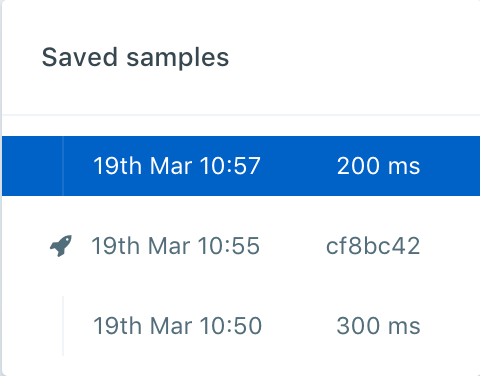
When a new deploy is detected, the list of incidents is empty for the newest deployment version. When an error, or any other issue, is reported by AppSignal in your application it gets listed for the newest deploy as well. On the sample page for an incident you can see in which deployments an incident occurred with the help of the rocket (🚀) separator icon.
<Note>
  📖 Also read our guide on [how to set up deploy
  markers](/guides/deploy-markers).
</Note>

<img src="https://mintcdn.com/appsignal-715f5a51/nF8c1Rwq1cS7b5hg/assets/images/screenshots/app_incident_samples_list.png?fit=max&auto=format&n=nF8c1Rwq1cS7b5hg&q=85&s=31ed7e05907d0d6ce1102810a22993a5" alt="Deploy markers in samples list" width="480" height="376" data-path="assets/images/screenshots/app_incident_samples_list.png" />

## Deploy methods

There are two methods of notifying AppSignal of a new deploy. These two methods cannot be used together.

1. Using the `revision` config option, and;
2. Creating a deploy notification manually with the AppSignal Push API.

The first method (`revision` config option) is our recommended approach, because it's the most reliable method and works better for applications with more than one host. We detect the revision from the application itself so we know which instance is running what version.

The second approach (creating a deploy marker manually) is a method only really useful for small applications that use one host. It creates a new deploy marker at a specific time, regardless of the version the application is actually running. This also means it's more error prone.

## Revision config option

The recommended approach of letting AppSignal know a new version of your application is deployed is by using the `revision` config option or the `APP_REVISION` environment variable (see the [deploy markers configuration guide](/guides/deploy-markers#configurations-per-language) for more information). This is automatically detected for [Heroku apps](#heroku-support) using the dyno metadata lab feature.

This config option is set per instance of an application which has the benefit of every version of an application running at the same time reporting the errors under the correct deploy, rather than the latest deploy that [has been reported](#manually-create-a-deploy-marker) to AppSignal.

For example: If one machine is still running an older version of the application all the errors from that instance are reported under the previous deploy marker rather than the last known deploy marker.

AppSignal will create a new deploy marker when it receives [transaction data](/appsignal/terminology#transactions). When the revision config option is set for your app, the revision is stored on a transaction that tracks a web request / background job. When our processor on the AppSignal servers detects a new revision it will create a new deploy marker for the parent app with the revision from the transaction.

### Config option

The `revision` config option can be used in any integration to report the app's current deploy. See the [deploy markers guide](/guides/deploy-markers) for more information.

<CodeGroup>
  ```ruby Ruby theme={null}
  AppSignal.configure do |config|
    config.revision = "abcdef12"
  end
  ```
</CodeGroup>

If you're running a version in which this config option is not available we recommend using the [`APP_REVISION` environment variable](#system-environment-variable) instead.

### System environment variable

The `APP_REVISION` value can be any value you use to indicate a version/revision. For example: a version number `1.4.2` or a git SHA `cf8bc42`.

The revision value should be set in the application's system environment and updated during a deploy of the application.

<CodeGroup>
  ```bash Bash theme={null}
  export APP_REVISION="cf8bc42"
  # Start your application
  # bundle exec rackup app.rb
  ```
</CodeGroup>

### Heroku support

When using Heroku with the [Heroku Labs: Dyno Metadata](https://devcenter.heroku.com/articles/dyno-metadata) enabled, Heroku will populate the `HEROKU_SLUG_COMMIT` environment variable with the SHA of the git commit being deployed.

AppSignal will automatically set the `revision` config option to the value of the `HEROKU_SLUG_COMMIT` system environment variable. This will automatically report new deploys when the Heroku app is deployed.

### Render support

<Compatibility
  versions={[
{ name: "AppSignal for Ruby", version: "3.4.7" },
{ name: "AppSignal for Elixir", version: "2.7.6" },
{ name: "AppSignal for Node.js", version: "3.0.16" },
{ name: "AppSignal for Python", version: "0.2.0" },
]}
/>

When deploying an application using Render, it will populate the `RENDER_GIT_COMMIT` environment variable with the SHA of the git commit being deployed.

AppSignal will automatically set the `revision` config option to the value of the `RENDER_GIT_COMMIT` system environment variable. This will automatically report new deploys when the Render app is deployed.

### Hatchbox support

<Compatibility versions={[{ name: "AppSignal for Ruby", version: "4.5.18" }]} />

To use deploy markers with Hatchbox, first connect your Hatchbox account to AppSignal:

1. In Hatchbox, go to your profile settings and navigate to [**Connected accounts**](https://app.hatchbox.io/user/connected_accounts).
2. On the "Connected accounts" page, select **Sign in with AppSignal**.
3. In the AppSignal window that opens, authorize Hatchbox to access your AppSignal organization by selecting **Allow access**.

When deploying an application using Hatchbox, it will add a `REVISION` file in the release folder with the SHA of the Git commit being deployed.

AppSignal will automatically set the `revision` config option to the value of the `REVISION` file. This will automatically report new deploys when the Hatchbox app is deployed.

### Kamal support

<Compatibility
  versions={[
{ name: "AppSignal for Ruby", version: "3.7.5" },
{ name: "AppSignal for Elixir", version: "3.4.7" },
{ name: "AppSignal for Node.js", version: "3.4.4" },
{ name: "AppSignal for Python", version: "1.3.3" },
]}
/>

When deploying an application using Kamal, it will populate the `KAMAL_VERSION` environment variable within the container with the SHA of the git commit being deployed.

AppSignal will automatically set the `revision` config option to the value of the `KAMAL_VERSION` system environment variable. This will automatically report new deploys when the app is deployed using Kamal.

### Docker support

If your application runs in a Docker container, follow the instructions below to set your application's revision and create a deploy marker.

First, add the following instructions to your Dockerfile, directly after the last `FROM` instruction:

<CodeGroup>
  ```bash Bash theme={null}
  ARG COMMIT
  ENV APP_REVISION=$COMMIT
  ```
</CodeGroup>

Once added you need to include your application's revision when building your Docker image:

```bash Bash theme={null}
docker build --build-arg COMMIT=$(git rev-parse HEAD) -t image:latest
```

<Tip>
  When using Fly.io to deploy your application, the `COMMIT` build argument is
  provided automatically during the build.
</Tip>

This will set the `APP_REVISION` environment variable for your application and allow the AppSignal integration to use the revision as a deploy marker.

### GitLab support

When deploying from a GitLab CI/CD pipeline, set the `APP_REVISION` environment variable in your deploy job to the commit SHA so AppSignal picks it up when the app starts:

<CodeGroup>
  ```yaml YAML theme={null}
  deploy:production:
    stage: deploy
    variables:
      APP_REVISION: $CI_COMMIT_SHA
    script:
      - ./bin/deploy.sh
  ```
</CodeGroup>

`CI_COMMIT_SHA` is one of GitLab's [predefined CI/CD variables](https://docs.gitlab.com/ee/ci/variables/predefined_variables.html) and resolves to the commit being deployed.

If your stack does not include an AppSignal integration, see the [GitLab CI/CD example](#gitlab-cicd-example) instead.

## Manually create a deploy marker

<Warning>
  This method of reporting deploy markers is **deprecated** and may be removed at any time in the future.
  Reporting deploy markers using this method is only useful for small applications that use one application instance. It creates a new deploy marker at a specific time, regardless of the version the application is actually running. This also means it's also more error prone to group data that shouldn't belong to it under the deploy. We automatically detect deployment by reading the `REVISION` file which Capistrano adds to the release directory since Ruby gem 4.5.18.
</Warning>

This method of reporting new deploys to AppSignal requires that you send a POST request to the AppSignal Push API markers endpoint. This can be done with a manual HTTP POST request for other languages.

When the deploy marker create/notify request is received by the AppSignal servers, all data that is processed by our servers after that time is tracked under the newly created deploy.

To create a Deploy marker with a HTTP POST request you can use curl or some other tool like it. The payload of the request is a JSON object with data about the marker, such as the revision, user who deployed it and the application's repository.

Read more about how to create Deploy markers with our API in our [API endpoint](/api/markers) documentation.

### GitLab CI/CD example

If you can't use the [`revision` config option](#revision-config-option) — for example, because your stack does not include an AppSignal integration — you can call the Markers API from a separate GitLab CI/CD job after your deploy succeeds.

First, store your AppSignal credentials as masked CI/CD variables in your GitLab project's **Settings → CI/CD → Variables**:

* `APPSIGNAL_API_TOKEN` — your personal API token (Profile → Account settings → Personal → API).
* `APPSIGNAL_APP_ID` — the AppSignal app ID for the environment you're deploying. Find it in the AppSignal URL: `https://appsignal.com/<org-slug>/sites/<APPSIGNAL_APP_ID>/...`.

Then add a deploy-marker job to your `.gitlab-ci.yml`:

<CodeGroup>
  ```yaml YAML theme={null}
  stages:
    - deploy
    - notify

  deploy:production:
    stage: deploy
    script:
      - ./bin/deploy.sh
    rules:
      - if: '$CI_COMMIT_BRANCH == "main"'

  appsignal:deploy_marker:
    stage: notify
    image: curlimages/curl:latest
    needs: ["deploy:production"]
    rules:
      - if: '$CI_COMMIT_BRANCH == "main"'
    script:
      - |
        curl --fail --silent --show-error \
          -H "Content-Type: application/json" \
          -X POST "https://appsignal.com/api/${APPSIGNAL_APP_ID}/markers.json?token=${APPSIGNAL_API_TOKEN}" \
          -d "{
                \"marker\": {
                  \"kind\": \"deploy\",
                  \"repository\": \"${CI_PROJECT_URL}.git\",
                  \"revision\": \"${CI_COMMIT_SHA}\",
                  \"user\": \"${GITLAB_USER_LOGIN}\"
                }
              }"
  ```
</CodeGroup>

<Tip>
  GitLab webhooks cannot be used to call the Markers API directly — GitLab
  webhook payloads have a fixed format that does not match the Markers API
  request body, and GitLab does not let you transform the payload before
  sending.
</Tip>

#### Troubleshooting

If the marker job fails with `401 Unauthorized`, re-check `APPSIGNAL_API_TOKEN`. It must be a personal API token from **Profile → Account settings → Personal → API**, not the Push API key. Confirm the variable is not restricted by Environment scope to a different environment than the job runs in.

If the marker job fails with `404 Not Found`, the `APPSIGNAL_APP_ID` is wrong or belongs to a different organization. Copy it from the AppSignal app's URL (`https://appsignal.com/<org>/sites/<APPSIGNAL_APP_ID>/...`).

[backtrace links]: /application/backtrace-links.html
