> ## Documentation Index
> Fetch the complete documentation index at: https://docs.appsignal.com/llms.txt
> Use this file to discover all available pages before exploring further.
# Jira
> Jira is the tracker for teams planning and building great products.
🗓 This documentation was updated in November 2022 to reflect Jira's user
interface changes. If, at the time of reading, you find that our instructions
are no longer up-to-date, please [let us know!](mailto:support@appsignal.com)
[Jira](https://www.atlassian.com/software/jira) is a tool used for project management. It centers around a ticketing system whereby features, chores, and bugs can be ticketed, tracked, and assigned.
AppSignal can be integrated into Jira for the automatic ticketing of incidents.
This documentation will guide you through the steps needed to integrate AppSignal into your Jira project.
## Configure Jira
Before we can link AppSignal to Jira we need to configure Jira to accept our OAuth request.
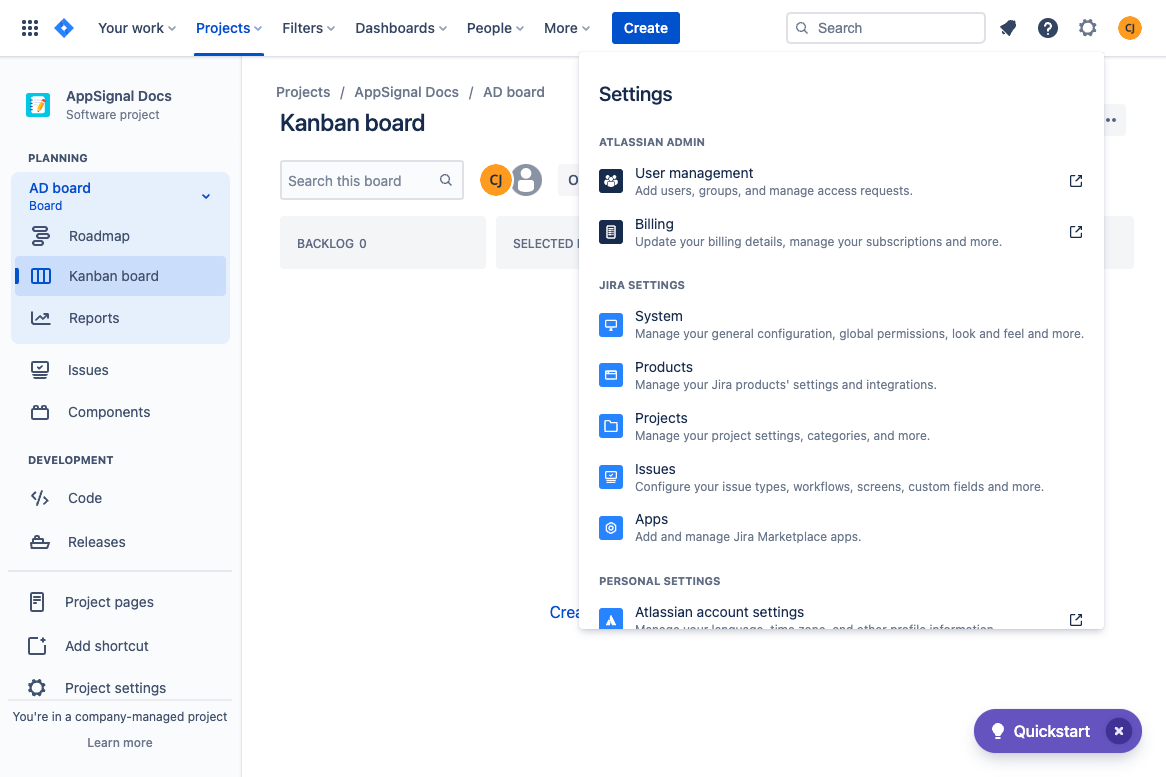
To do this, click the settings cogwheel (⚙️) on the top-right of the navigation bar and select **Products** from the settings menu.
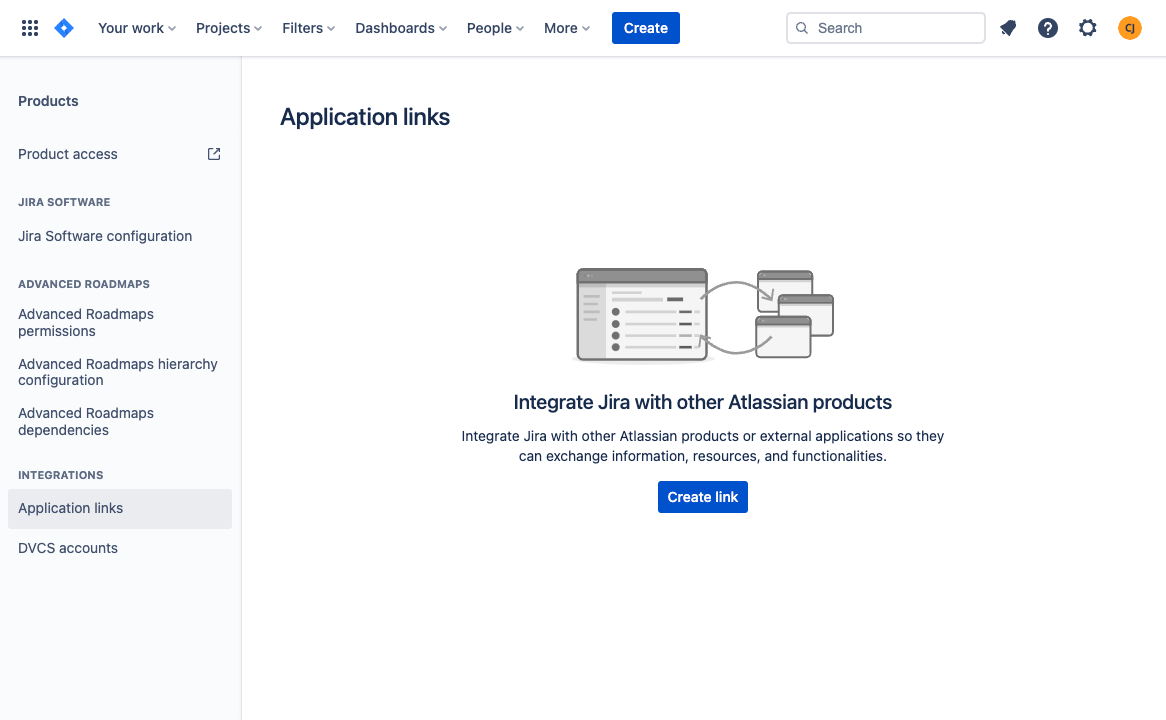
 Select **"Application links"** from the Products side navigation, then click **"Create link"**.
 A pop-up will appear. In the Application URL field, add the address: `https://www.appsignal.com`
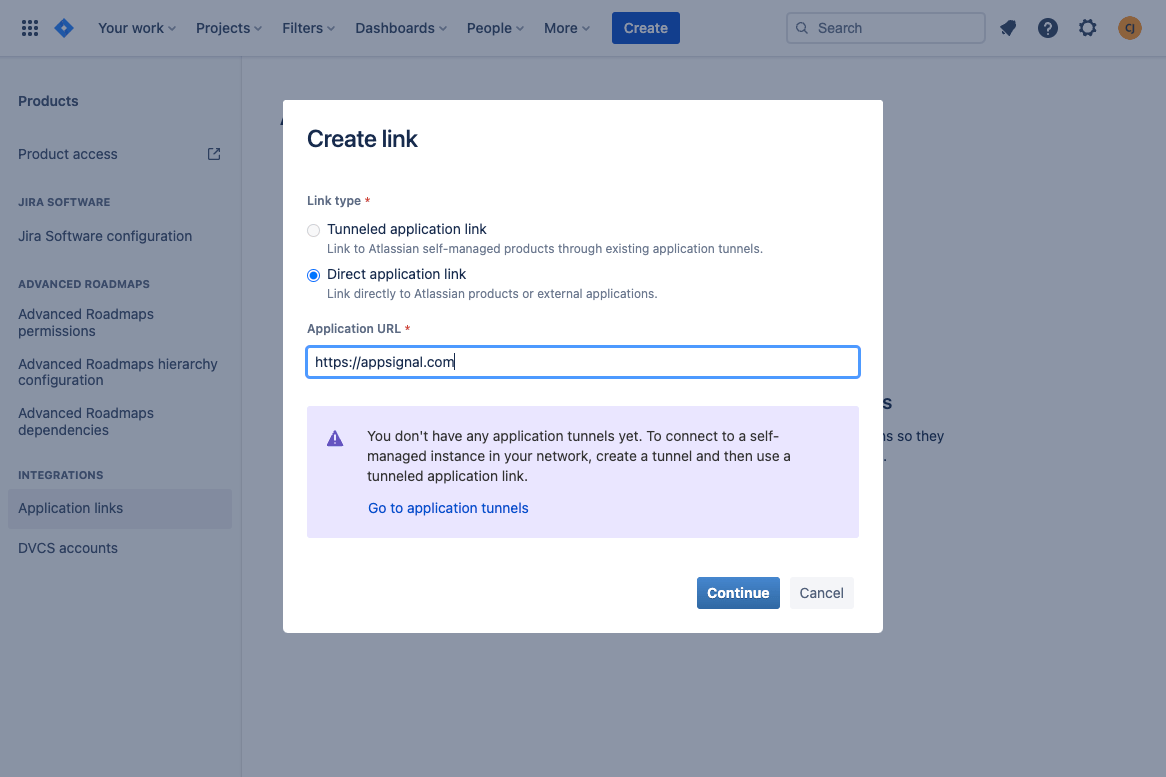 Jira may show the error: "No response was received from the URL you entered". You may ignore this error and proceed by clicking **"Continue"**
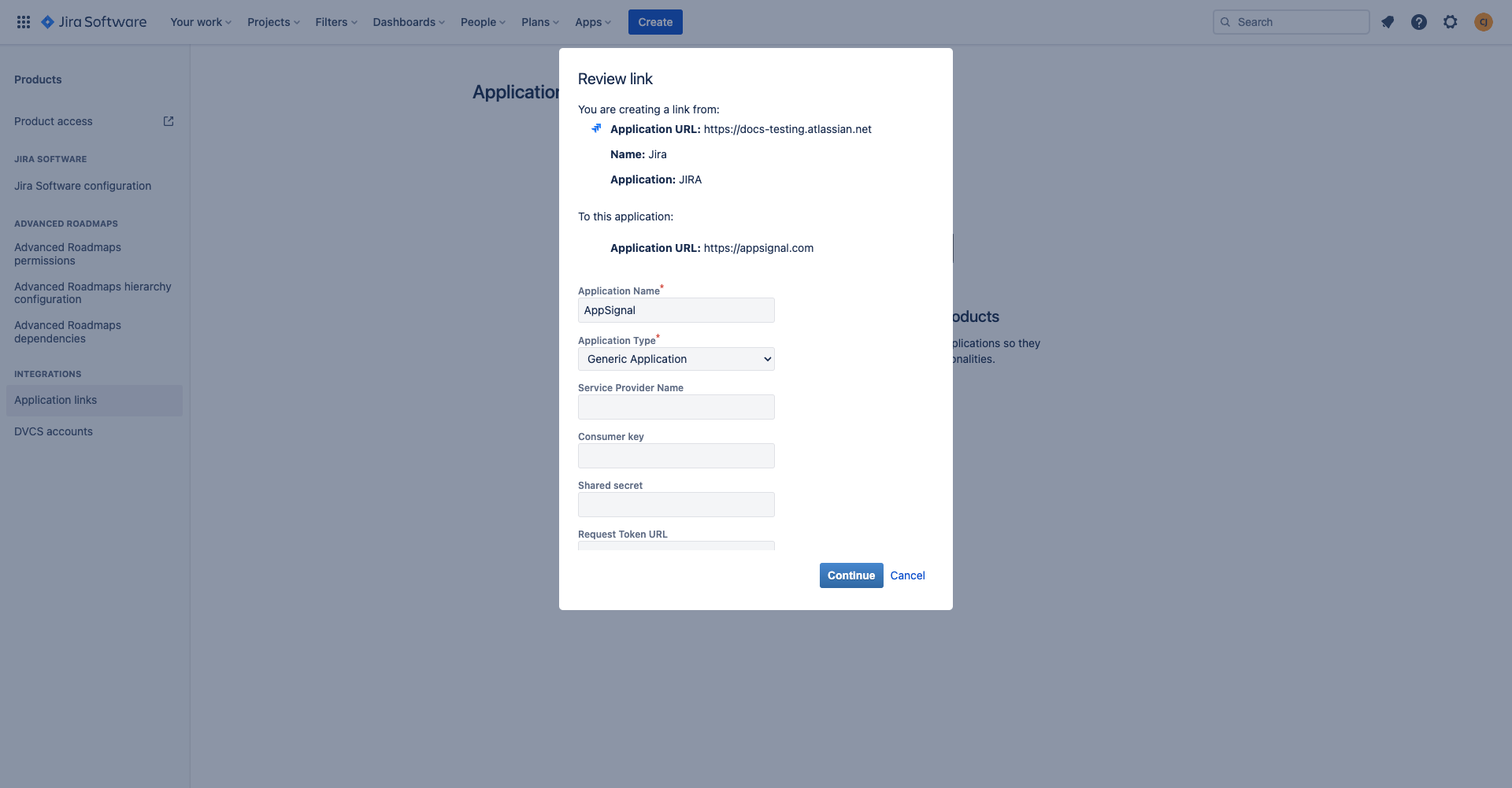
You will next be presented with a Review Link screen. You only need to provide an Application name before continuing. Name the application: `AppSignal`, and press continue.
Jira may show the error: "No response was received from the URL you entered". You may ignore this error and proceed by clicking **"Continue"**
You will next be presented with a Review Link screen. You only need to provide an Application name before continuing. Name the application: `AppSignal`, and press continue.
 ### OAuth Setup
Now it's time to configure AppSignal's **"Incoming Authentication"**. To do this, navigate to **"Edit"** on the **"Application links"** screen:
### OAuth Setup
Now it's time to configure AppSignal's **"Incoming Authentication"**. To do this, navigate to **"Edit"** on the **"Application links"** screen:
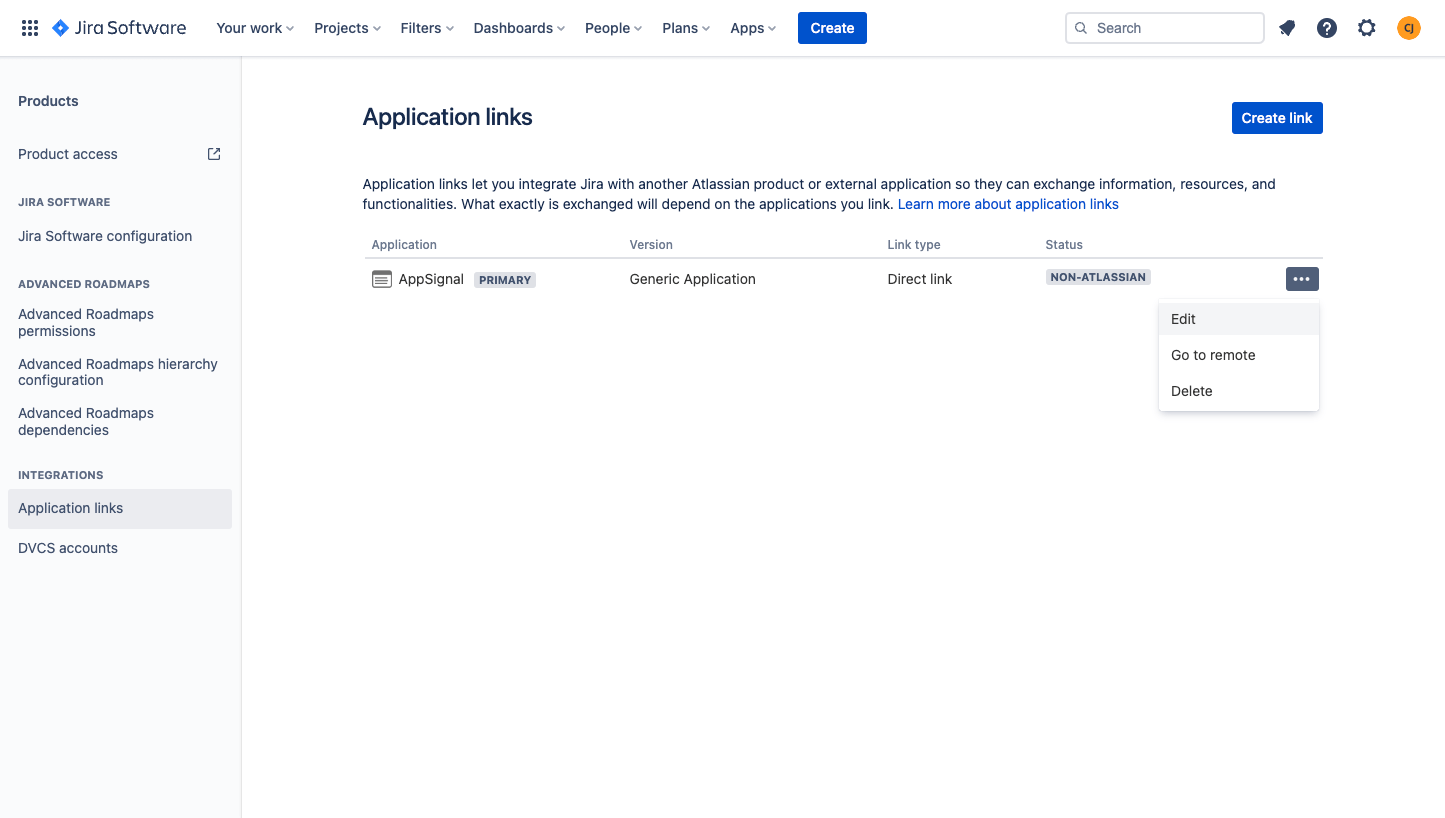 A **"Configure AppSignal"** pop-up will be opened. Navigate to "Incoming Authentication" on the left menu.
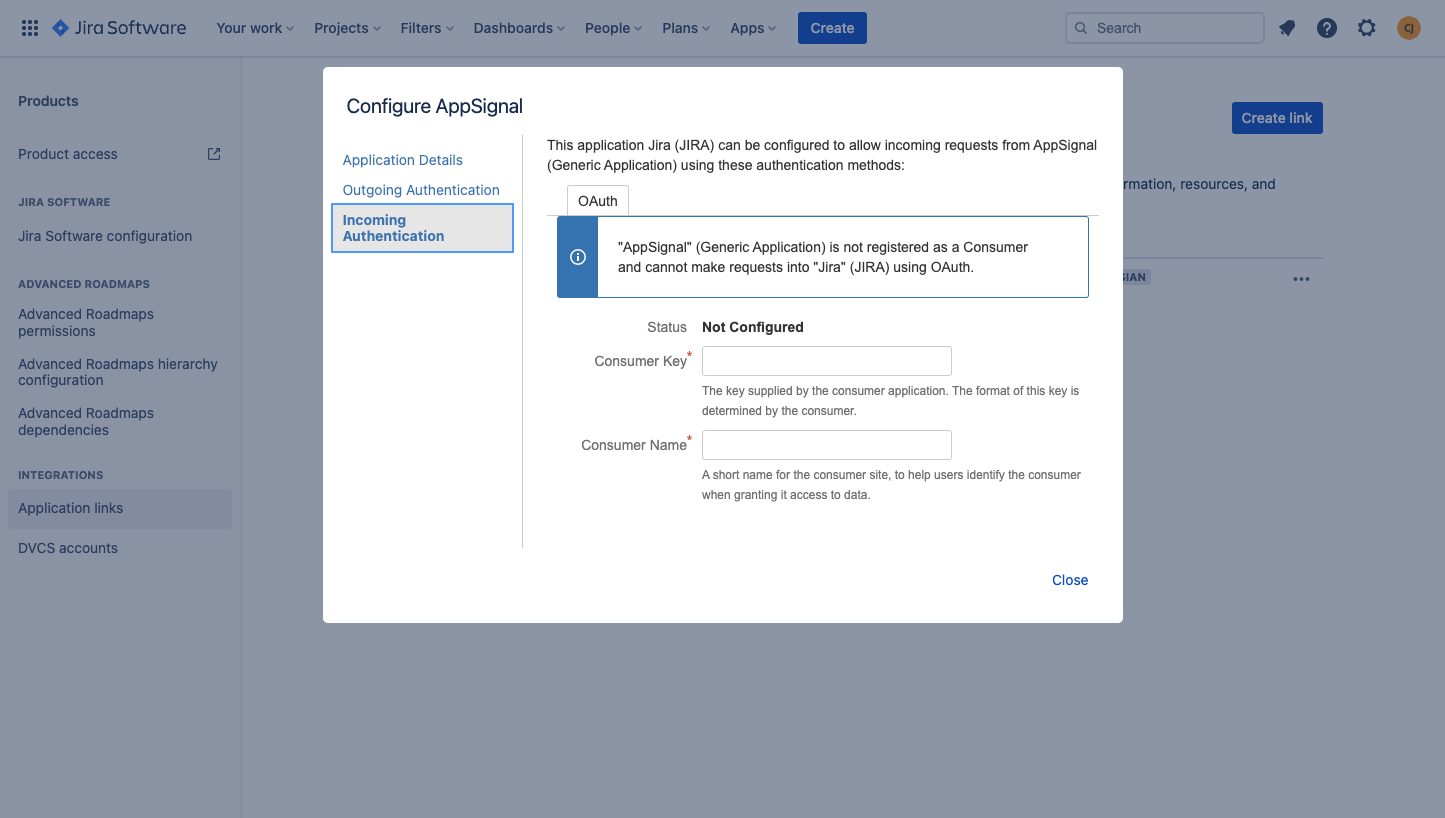 In the "Incoming OAuth" tab, set up OAuth with the following values:
* Consumer Key: `ce2jejafmni3qmnzrfergg9fLpzxmppl`
* Consumer Name: `AppSignal`
* Public Key:
```text Text theme={null}
-----BEGIN CERTIFICATE-----
MIIDaDCCAlACCQCmEw1Ty8uuRTANBgkqhkiG9w0BAQsFADB2MQswCQYDVQQGEwJO
TDEWMBQGA1UECAwNTm9vcmQtQnJhYmFudDESMBAGA1UEBwwJRGVuIEJvc2NoMRUw
EwYDVQQKDAxBcHBTaWduYWwgQlYxJDAiBgkqhkiG9w0BCQEWFWNvbnRhY3RAYXBw
c2lnbmFsLmNvbTAeFw0yMjA0MjExMDQ1MjBaFw0yMjA1MjExMDQ1MjBaMHYxCzAJ
BgNVBAYTAk5MMRYwFAYDVQQIDA1Ob29yZC1CcmFiYW50MRIwEAYDVQQHDAlEZW4g
Qm9zY2gxFTATBgNVBAoMDEFwcFNpZ25hbCBCVjEkMCIGCSqGSIb3DQEJARYVY29u
dGFjdEBhcHBzaWduYWwuY29tMIIBIjANBgkqhkiG9w0BAQEFAAOCAQ8AMIIBCgKC
AQEAtts1uBJnpIP89PDrlz7EjmEOBBE9RRjpfEEcPctwyYwgLwlP1rK75Qsi/f/T
4T8jD1Q5uVoaAx03m+OBnAJu016qZI2yaCBDVw4+eZwhD9O4kj9ZvwsOFv+ewme8
Bi4MSh+PpXcZuf+FAtAWEPS0aZlA3tq1DokxiJsu1UjfDGBjpVGRf4vwPhQg9Qaq
SPOpFODHX6m2fQvglRUxU6y9pJgXhBUxhkiyAosJOnvVLVVdOJ/cnEM6XRfXMb1I
aa7on+2dMjryZktYCZRwWMKBfTP3v4qyWB/keyob9K/BvHi8uDTSbJV62vQ+WJza
b3STEtFvLl6o2l8GzSkHVlX8/QIDAQABMA0GCSqGSIb3DQEBCwUAA4IBAQAXnutJ
HHFo3s+b1pnbRs0uKQ/D8bMUlGQocOh2+7189puEdy161Z6qXbv7QL2Z5uAhd67j
I/8h3Fchtiy+PbXAn5L+cTQ8ixPllBq4+WFCnL+lWhV4Pnv+qc6KohBHOfgYL9U0
aKGYe5/eFBdewXE1VT+qfncXOxRSjGr4L5UqqS3672ncl1mEWwX6VN/SiGQ8eQ2h
FnBIhGCok9w2GLRmx7bfdQVo0b5ROq1FgWyWJWT+eFRmAJ4ei2YrjmfgAfgVEco3
LfAzOw42KKEkcFLiPLZarCGh15fh7QSdBIVI1aF15vceLONC4EEvxMpFLYljmqIF
aXqiZ0iKf9gfCvtP
-----END CERTIFICATE-----
```
Click **"Save"**.
## Configuring AppSignal
To complete the process of linking your Jira project to AppSignal, AppSignal must be configured to communicate with your Jira project.
To do this, open your application in AppSignal. Click "App settings" on at the bottom of the left-hand navigation pane and then click "Integrations":
In the "Incoming OAuth" tab, set up OAuth with the following values:
* Consumer Key: `ce2jejafmni3qmnzrfergg9fLpzxmppl`
* Consumer Name: `AppSignal`
* Public Key:
```text Text theme={null}
-----BEGIN CERTIFICATE-----
MIIDaDCCAlACCQCmEw1Ty8uuRTANBgkqhkiG9w0BAQsFADB2MQswCQYDVQQGEwJO
TDEWMBQGA1UECAwNTm9vcmQtQnJhYmFudDESMBAGA1UEBwwJRGVuIEJvc2NoMRUw
EwYDVQQKDAxBcHBTaWduYWwgQlYxJDAiBgkqhkiG9w0BCQEWFWNvbnRhY3RAYXBw
c2lnbmFsLmNvbTAeFw0yMjA0MjExMDQ1MjBaFw0yMjA1MjExMDQ1MjBaMHYxCzAJ
BgNVBAYTAk5MMRYwFAYDVQQIDA1Ob29yZC1CcmFiYW50MRIwEAYDVQQHDAlEZW4g
Qm9zY2gxFTATBgNVBAoMDEFwcFNpZ25hbCBCVjEkMCIGCSqGSIb3DQEJARYVY29u
dGFjdEBhcHBzaWduYWwuY29tMIIBIjANBgkqhkiG9w0BAQEFAAOCAQ8AMIIBCgKC
AQEAtts1uBJnpIP89PDrlz7EjmEOBBE9RRjpfEEcPctwyYwgLwlP1rK75Qsi/f/T
4T8jD1Q5uVoaAx03m+OBnAJu016qZI2yaCBDVw4+eZwhD9O4kj9ZvwsOFv+ewme8
Bi4MSh+PpXcZuf+FAtAWEPS0aZlA3tq1DokxiJsu1UjfDGBjpVGRf4vwPhQg9Qaq
SPOpFODHX6m2fQvglRUxU6y9pJgXhBUxhkiyAosJOnvVLVVdOJ/cnEM6XRfXMb1I
aa7on+2dMjryZktYCZRwWMKBfTP3v4qyWB/keyob9K/BvHi8uDTSbJV62vQ+WJza
b3STEtFvLl6o2l8GzSkHVlX8/QIDAQABMA0GCSqGSIb3DQEBCwUAA4IBAQAXnutJ
HHFo3s+b1pnbRs0uKQ/D8bMUlGQocOh2+7189puEdy161Z6qXbv7QL2Z5uAhd67j
I/8h3Fchtiy+PbXAn5L+cTQ8ixPllBq4+WFCnL+lWhV4Pnv+qc6KohBHOfgYL9U0
aKGYe5/eFBdewXE1VT+qfncXOxRSjGr4L5UqqS3672ncl1mEWwX6VN/SiGQ8eQ2h
FnBIhGCok9w2GLRmx7bfdQVo0b5ROq1FgWyWJWT+eFRmAJ4ei2YrjmfgAfgVEco3
LfAzOw42KKEkcFLiPLZarCGh15fh7QSdBIVI1aF15vceLONC4EEvxMpFLYljmqIF
aXqiZ0iKf9gfCvtP
-----END CERTIFICATE-----
```
Click **"Save"**.
## Configuring AppSignal
To complete the process of linking your Jira project to AppSignal, AppSignal must be configured to communicate with your Jira project.
To do this, open your application in AppSignal. Click "App settings" on at the bottom of the left-hand navigation pane and then click "Integrations":
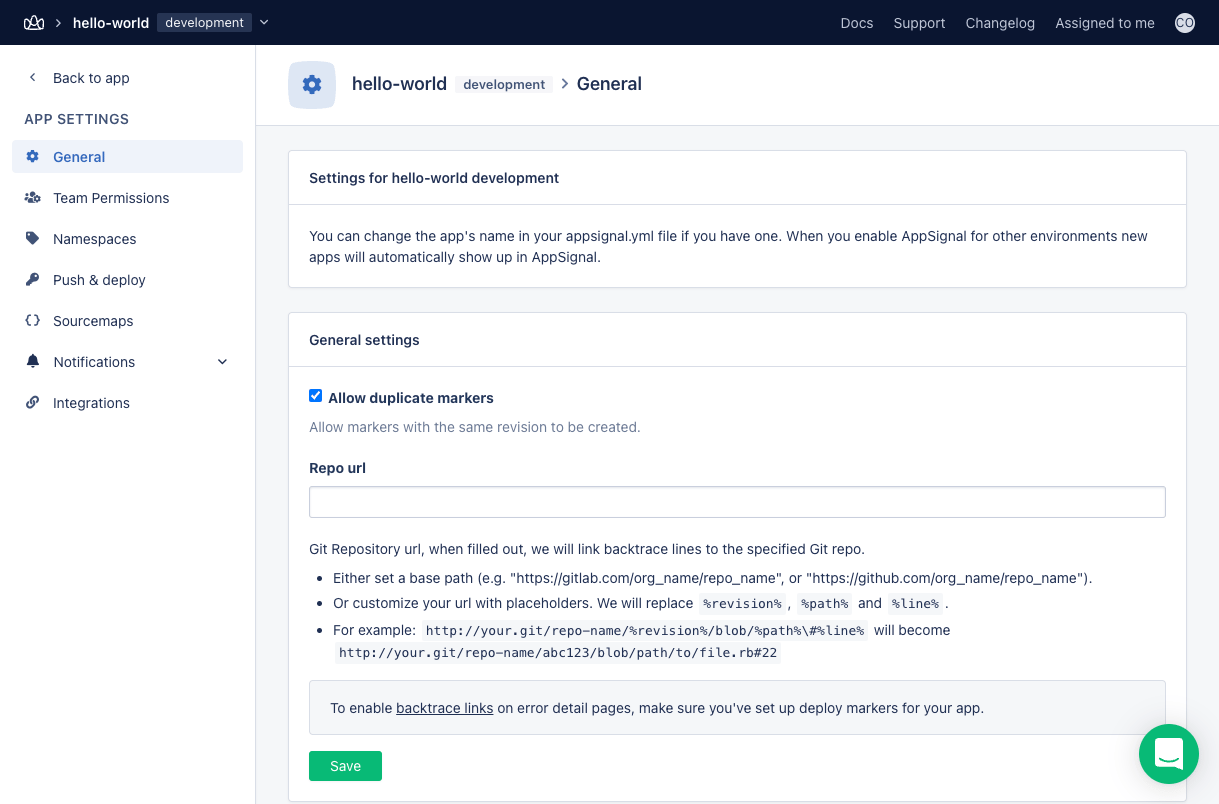 Navigate to "Personal issue tracker integrations" and click "Manage" for Jira. Alternatively, follow [this link](https://appsignal.com/redirect-to/app?to=integrations/jira/edit).
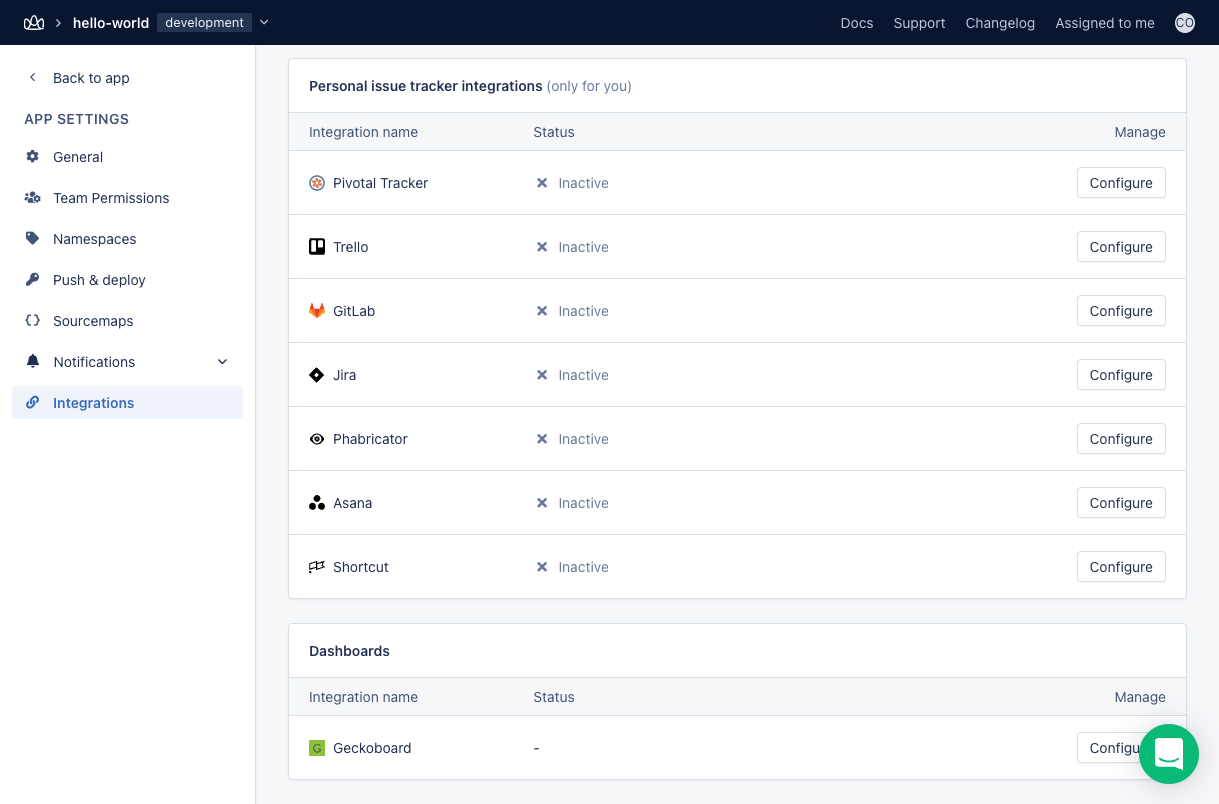 Scroll down to "Jira installation location" and enter the URL of your Jira project, e.g.: `project-name.appsignal.net`, then click "link AppSignal to Jira.
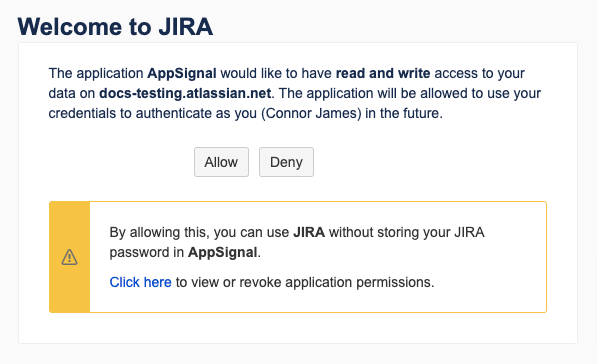
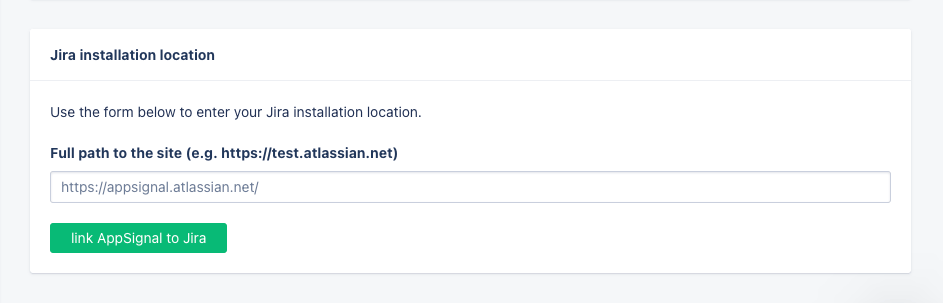 You'll be presented with the following authentication screen. Click: "Allow".
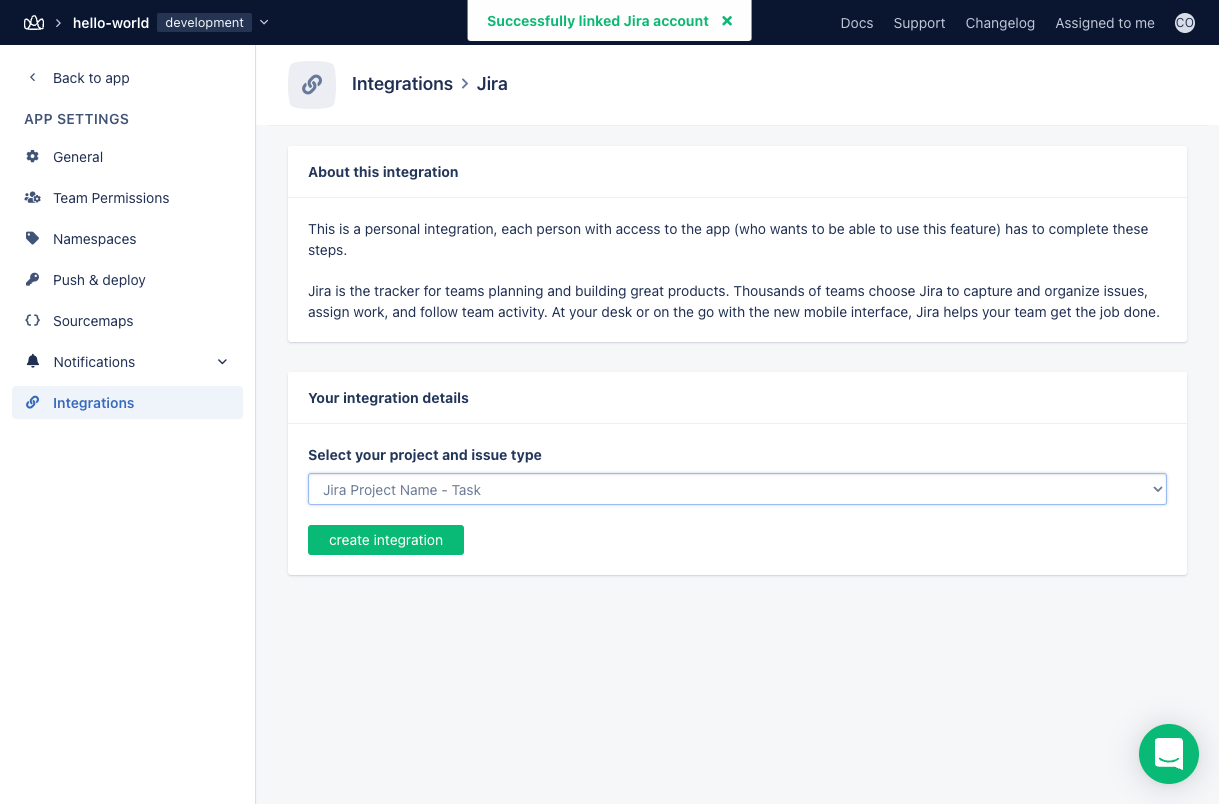
 You'll return to AppSignal. Here you need to select which project and issue type you want to use for AppSignal issues. To proceed, click: **"create integration"**
 If this step produces an error message, please read the [errors](#errors) section for further guidance.
## Errors
AppSignal requires four fields to be present in Jira:
* Labels
* Environment
* Summary
* Description
AppSignal will show an error message on completion of setup if fields are missing and specify which ones must be added in Jira.
If this step produces an error message, please read the [errors](#errors) section for further guidance.
## Errors
AppSignal requires four fields to be present in Jira:
* Labels
* Environment
* Summary
* Description
AppSignal will show an error message on completion of setup if fields are missing and specify which ones must be added in Jira.
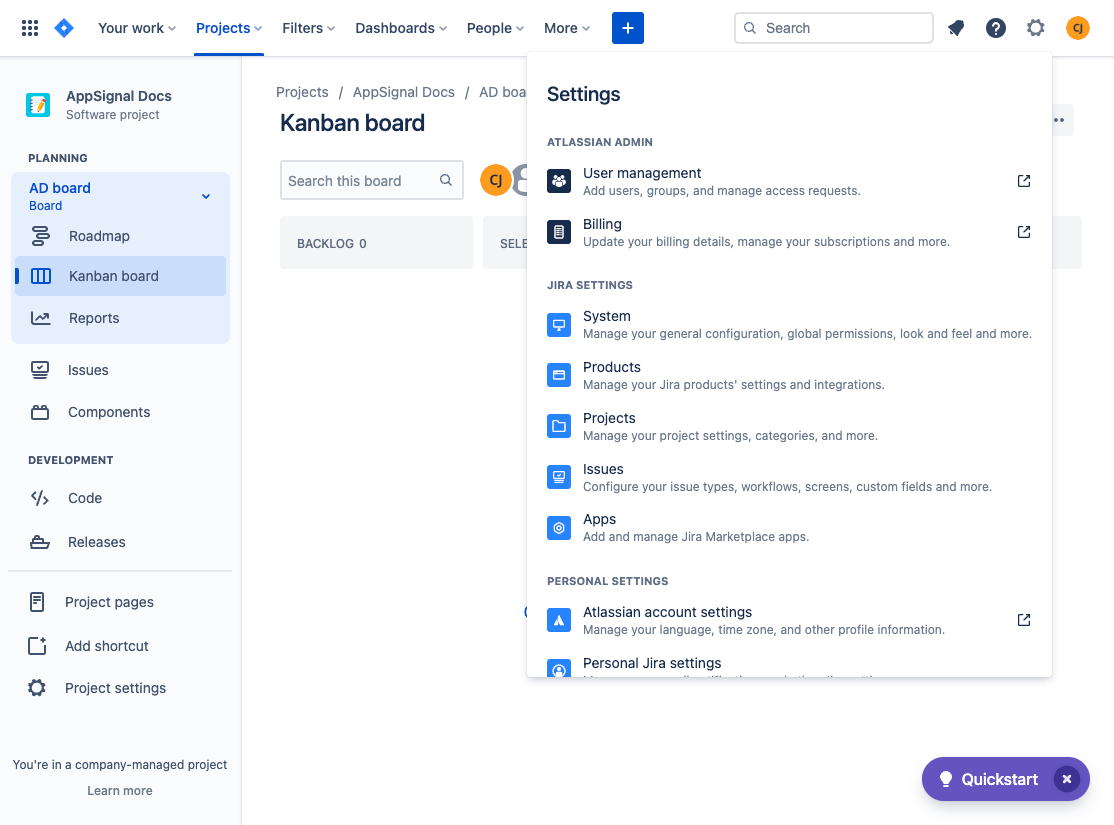
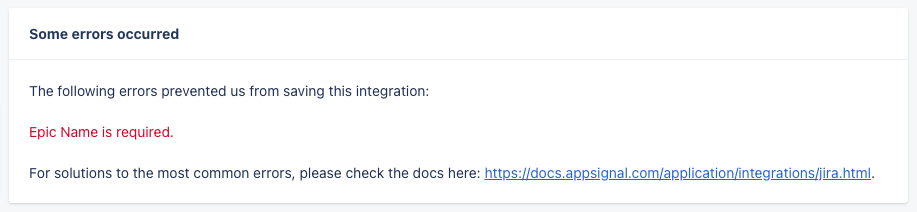 You will have to add the fields to the Jira screens by going to the "Issues" tab in the "Settings" menu:
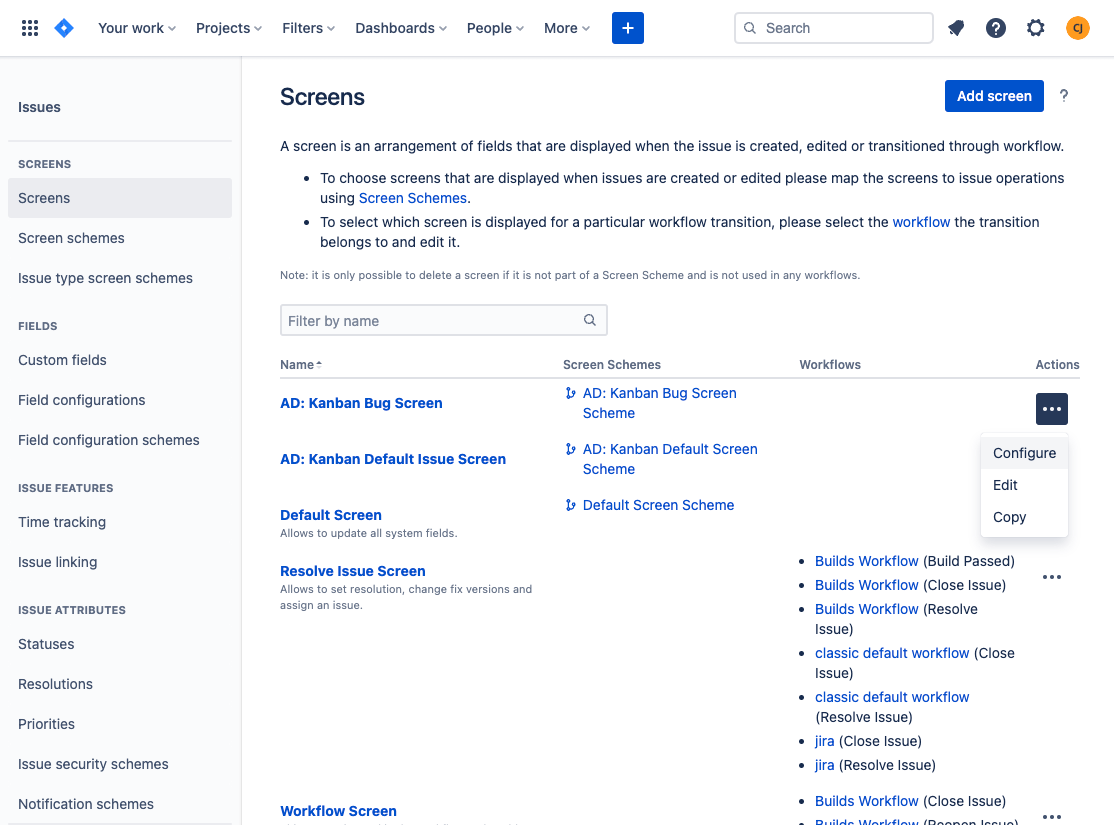
 Then navigate to the "Screens" on the left navigation pane and click on "Configure" for the relevant screen:
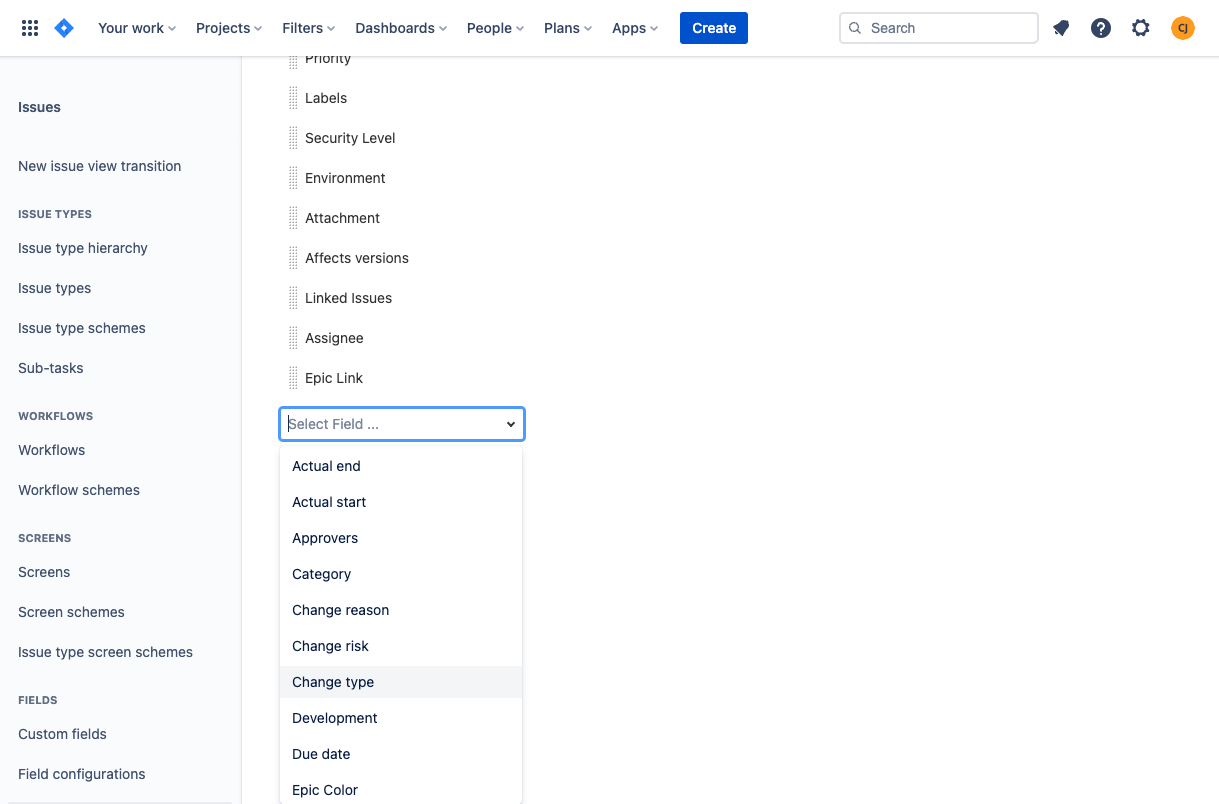
 On this "Configure" page Jira will present you with a list of already configured fields. Scroll to the bottom of the page and add the missing required fields.
 Once all fields have been created, you should be able to resume and complete the [configuration your Jira integration from the AppSignal app](#configuring-appsignal).
## Need Help?
If you've followed the steps on this page and are still getting stuck, feel free to contact us at [support@appsignal.com](mailto:support@appsignal.com).
Once all fields have been created, you should be able to resume and complete the [configuration your Jira integration from the AppSignal app](#configuring-appsignal).
## Need Help?
If you've followed the steps on this page and are still getting stuck, feel free to contact us at [support@appsignal.com](mailto:support@appsignal.com).
### Integrations list
* [Asana](/application/integrations/asana)
* [Discord](/application/integrations/discord)
* [Geckoboard](/application/integrations/geckoboard)
* [GitLab](/application/integrations/gitlab)
* [Google Hangouts Chat](/application/integrations/hangouts)
* [Jira](/application/integrations/jira)
* [Linear](/application/integrations/linear)
* [Microsoft Teams](/application/integrations/teams)
* [OpsGenie](/application/integrations/opsgenie)
* [PagerDuty](/application/integrations/pagerduty)
* [Shortcut](/application/integrations/shortcut)
* [Slack](/application/integrations/slack)
* [Squadcast](/application/integrations/squadcast)
* [Trello](/application/integrations/trello)
* [Webhooks](/application/integrations/webhooks)