> ## Documentation Index
> Fetch the complete documentation index at: https://docs.appsignal.com/llms.txt
> Use this file to discover all available pages before exploring further.
# Google Hangouts Chat
> From direct messages to group conversations, Google Hangouts Chat helps teams collaborate easily and efficiently.
From direct messages to group conversations, Google Hangouts Chat helps teams collaborate easily and efficiently.
Google Hangouts Chat is a global integration set up per App.
Website: [chat.google.com](https://chat.google.com)
## Adding Google Hangouts Chat to your app
Adding the integration consists of two steps, one on Google Hangouts Chat and one on AppSignal.
### Google Hangouts Chat
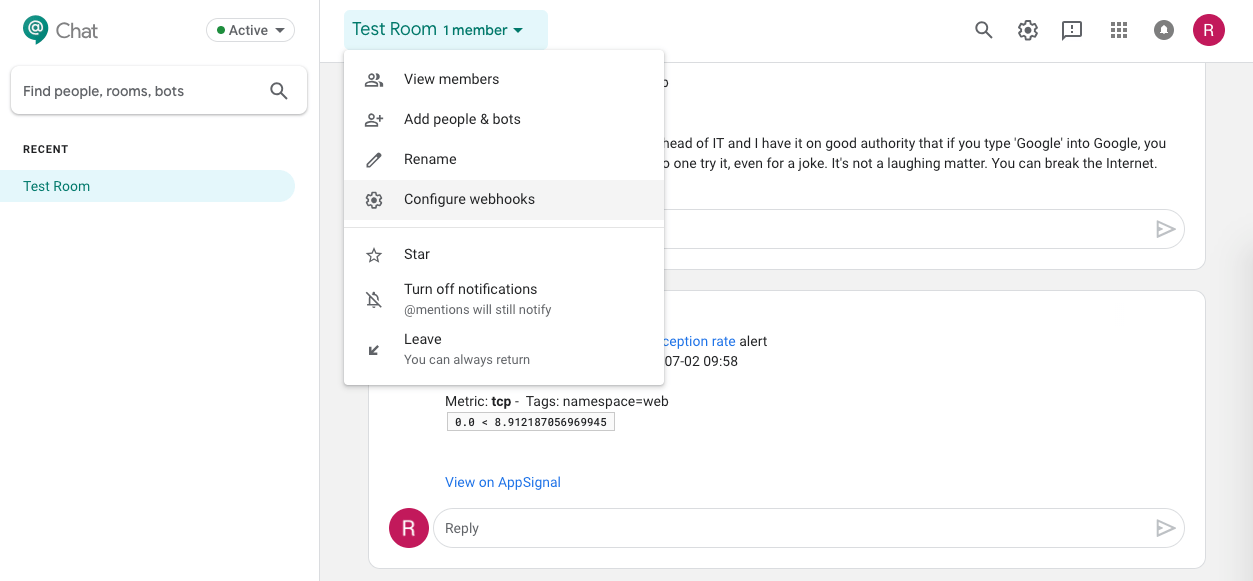
Head to the chat options and select "Configure webhooks'
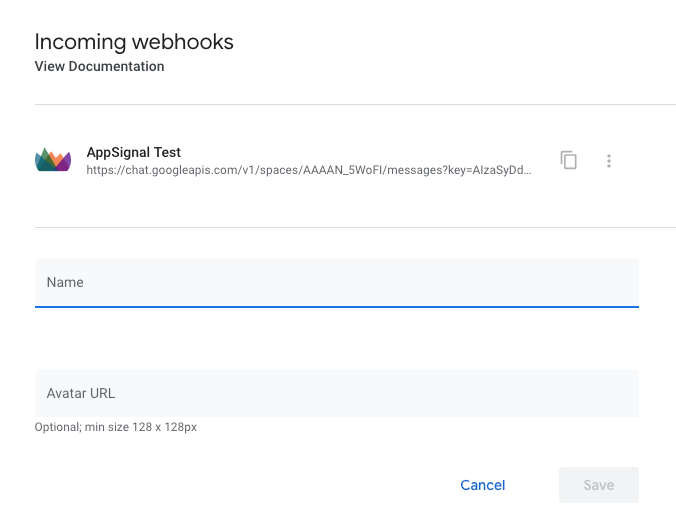
 Fill out the fields, for "Avatar url" we suggest: `https://appsignal.com/assets/appsignal-icon-square.png`
 ### AppSignal
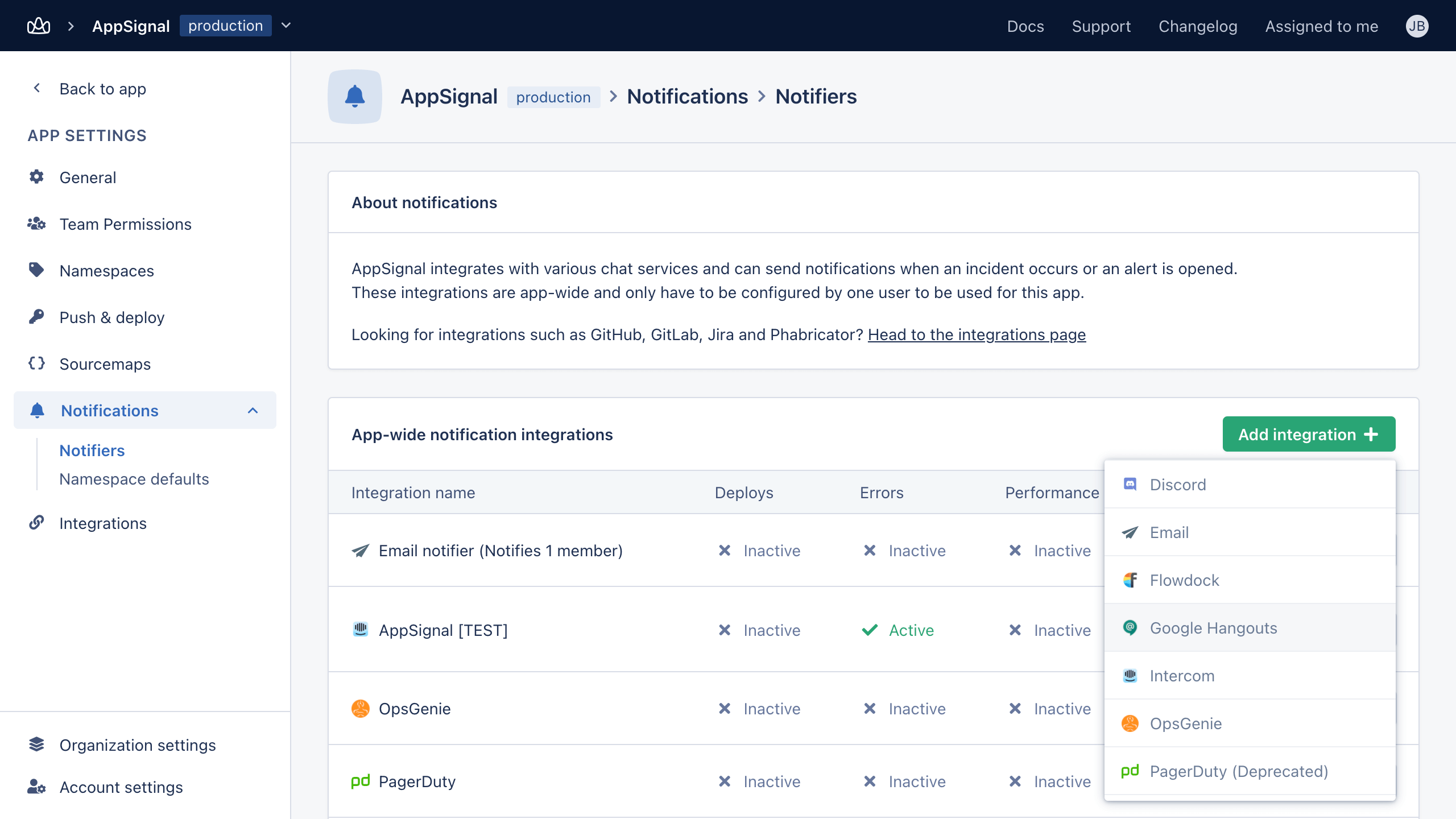
On the desired app, head to "Notifiers" and select "Google Hangouts"
### AppSignal
On the desired app, head to "Notifiers" and select "Google Hangouts"
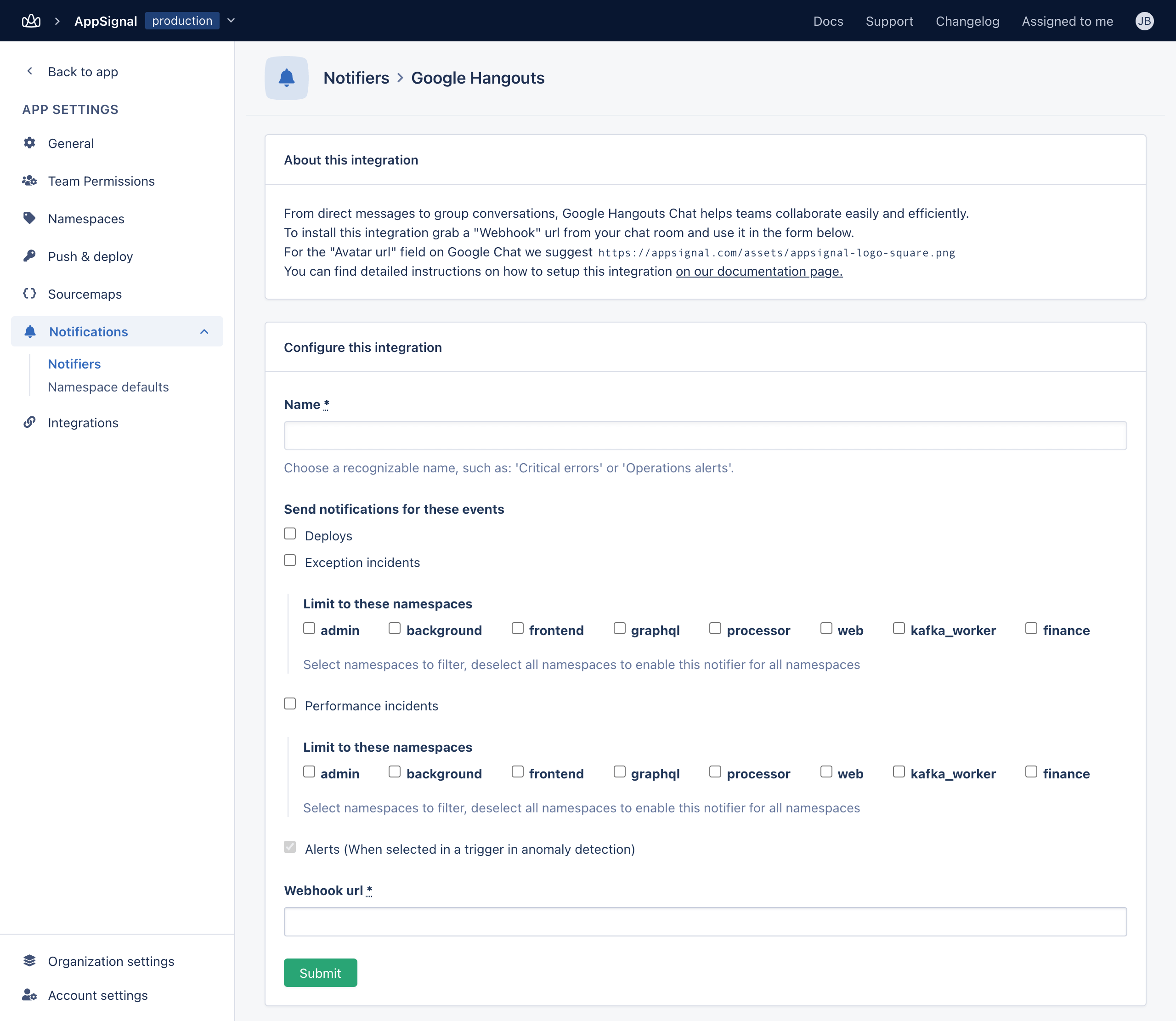
 Fill out the form and paste the webhook url from step one in the "webhook ur" field. Make sure to pick a descriptive name for the integration such as "#errors channel on Hangouts"
 You can test the integration after saving the form, a message should appear in your Hangouts chat.
If anything went wrong while validating the integration your will be prompted with the error message.
Feel free [contact us](mailto:support@appsignal.com) if you experience any problems while setting up this integration.
You can test the integration after saving the form, a message should appear in your Hangouts chat.
If anything went wrong while validating the integration your will be prompted with the error message.
Feel free [contact us](mailto:support@appsignal.com) if you experience any problems while setting up this integration.
### Integrations list
* [Asana](/application/integrations/asana)
* [Discord](/application/integrations/discord)
* [Geckoboard](/application/integrations/geckoboard)
* [GitLab](/application/integrations/gitlab)
* [Google Hangouts Chat](/application/integrations/hangouts)
* [Jira](/application/integrations/jira)
* [Linear](/application/integrations/linear)
* [Microsoft Teams](/application/integrations/teams)
* [OpsGenie](/application/integrations/opsgenie)
* [PagerDuty](/application/integrations/pagerduty)
* [Shortcut](/application/integrations/shortcut)
* [Slack](/application/integrations/slack)
* [Squadcast](/application/integrations/squadcast)
* [Trello](/application/integrations/trello)
* [Webhooks](/application/integrations/webhooks)