> ## Documentation Index
> Fetch the complete documentation index at: https://docs.appsignal.com/llms.txt
> Use this file to discover all available pages before exploring further.
# Link AppSignal to Repo
The following documentation will walk you through all the steps needed to integrate AppSignal with your GitHub Organization's repositories and link them to your AppSignal apps so that you can set up issue tracking.
## Adding Organization issue tracker integrations
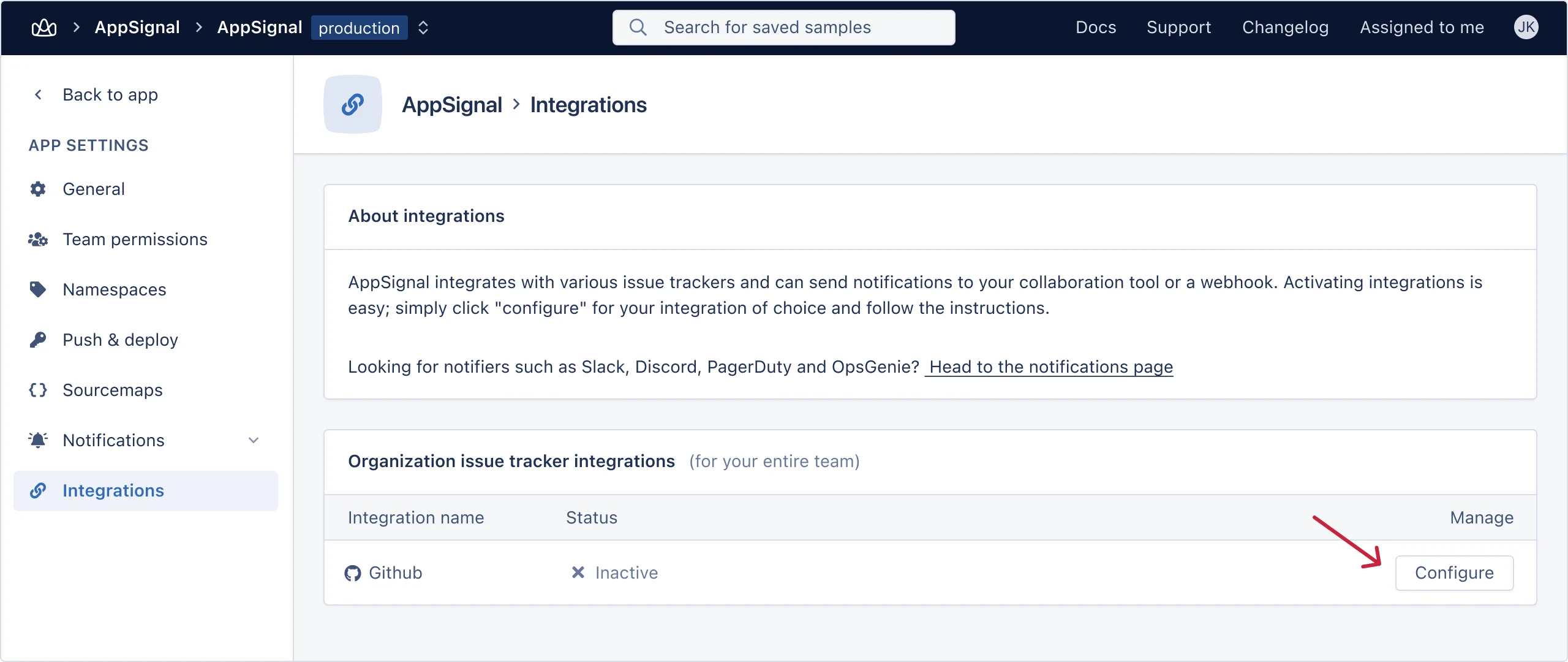
Head over to your application's [integration](https://appsignal.com/redirect-to/app?to=integrations) page. Click on the "Configure" button for GitHub integration.
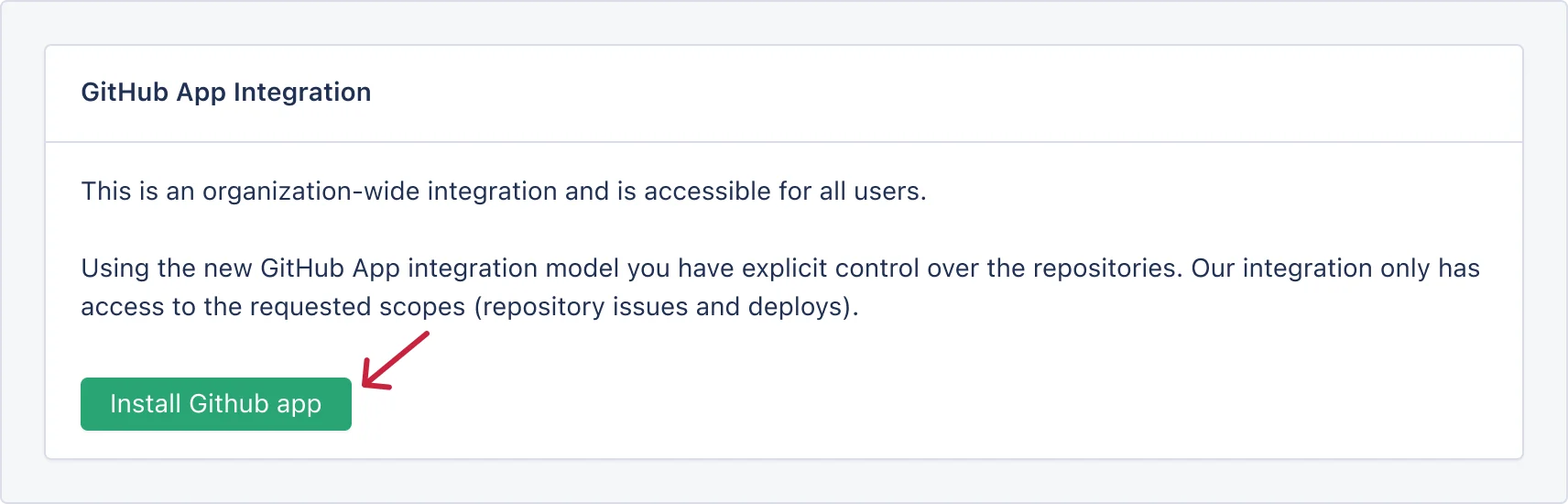
 On the next step click on the "Install GitHub app" button.
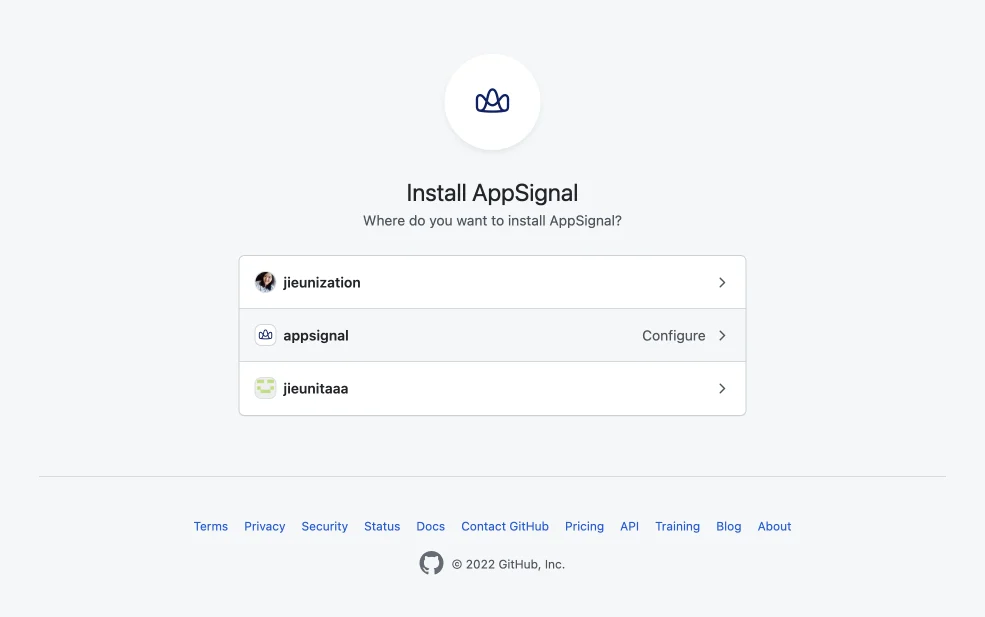
 You will be redirected to GitHub, here you should select your account/organization where the application source code exists.
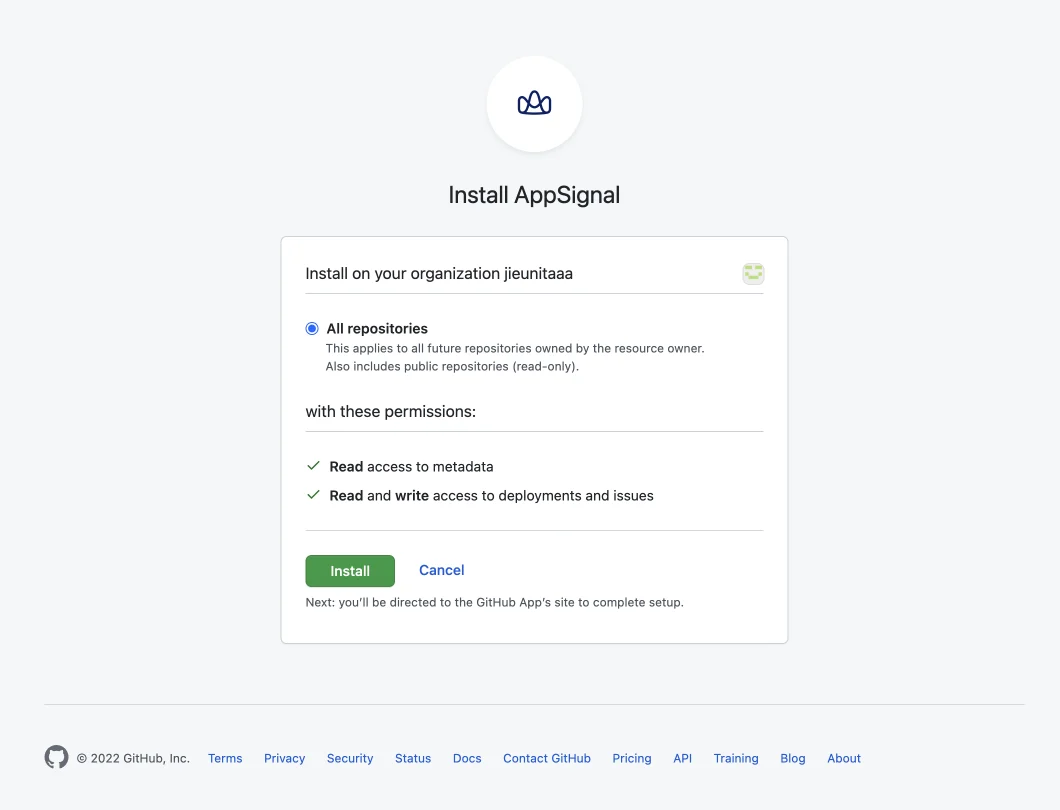
 You will then be asked to select the repository of your application. Depending on your preference either select "All repositories" or select specific repositories by choosing "Only select repositories". Once done click on "Install & Request" button.
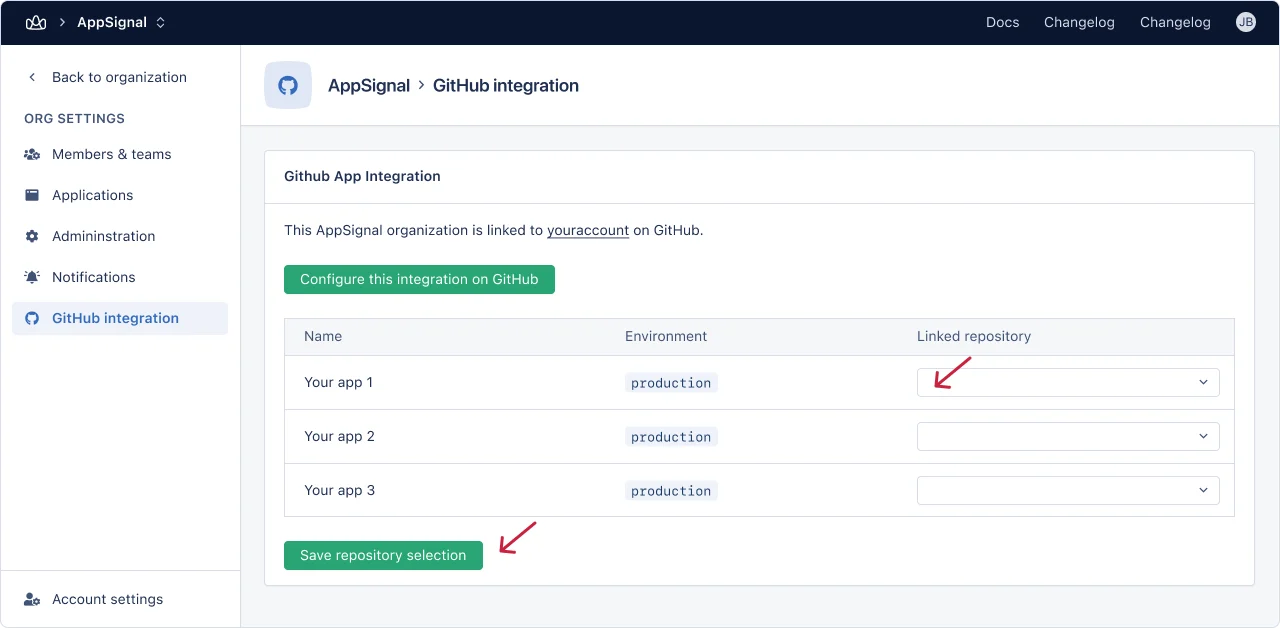
 After this step you will be redirect back to AppSignal where you should link your application in AppSignal with the repository in GitHub using the "linked repository" drop down menu and then click on "Save repository selection" button.
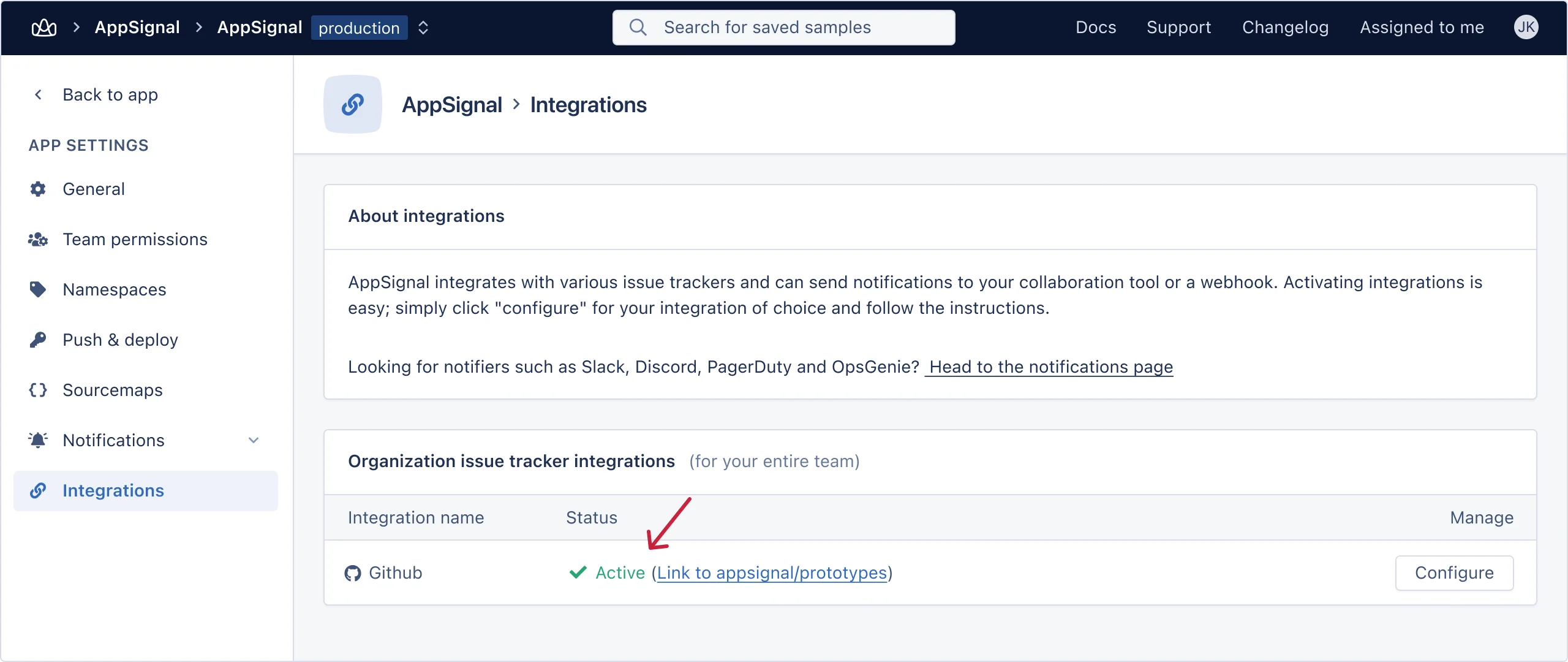
 You are now done, if you head back to your application's [integration](https://appsignal.com/redirect-to/app?to=integrations) page you will notice the integration is now active.
 ### Troubleshooting
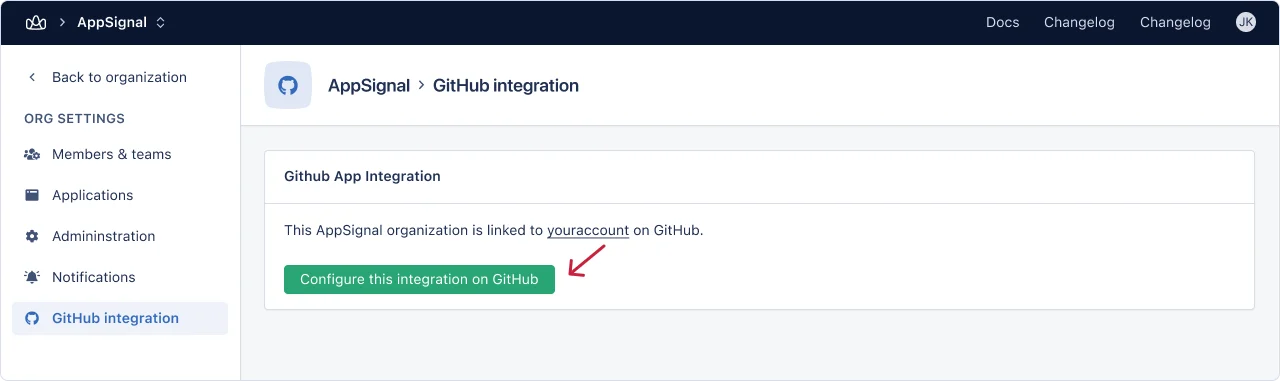
If you already linked your organization at GitHub with AppSignal and you are not seeing the repository when you visit the [organization integrations page](https://appsignal.com/redirect-to/organization?to=admin/integrations/github). Then click on the "Configure this integration on GitHub" button.
### Troubleshooting
If you already linked your organization at GitHub with AppSignal and you are not seeing the repository when you visit the [organization integrations page](https://appsignal.com/redirect-to/organization?to=admin/integrations/github). Then click on the "Configure this integration on GitHub" button.
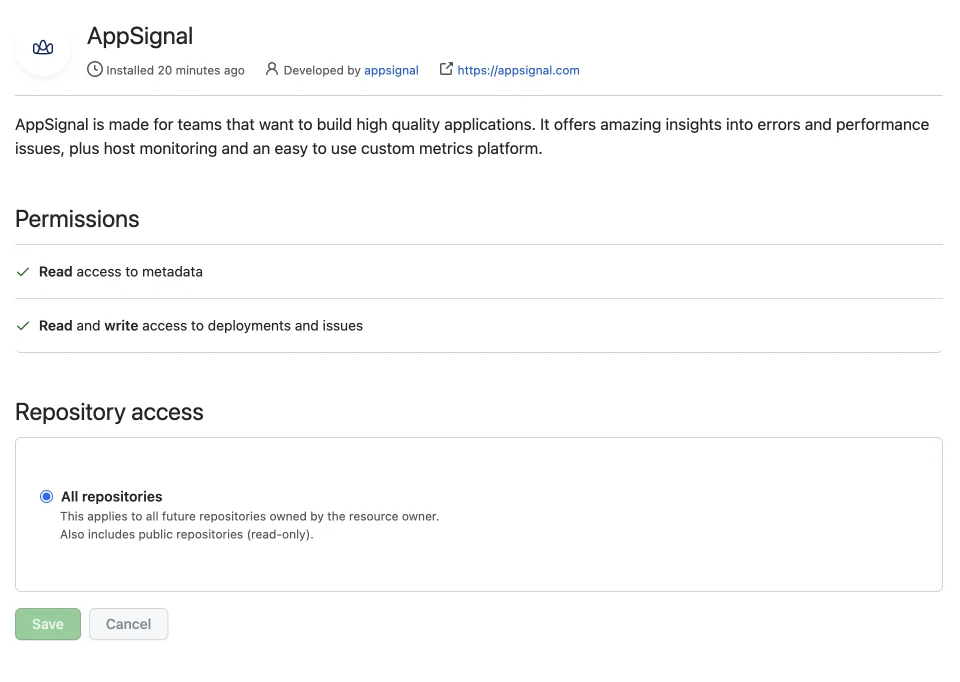
 You will be redirected to GitHub, make sure you have selected the repository which is missing in AppSignal, or select "All repositories" and click on "Save" button.
 You will be redirected back to AppSignal and you should now be able to see the name of your repository in the "linked repository" drop down.
If anything went wrong while validating the integration your will be prompted with the error message.
Feel free [contact us](mailto:support@appsignal.com) if you experience any problems while setting up this integration.
[github]: https://github.com
You will be redirected back to AppSignal and you should now be able to see the name of your repository in the "linked repository" drop down.
If anything went wrong while validating the integration your will be prompted with the error message.
Feel free [contact us](mailto:support@appsignal.com) if you experience any problems while setting up this integration.
[github]: https://github.com